

-
- No Comments
- December 25, 2025

How to find Amazon chat history
1. Introduction
Amazon chat history is essentially a digital record of your conversations on Amazon whether with customer support representatives or individual sellers. These chat logs act as a personal archive, helping you keep track of support interactions, resolve order-related queries, and maintain communication with sellers.
Accessing your Amazon chat history is more than just a convenience; it’s a smart way to monitor past interactions, ensure accountability, and retrieve crucial information when issues arise like order discrepancies, refunds, or delivery problems.
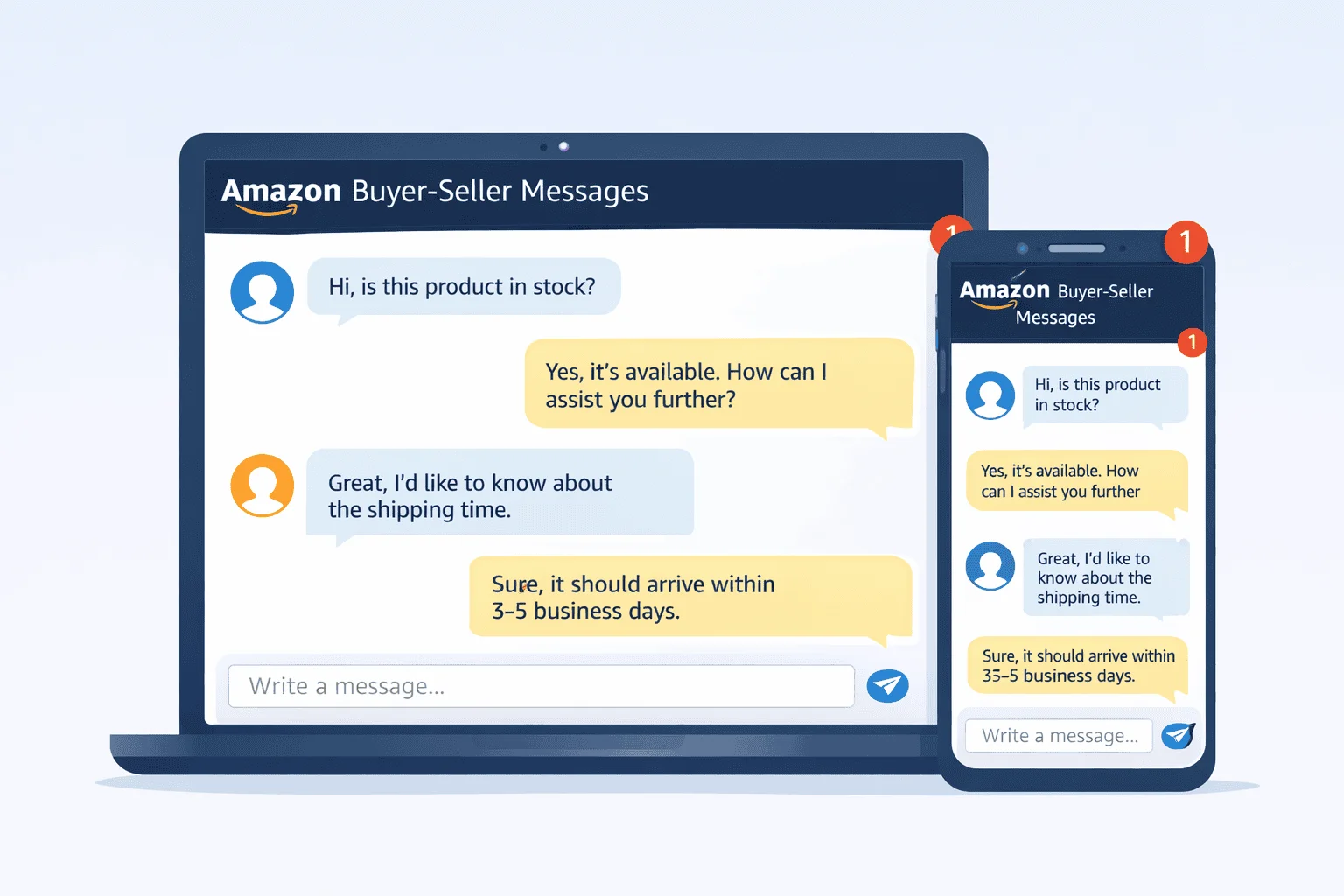
It’s important to distinguish between the two main types of chats: customer service chats and buyer-seller messages. Customer service chats involve interactions with Amazon’s official support team, typically focused on resolving account, order, or technical issues. Buyer-seller messages, on the other hand, are direct communications between you and individual sellers, often centered around product details, shipping questions, or special requests.
Whether you’re accessing these chats on a desktop or through the mobile app, Amazon provides slightly different interfaces, but both platforms allow you to review, search, and even save important conversation threads.
2. Understanding Amazon Chat Types

2.1 Customer Service Chat History
Customer service chat history refers to all conversations you have with Amazon’s official support teams. These interactions are typically initiated when you need help with orders, returns, refunds, technical issues, or other account-related concerns.
Uses of Customer Service Chat History:
- Tracking order issues and updates
- Resolving return or refund requests
- Following up on previous support inquiries
- Maintaining a record of communication for future reference
These chats are essential if you ever need to verify what was discussed or promised during a support session, providing peace of mind and a reliable reference point.
2.2 Buyer-Seller Messages
Buyer-seller messages are the direct conversations between you, the buyer, and the individual seller of a product. These are typically accessed via the “Message Center” in your account and are especially useful for addressing product-specific questions.
Uses of Buyer-Seller Messages:
- Clarifying order details or special instructions
- Inquiring about product features, availability, or shipping timelines
- Resolving delivery issues or reporting damaged items
- Requesting additional services or modifications related to an order
By maintaining a record of these communications, buyers can ensure smoother transactions and sellers can provide better support, creating a more transparent shopping experience for both parties.
3. How to Access Amazon Chat History on Desktop

3.1 Customer Service Chats
Accessing customer service chats on desktop is straightforward and allows you to review previous support interactions efficiently. Follow these steps:
Step-by-Step Guide:
- Log into your Amazon account at Amazon.com.
- Scroll to the bottom of the homepage and click “Help” under the “Let us help you” section.
- Select “Contact Us” or “Need more help?” to view past conversations.
- Click on any chat thread to open it. Older messages may load automatically as you scroll up.
Important Tips:
- Amazon typically stores customer service chat history for up to six months.
- If the conversation is recent, scrolling up in a new chat may reveal previous interactions.
3.2 Buyer-Seller Messages
Buyer-seller messages allow you to track communications with individual sellers regarding orders. Here’s how to access them on desktop:
Step-by-Step Navigation:
- Go to Your Account → Messages → Buyer/Seller Messages.
- Click on the thread you wish to view to see all previous messages with the seller.
Seller Perspective:
- Sellers can access buyer messages via Seller Central → Orders → click the buyer’s name under order details.
- Enable notifications for new messages under Seller Central Settings → Notification Preferences → Messaging, so email copies of buyer messages are automatically sent.
Extra Tip:
- Search your email inbox for “Amazon chat transcript” to quickly locate older conversations.
4. How to Access Amazon Chat History on Mobile

4.1 Customer Service Chats
Checking your customer service chats on the Amazon mobile app is quick and convenient:
Navigation:
- Open the Amazon app and tap the menu icon (three lines) in the top-left corner.
- Scroll down and select Customer Service.
- Tap Contact Us to see a list of past interactions.
- Select any conversation to view it; scroll up to load older messages.
Tip:
- Recent chats may load automatically as you scroll, similar to the desktop version.
4.2 Buyer-Seller Messages
For buyer-seller communications on mobile:
Navigation:
- Open the Amazon app and go to Your Orders.
- Scroll to Message Center → Buyer/Seller Messages.
- Tap the thread you want to view to see all messages exchanged with the seller.
Tips for Managing Messages:
- Enable app notifications to get instant alerts for new messages.
- Threads are organized by order, making it easier to track communication history with each seller.
5. Additional Tips & Troubleshooting

Even when you know where to look, accessing your Amazon chat history doesn’t always go perfectly here are some extra tricks to help you stay on track:
📩 Search Your Email Inbox for Transcripts
Amazon often sends chat transcripts to your registered email automatically after a support session. Search your inbox for phrases like “Amazon chat transcript” to quickly locate these archived conversations a great shortcut if the chat isn’t showing up inside your account.
📥 Request Transcripts from Amazon Support
If a conversation has disappeared or isn’t visible in your messages, contact Amazon support and ask them directly for a copy of your chat transcript. In many cases, the support team can resend the conversation or help retrieve it manually.
🌍 Keep Regional Differences in Mind
Availability of chat history can vary by region, and recent changes in 2026 have altered how long Amazon retains certain customer service or seller messages. If a thread seems missing, it might simply be due to Amazon’s data retention policies in your market.
💾 Saving or Exporting Chat Transcripts
- When possible, save important conversations by manually copying the text into a secure document.
- Sellers can enable email copies of buyer messages via their notification settings in Seller Central, creating a passive archive you can reference anytime.
- Having your own saved copy guarantees access even if Amazon’s internal history expires or changes.
6. Related Resources
Here are helpful external guides and tutorials you can include for deeper learning and extra visuals:
- 🔗 Comprehensive Guide on Viewing Amazon Chat History – Accio’s step‑by‑step walkthrough Efficiently manage Amazon conversations with Accio’s guide
- 🔗 How to Check Messages on Amazon Message Center – SellerMate’s detailed message center tutorial How to check your Amazon messages (with tips)
- 🎥 YouTube Tutorial: View Amazon Chat History – Quick visual guide showing steps to review chat threads Watch how to view Amazon chat history on YouTube
- 🎥 YouTube: Customer Service Chat History Explained – Another visual tutorial focused on support chats See Amazon customer service chat history on YouTube
- 🔗 Official Amazon Buyer‑Seller Messaging Overview – Amazon’s own explanation of the messaging system Amazon Buyer‑Seller Messaging Service on Amazon Help
7. Frequently Asked Questions (FAQ)
Q1: How far back does Amazon save customer service chats?
Amazon generally stores customer service chats for up to six months, though availability may vary by region and recent platform updates. Older conversations may not appear in your account interface.
Q2: Can I export Amazon chat history?
While Amazon doesn’t provide a direct export feature, you can save transcripts manually by copying text into a document or enabling email notifications for buyer-seller messages. Sellers can also archive messages through Seller Central settings.
Q3: Why can’t I see some of my past chats?
Missing chats may occur due to regional differences, retention limits, or system updates. If a conversation is unavailable, you can contact Amazon support to request a copy of your transcript.
Q4: How do I enable notifications for buyer-seller messages?
Sellers can enable notifications in Seller Central → Settings → Notification Preferences → Messaging. This ensures all new messages are sent via email and remain accessible outside Amazon.
Q5: Are chat transcripts emailed automatically?
Yes, Amazon sometimes emails chat transcripts automatically after support sessions, but it isn’t guaranteed for every conversation. Searching your inbox for “Amazon chat transcript” can help locate these messages.
8. Conclusion / Final Thoughts
Maintaining access to your Amazon chat history is an important part of record-keeping and account management. Whether you’re troubleshooting an order, resolving a dispute, or tracking buyer-seller communications, reviewing past conversations ensures clarity and accountability.
For the most comprehensive access, use both desktop and mobile platforms, as each provides slightly different features and conveniences. Remember that availability may vary depending on your region and recent Amazon updates, so keeping your own saved copies or enabling email notifications is a smart strategy.
By regularly checking and managing your chat history, you can stay organized, resolve issues faster, and maintain a clear record of all Amazon interactions—whether you’re a buyer or a seller.


