

-
- No Comments
- January 4, 2026

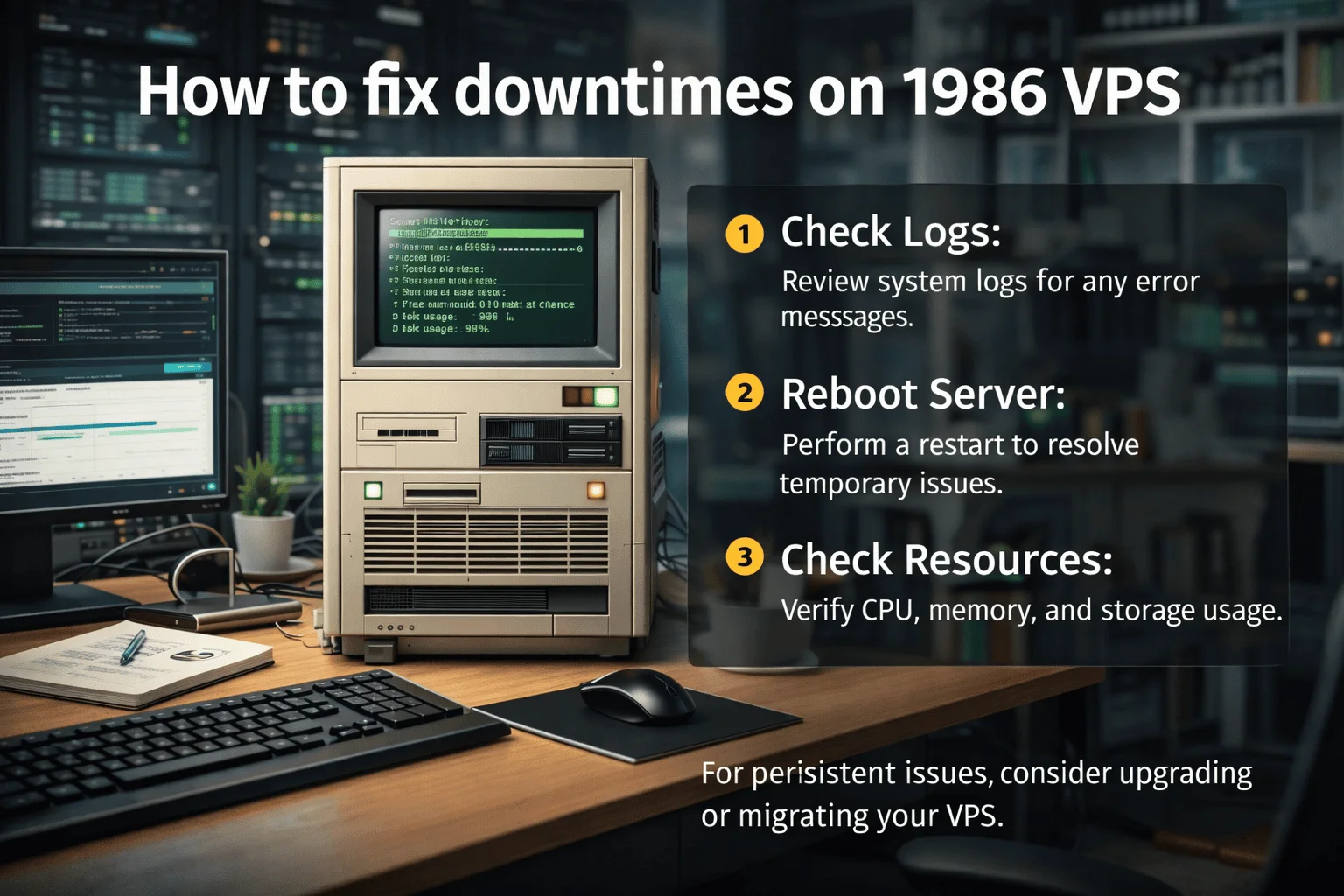
How to fix downtimes on 1986 VPS
1. Introduction
If you’re still running a 1986 VPS, you’re working with a piece of computing history. These legacy virtual servers were designed for a different era when traffic spikes were rare, and software demands were minimal. Fast-forward to today, and keeping them online can feel like balancing a vintage car on a tightrope: impressive when it works, but one wrong move can trigger a crash.
Downtimes on a 1986 VPS aren’t just inconvenient they can disrupt critical services, slow workflows, and risk data loss. Because of their age, these servers demand careful maintenance, constant monitoring, and a proactive approach to avoid outages.
In this blog, we’ll guide you step by step through the process of diagnosing downtime issues, applying quick fixes, and implementing preventive strategies. By the end, you’ll have a clear roadmap to keep your 1986 VPS stable and running efficiently, even in today’s high-demand environment.
2. Common Causes of Downtime

Understanding why your VPS goes down is the first step to fixing it. For a 1986 VPS, downtimes typically arise from a mix of technical limitations and operational oversights.
Server Overload
- High traffic spikes: Legacy VPS systems weren’t designed to handle sudden surges in visitors or requests. When traffic exceeds their limits, processes slow or halt entirely.
- Prolonged uptime without reboots: Leaving the server running indefinitely can accumulate memory leaks, temporary files, and process clutter, eventually causing crashes.
Network Issues
- Connection drops: Older VPS setups may struggle with network stability, leading to intermittent outages or lost connections.
- Firewall misconfigurations: Incorrect or outdated firewall rules can block legitimate traffic, effectively “shutting the door” on your server.
Security Problems
- Malware or unauthorized access: Legacy systems are often more vulnerable to attacks. Malware infections or unauthorized logins can freeze resources or corrupt data.
Software Failures
- Outdated software or drivers: Using legacy versions increases the risk of bugs, incompatibilities, and crashes.
- Resource exhaustion (CPU/RAM > 90%): When critical resources are maxed out, the server can stall or refuse new connections entirely.
3. Diagnosing the Problem

Before you can fix a downtime, you need to pinpoint the root cause. With a 1986 VPS, careful diagnostics are critical, since legacy systems can be sensitive to both hardware and software stress.
Check Server Logs
Start with your server logs they’re the roadmap to what’s gone wrong. Access them via SSH or your VPS control panel, and look for error messages, warnings, or repeated failures. Pay attention to timestamps to correlate logs with when the downtime occurred. Logs can reveal overloaded processes, failed scripts, or blocked services.
Monitor Resources
Resource overload is a frequent culprit. Use tools like htop to monitor CPU and RAM usage in real time. Look for processes consuming excessive memory or CPU cycles these are often the triggers for crashes. Identify recurring heavy processes that might need optimization or temporary suspension.
Verify Network Status
Network issues can make it seem like your VPS is down, even if it’s technically running. Ping external sites to check connectivity and response times. Review your firewall rules with iptables to ensure legitimate traffic isn’t being blocked accidentally. Sometimes a minor misconfiguration is all it takes to cut off access.
Security Diagnostics
Legacy servers are more susceptible to malware and unauthorized access. Run malware scans with tools like Maldet to detect infections. Unauthorized logins or scripts left behind by attackers can consume resources or corrupt essential files, so identifying and removing these threats is critical.
4. Quick Fixes to Restore Downtime

Once the problem is diagnosed, it’s time to act. Many downtime issues on a 1986 VPS can be resolved with immediate, targeted fixes.
Rebooting the VPS
A simple reboot can often resolve temporary glitches. Use your provider’s control panel to restart the server safely. Note that while a reboot clears memory and resets stuck processes, it may not fix underlying issues—so continue diagnostics if problems persist.
Software & Firewall Updates
Outdated software or misconfigured firewalls can cause repeated downtimes. Update your software and drivers to the latest compatible versions. Reset your firewall rules with:
sudo iptables -F
sudo iptables -P INPUT ACCEPT
This clears existing rules and restores basic access while keeping security manageable.
Kill Overload Processes
Identify heavy processes—Docker containers or other high-resource applications that are hogging CPU or RAM. Stop or limit these services temporarily to free resources and stabilize the VPS.
Clear Unnecessary Data
Disk space can accumulate junk over years of use. Remove unnecessary files, clear caches, and free up storage to ensure the system can operate smoothly. A lean VPS is less likely to crash under load.
5. Prevention Tips for Future Downtimes

Preventing downtime on a 1986 VPS is about foresight, vigilance, and consistent maintenance. Once you’ve stabilized your server, adopting these strategies will minimize future disruptions.
Regular Backups
Legacy servers are fragile. Schedule automated backups to protect critical data and configuration files. Regular backups ensure that if a crash occurs, recovery is quick and painless, without risking data loss.
Monitoring & Alerts
Stay ahead of potential issues by monitoring your server continuously. Tools like New Relic or native server logs can track CPU, RAM, disk usage, and network activity. Setting up alerts ensures you’re notified immediately when resource usage spikes or unusual activity is detected.
Security Measures
Security is non-negotiable on older VPS systems. Apply software patches regularly and perform routine audits to detect vulnerabilities. Proactive security management reduces the risk of malware infections and unauthorized access that can freeze or crash your server.
Load Management
Avoid pushing your 1986 VPS beyond its limits. Limit concurrent connections and stagger resource-intensive tasks. Overloading your server is one of the most common causes of downtime managing load ensures stability and performance.
Hardware/Software Upgrades
Persistent issues may indicate that your server has reached its operational limits. Consider upgrading hardware, optimizing configurations, or updating software where possible. If problems continue, contact your VPS provider for support specific to legacy 1986 systems they often have insights or tools designed for these older environments.
6. Key Resources & Guides
For detailed instructions, tutorials, and community support, the following resources are invaluable:
- Detailed Guide: Host4Geeks – How to Fix Downtimes on a 1986 VPS
- Quick Fix Tutorial: WPSauce – Quickly Fix Downtime on a 1986 VPS Server
- VPS Basics: IBM Think – VPS Overview
- Community Troubleshooting: Bit Hosting FAQ – Why VPS Does Not Work
7. Related Topics / Further Reading
If you want to deepen your understanding and expand your toolkit for managing legacy VPS systems, these resources are highly recommended:
- Common Causes of VPS Downtime and How to Diagnose Them
Learn how to spot patterns, identify recurring issues, and pinpoint root causes before they escalate. - Step-by-Step Guide to Reboot and Recover a Frozen VPS
Detailed instructions on safely rebooting a VPS, troubleshooting frozen processes, and restoring functionality. - How to Check VPS Resource Usage and Spot Overloads
Guides on monitoring CPU, RAM, and disk usage, as well as identifying resource-hogging applications that can trigger downtime. - Using Rescue ISO and chroot to Repair a VPS Filesystem
Techniques for emergency recovery and filesystem repair on legacy servers without compromising data integrity. - Best Malware Scanners for Linux VPS: Maldet vs Imunify360
Comparison of popular Linux malware detection tools, highlighting strengths, limitations, and best use cases for legacy systems.
8. Conclusion
Maintaining a 1986 VPS requires a mix of vigilance, technical know-how, and careful preventive practices. Downtimes are often triggered by overloads, network issues, outdated software, or security breaches, but with the right diagnostics and quick fixes, most problems can be resolved efficiently.
Regular monitoring, timely updates, and proactive security measures are essential to keep these legacy systems running smoothly. Always approach fixes methodically, and consult trusted guides or your VPS provider when in doubt the sensitivity of older systems means a small mistake can have big consequences.
With careful management and preventive strategies, even a 1986 VPS can continue to deliver reliable performance in today’s demanding environment.
FAQ – Fixing Downtimes on a 1986 VPS
1. Why does my 1986 VPS keep going down even with low traffic?
Legacy VPS systems can experience downtime due to prolonged uptime, outdated software, memory leaks, or hidden background processes even when traffic is light. Regular monitoring and maintenance are essential to prevent unexpected crashes.
2. How can I quickly identify the cause of downtime on my VPS?
Start by checking server logs via SSH or the control panel, monitor CPU and RAM usage with tools like htop, verify network connectivity, and scan for malware using tools like Maldet. These steps usually reveal the root cause.
3. Will a simple reboot always fix my VPS downtime?
A reboot can resolve temporary glitches, reset stuck processes, and free up resources. However, persistent issues like malware, firewall misconfigurations, or outdated software require targeted fixes beyond a simple restart.
4. How can I prevent future downtime on a legacy VPS?
Schedule regular backups, monitor resource usage with tools like New Relic, apply security patches, limit concurrent loads, and keep software updated. Consider hardware or provider-assisted upgrades if problems persist.
5. Are there resources to help troubleshoot my 1986 VPS?
Yes! Trusted guides and community resources include:


