

-

- No Comments
- December 4, 2025

How to do a round trip on Uber
1. Introduction
A round trip on Uber is exactly what it sounds like a ride that takes you from Point A to Point B and then brings you back to Point A in one continuous journey. Whether you’re running an errand, picking something up, or heading somewhere quickly and returning right away, a round trip saves you the hassle of requesting two separate rides.
But here’s the part most riders don’t realize: Uber does NOT have a dedicated “Round Trip” button.
There’s no built-in toggle, no “Return Ride” option, and no official round-trip mode inside the app. And yet, millions of riders still manage round trips every day.
The secret?
Uber’s “Add Stop” feature a simple tool designed for multi-stop journeys, but perfectly capable of creating a round trip without any complicated steps.
In this blog, we’ll explore the two ways you can complete a round trip on Uber:
• Immediate Round Trip using the Add Stop feature
Ideal when you want to go to a destination, stay for a few minutes, and come right back.
• Scheduled or Intercity Round Trip
Perfect for planned appointments, future return times, or long-distance travel where you want the same driver for the entire journey.
Let’s break down how it all works and when each method makes the most sense.
2. Can You Book a Round Trip on Uber?
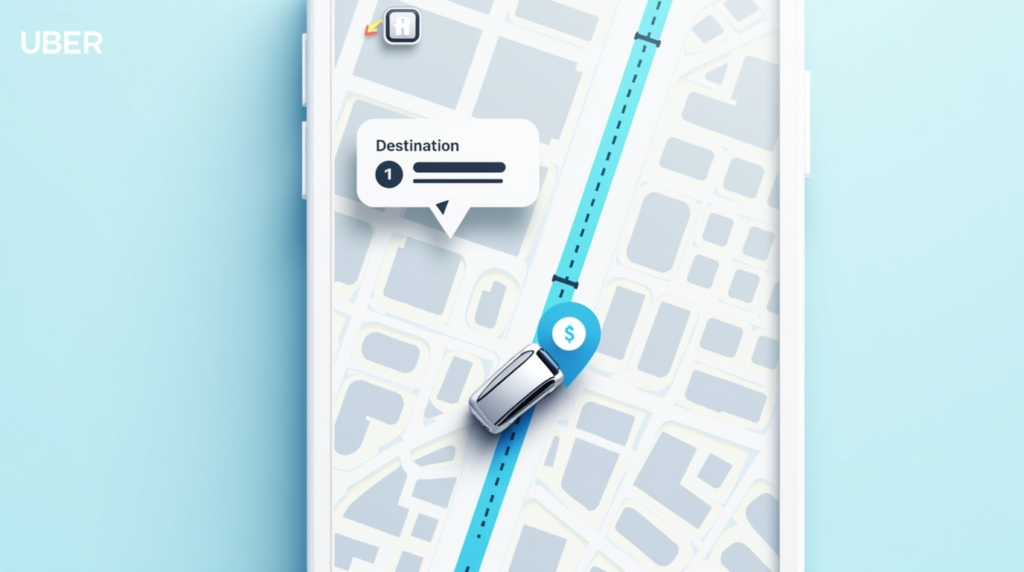
The simplest answer: Yes, you can but not with a dedicated Round Trip button.
Uber’s system is designed around single rides, but it allows you to create a round trip by adding multiple stops on one continuous route. Instead of giving riders a specific round-trip feature, Uber relies on its flexible “Add Stop” function, which lets you:
- Enter your destination
- Add your original pickup point as the second stop
- Complete the entire journey with one driver, one fare, and one request
This method replaces the idea of a traditional round-trip button while giving riders more control over each part of the route.
When the Add-Stop Method Works Best
This approach is ideal for scenarios where your return is quick or predictable, such as:
- Quick grocery runs
- Dropping someone off and coming right back
- Picking up an order
- Short errands under 10–20 minutes
- Any situation where you immediately return to your starting point
If your return is scheduled for later like after a meeting or appointment — then Uber’s Schedule Ride option or Intercity round trip is the better choice.
With that foundation set, let’s move into the step-by-step methods next.
3. How to Book an Immediate Round Trip Using the “Add Stop” Feature
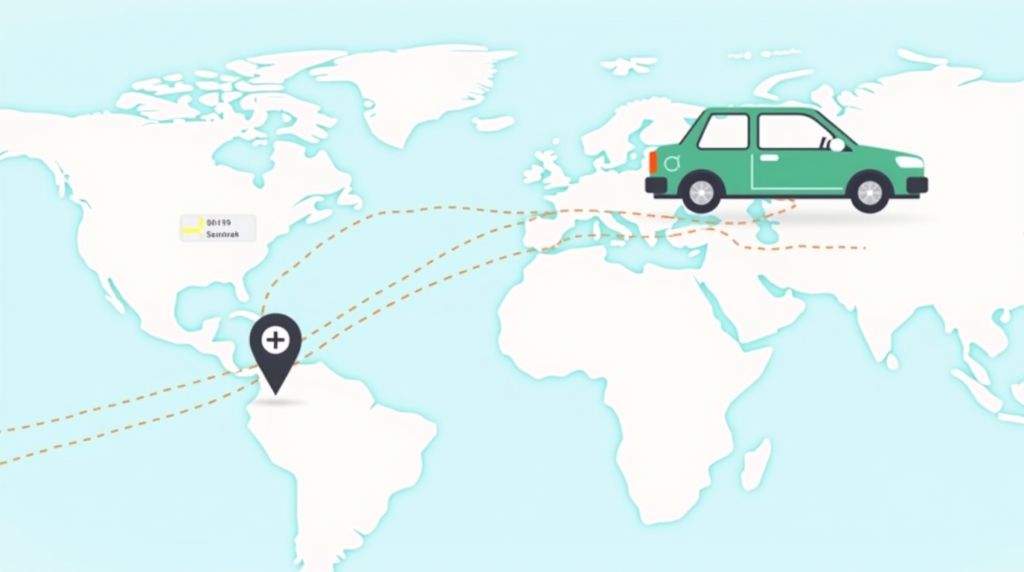
If you want to go somewhere and come straight back without requesting a second ride, the Add Stop feature is the fastest and most efficient method. It keeps everything within one trip, one fare, and one driver ideal for quick errands and short visits.
3.1 Step-by-Step Guide
Step 1: Open Uber and enter your first destination
Open the Uber app and type your outbound destination in the “Where to?” field. This will be your first stop the place you’re going before returning.
Step 2: Tap “+” / “Add Stop”
Next to your destination, you’ll see a small “+” icon or the option labeled “Add Stop.”
Tap it to add another stop to your route.
Step 3: Add your original pickup location as the second stop
In the second stop field, enter the address of your starting point.
This tells Uber: “Take me there, then bring me back.”
Step 4: Review the fare, distance, and time
Uber will show an updated route and estimated fare. This estimate includes:
- Distance to the first stop
- Return distance
- Estimated time for the entire round trip
If you plan to stay at the first stop for a few minutes, note that waiting time may add extra charges.
Step 5: Request the ride and confirm details with the driver
Once you hit Request, message or speak to the driver briefly:
“Hi! This will be a round trip. We’ll go to the destination and then return back.”
This helps avoid confusion and ensures the driver is comfortable with the plan.
3.2 How Many Stops Can You Add?
Uber allows 2–5 stops depending on your region and app version. For a simple round trip, you only need two:
- Stop 1: Your destination
- Stop 2: Your return location (original pickup)
Additional things to know:
How stops appear on the map
Once you add multiple stops, Uber displays them in order on the map as numbered markers.
You can drag and rearrange stops before requesting the ride.
The “Confirm stop” slider during the trip
At each stop, Uber may show a small slider that asks you to “Confirm Stop.”
This helps the app track when you’ve completed each section of the journey and ensures accurate fare calculation.
If you stay longer at a stop, waiting time automatically continues — and the fare adjusts accordingly.
4. How to Schedule a Round Trip in Advance
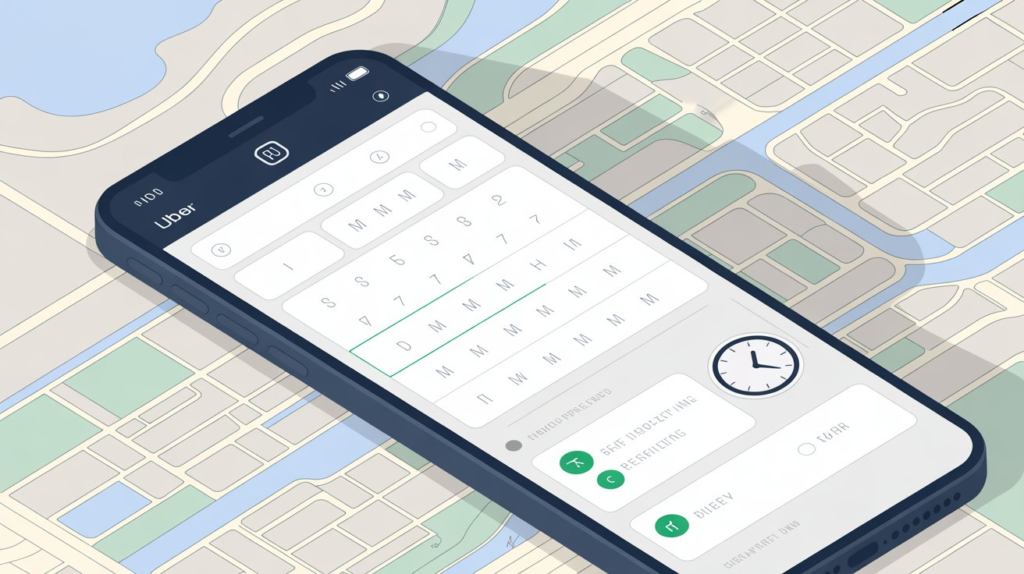
If your return trip isn’t immediate — maybe you have an appointment, a meeting, an event, or a planned pickup — the Schedule Ride feature or Uber Intercity is the smarter approach. These options let you pre-book your return, avoid last-minute stress, and ensure availability exactly when you need it.
4.1 Using Uber’s Schedule Ride Feature
Uber’s Schedule Ride tool allows you to set a pickup time in advance. While it doesn’t let you schedule two rides at once in a single booking, you can schedule:
- Your outbound ride now
- Your return trip separately (also scheduled)
Step-by-Step Flow for Scheduling Outbound + Return
Step 1: Open the Uber app and tap the “Schedule” icon
You’ll find this near the “Where to?” bar. Select your pickup time for the first ride.
Step 2: Enter your destination and confirm the scheduled ride
This locks in your outbound trip.
Step 3: After scheduling the outbound ride, schedule the return
Repeat the same steps, but this time:
- Set your original destination as the pickup point
- Set your home or starting point as the drop-off
- Choose the expected return time (after your meeting or event)
Step 4: Check your scheduled rides in the “Activity” or “Upcoming” section
Here you can edit, cancel, or adjust times.
Ideal For:
- Medical appointments
- Interviews or office visits
- Airport pickups
- Meetings with a fixed end time
- Events where you know your return time
If your return time is not immediate and not flexible, scheduling ensures a car arrives right when you need it.
4.2 Using Uber Intercity for Long-Distance or Same-Driver Returns
For longer trips — where you’re heading to another city or require the same driver for both legs — Uber offers a premium option called Uber Intercity (available in select regions).
What Uber Intercity Is
Uber Intercity is a service designed for:
- Outstation travel
- Multiple-day round trips
- Long-distance rides beyond your city limits
It lets you book a single driver for the entire journey, including your return.
Round-Trip Travel for Multi-Day Journeys
With Intercity Round Trip, you can:
- Travel to another city
- Keep the same driver for the duration of your stay
- Return with that same driver whenever you’re ready
This is ideal when you need reliability and continuity — great for business trips, weddings, or extended family visits.
Waiting Fees, Same Driver, and Regional Availability
Waiting Fees:
Drivers wait at your destination for a fixed cost per hour (varies by region). This is charged for downtime between your arrival and return.
Same Driver Guarantee:
Unlike the standard Uber service, Intercity ensures you have one driver for the outbound, stay, and return.
Availability:
Intercity isn’t available everywhere. It’s active in select countries and cities, mainly where outstation travel demand is high.
5. Key Things to Know Before Booking a Round Trip
Before you tap “Request,” there are a few practical realities every Uber user should understand. Round trips are absolutely possible — but the way Uber calculates fares, handles stops, and manages driver preferences can affect your experience (and your bill).
Fares Include Distance + Time + Waiting
Every round trip — whether done through Add Stop, Scheduled Rides, or Intercity — is priced based on:
- Total distance traveled
- Total travel time
- Waiting time at stops
If you’re planning to stay at your destination for a few minutes, that’s fine. But if your wait stretches beyond 5–10 minutes, expect your fare to climb steadily. Uber charges by the minute when the car is stationary.
When Two One-Way Rides May Be Cheaper
This is a key insight most riders miss.
If your return is:
- Hours later
- After a long appointment
- After shopping or events
- Unpredictable in timing
Booking two separate rides may be cheaper because you avoid paying waiting charges. The Add Stop method works best only when your return is quick — short errands, drop-offs, picking up items, etc.
Stop Limitations (Short Distance Rules Like Under 3 Minutes Apart)
Uber sometimes restricts stops that are too close, such as:
- Under 3 minutes apart
- Within the same neighborhood block
- Circling back to nearly the same location
The app may prompt you to adjust stops if they’re unusually close because the system assumes you might be mis-entering them or abusing the stop feature for personal pickups.
Pricing Changes If You Modify Stops Mid-Trip
Once the trip has begun, any change — rearranging stops, adding or removing stops, updating the destination — can change the fare instantly. Uber recalculates in real-time based on:
- Time
- Distance
- Traffic conditions
- Current rates (surge pricing may apply mid-trip)
Always confirm your stops before the trip starts when possible.
Driver Preferences (Some May Avoid Long Wait Times)
Not all drivers love round trips with long wait times. Reasons include:
- Lower earnings during long idle periods
- Reduced ability to accept other rides
- Fuel consumption while waiting
- Uncertainty about how long the rider will take
To avoid confusion, it’s always a good idea to message or tell the driver:
“This is a round trip. I’ll only need X minutes at the stop.”
Clear communication = smoother experience.
6. Costs and Fees Explained
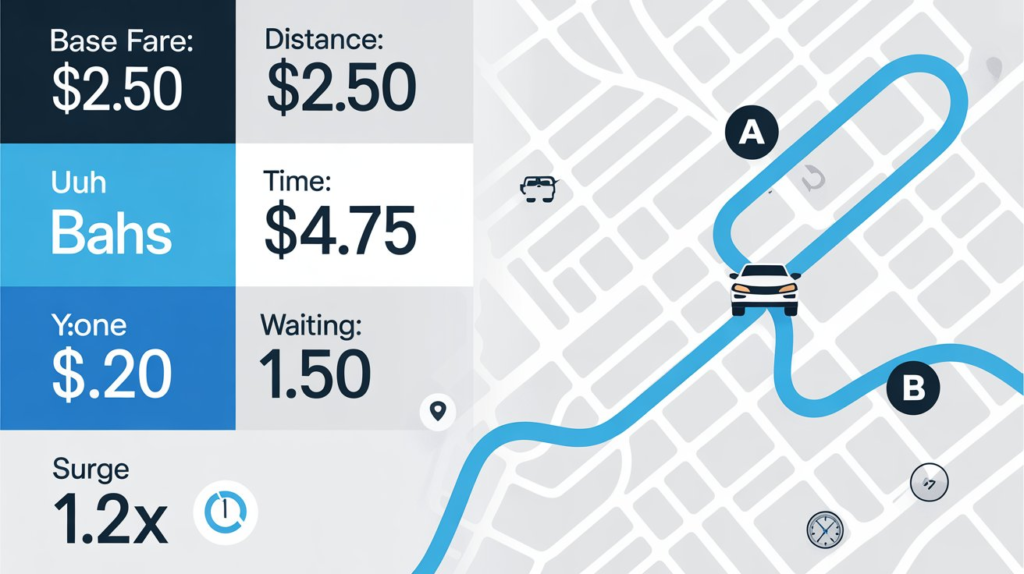
Round-trip pricing can vary dramatically depending on the method you use. Here’s a clean breakdown so you know exactly what affects the bill.
Fare Calculation Breakdown
Your Uber round trip fare consists of:
- Base fare
- Per-minute rate (time spent traveling + waiting)
- Per-kilometer/mile rate
- Taxes and service fees
- Surge multiplier (if demand is high)
Uber calculates everything automatically, but knowing what’s included helps you choose the right method.
Waiting Charges
If your driver waits while you run a quick errand, Uber charges by the minute. These rates vary by city but typically include:
- Per-minute waiting fee
- Additional charges if the vehicle is kept idle for too long
For short waits (2–5 minutes), this is negligible.
For long waits (20–30+ minutes), it becomes expensive fast.
Region-Based Variations
Uber pricing isn’t universal. Your costs depend on:
- Local economic conditions
- Fuel prices
- Driver earnings policies
- Country-specific taxes
- Surge timelines in your area
Intercity and Scheduled Ride pricing varies even more widely by location.
How Fares Differ Between Each Round Trip Method
1. Add Stop Round Trips (Immediate Return)
- You pay one continuous fare
- Waiting time is fully included
- Cheapest only if your stop is short (under 10 minutes)
- Fare adjusts instantly if route changes
Best for:
Short errands + quick returns
2. Scheduled Rides (Outbound + Return Separately)
- You pay for two separate rides
- No waiting charges
- Slight scheduling fee may apply
- Perfect for predictable return times
Best for:
Appointments, meetings, timed returns
3. Uber Intercity Return Trips (Long Distance)
- Higher base fare — meant for outstation travel
- You keep the same driver for the whole journey
- Waiting fees can accumulate by the hour
- Designed for multi-day or multi-hour trips
Best for:
Travel to another city, weddings, business trips, extended stays
7. Editing or Cancelling a Round Trip
Managing your Uber round trip doesn’t end after booking — sometimes you need to change stops, adjust timing, or even cancel. Here’s how each option works and what costs may apply.
How to Update Stops Mid-Trip
Uber lets you modify your route even after the trip has started. You can:
- Rearrange the stop order
- Add new stops
- Remove a stop
- Change the final destination
To do this:
- Tap the trip banner at the bottom of the screen.
- Select “Edit Stops” or tap the stop list.
- Update your locations as needed.
- Confirm the changes.
Important:
Updating anything mid-trip will recalculate your fare instantly. Surge pricing, longer routes, or extra time can increase the price.
How to Cancel Scheduled Return Rides
If you scheduled your round trip using Uber’s Schedule Ride feature:
- Open the Uber app.
- Tap the clock icon (Schedules).
- Select the scheduled ride you want to cancel.
- Hit Cancel Ride.
You’ll receive a confirmation message once the cancellation is processed.
For scheduled Intercity rides, the cancellation flow is similar but may involve region-specific policies.
When Cancellation Fees Apply
Cancellation fees depend on:
- How long after booking you cancel
- How close the driver is to your pickup
- Whether the driver has already arrived
- Local Uber cancellation policies
General rule of thumb:
If the driver has been en route for a while or is already waiting at your location, a cancellation fee is likely.
For Intercity or long-distance scheduled rides, cancellation penalties may be higher due to the time commitment required from drivers.
8. Additional Resources
Here are helpful resources to guide you through Uber round trips, multi-stop rides, and Intercity travel:
- How To Add Multiple Stops On Uber – Full Guide (YouTube) – Step-by-step video tutorial showing how to use the Add Stop feature.
- Uber Riders – How To Add Multiple Stops To Your Ride (YouTube) – Another practical walkthrough for adding stops during a trip.
- Request a Ride with Multiple Stops – Uber Help – Official Uber support article explaining how to add up to 5 stops.
- Uber Multiple Stops Guide – How It Works – Official Uber page on adding, editing, and managing multiple stops.
- Uber Launches Round-Trip Feature for Intercity Rides – MediaBrief – News article explaining Intercity round-trip bookings and waiting fees.
9. Conclusion
Booking a round trip on Uber is simple once you understand the system:
you can either use the Add Stop feature for immediate returns or schedule your round trip in advance using Scheduled Rides or Uber Intercity.
For short errands or quick returns, the Add Stop method is fast, flexible, and works instantly.
For appointments, travel plans, or long-distance journeys, scheduling both directions or using Uber Intercity gives you better control and guarantees a smoother experience.
Before booking, always check fare estimates, compare one-way vs round-trip pricing, and make sure the driver is comfortable with wait times.
If you plan ahead and choose the method that fits your trip, Uber can handle round-trip travel easily and reliably.
FAQs
Here are some common questions riders have about booking a round trip on Uber:
1. Can the driver refuse a round trip?
Yes, drivers can decline a ride if they’re uncomfortable with long waits or multiple stops. It’s always a good idea to communicate your plan in advance using the in-app chat or call feature.
2. How long will the driver wait during a stop?
Uber allows short waiting periods, typically a few minutes, included in your fare. For longer waits, extra charges apply. The exact waiting fee depends on your city and whether you’re using a standard, scheduled, or Intercity ride.
3. Can I change my return time?
- For Add Stop rides, changes during the trip can be made but will adjust the fare in real-time.
- For Scheduled or Intercity rides, you can edit the return time before the ride starts. After the driver is en route, changes may be limited.
4. How does pricing differ vs. booking separately?
- Add Stop / immediate round trip: one continuous fare including distance, time, and waiting.
- Two separate rides: you pay each fare independently, often cheaper if your return is long after your first stop.
- Scheduled or Intercity rides: may include waiting fees or higher base fares for long-distance travel.
5. Is Intercity available in my city?
Uber Intercity is region-specific and only available in select cities and countries where outstation travel demand exists. Check the Uber app or local Uber website to confirm availability in your area.