
-
- No Comments
- August 31, 2026

Technology for Homeschooling
Introduction
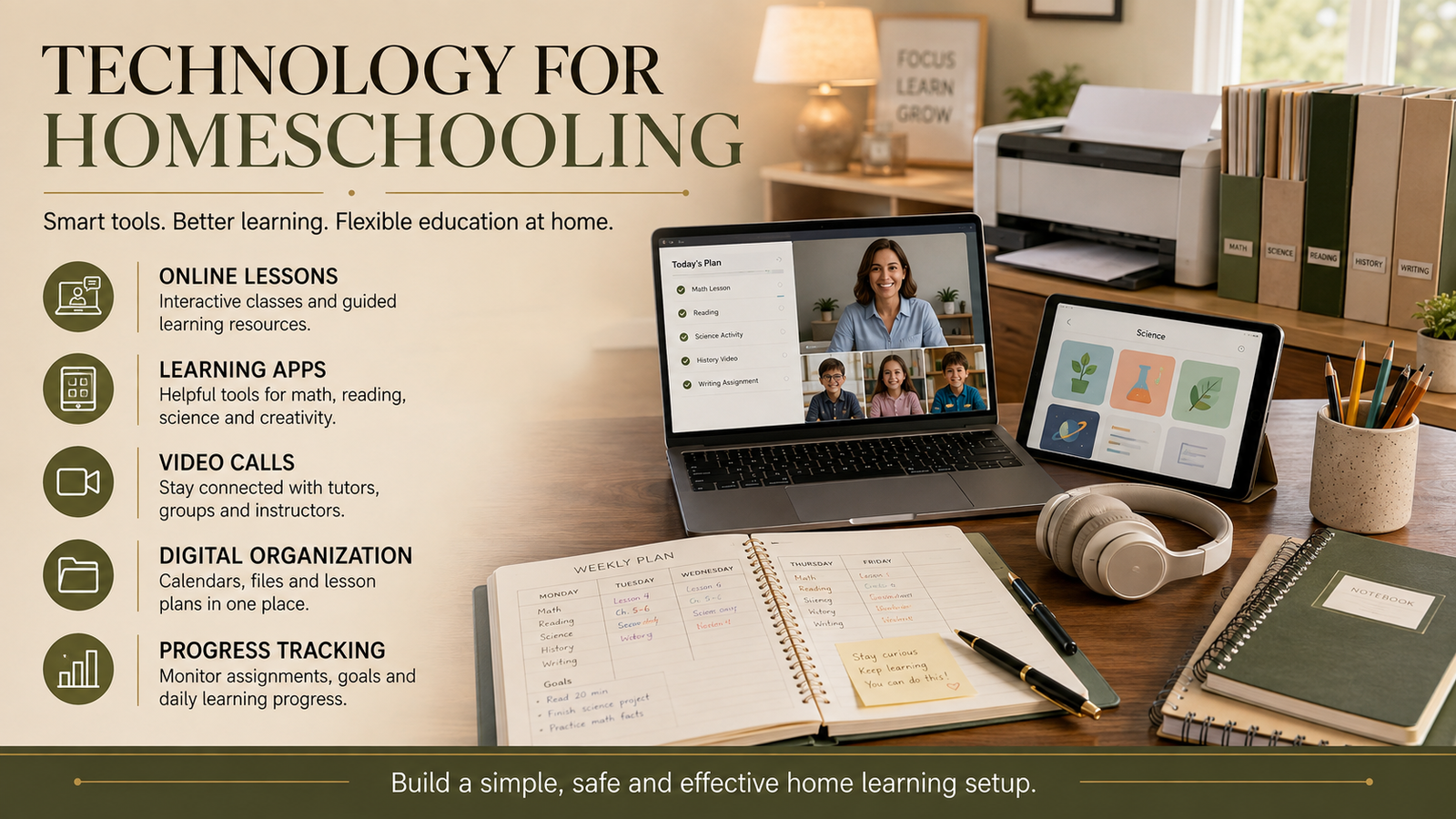
Technology for homeschooling can make learning more flexible, organized, and personal. It can also feel overwhelming when you are comparing computers, apps, subscriptions, digital curricula, and online classes at the same time.
You do not need to turn your home into a digital classroom. You also do not need the newest device or an account on every popular learning platform.
The right technology should solve a real problem. It might help your child understand fractions, attend a language class, organize assignments, explore a virtual laboratory, or receive extra support with reading.
Screens should never become the entire education. Books, handwriting, experiments, exercise, conversation, art, outdoor learning, and real experiences still matter deeply.
Think of technology as one part of your teaching kit. It can explain, organize, connect, and support, but it cannot replace your understanding of your child.
This guide will help you choose essential equipment, useful learning tools, healthy digital routines, sensible safety controls, and an affordable starting setup.
Quick Answer: What Is the Best Technology for Homeschooling?
The best technology for homeschooling is a simple collection of dependable tools chosen for clear educational purposes.
Most families need one reliable computer, stable internet access, a primary curriculum or learning platform, basic planning software, secure cloud storage, comfortable headphones, and appropriate parental controls.
A laptop or Chromebook is usually the most practical main device. It can handle writing, research, video lessons, online exercises, live classes, file management, and creative projects.
A printer is useful for worksheets, maps, reading activities, science instructions, and handwritten assignments. However, a family using workbooks and digital documents may not need one immediately.
A tablet can support reading, drawing, educational games, and lessons for younger children. It becomes less convenient when a student needs to write long essays, manage several files, or use specialist software.
Start with the essentials. Add another device or subscription only when you can explain what educational need it will meet.
Successful technology for homeschooling is not about having the largest collection of apps. It is about using a few reliable tools that make teaching clearer and help your child learn more independently.
What Does Technology for Homeschooling Mean?

Technology for homeschooling includes the devices, platforms, learning resources, communication services, and safety systems families use to support education at home.
It can help parents present lessons, organize schedules, track progress, communicate with instructors, store assignments, and introduce subjects they may not be comfortable teaching alone.
The term covers much more than laptops and tablets. It also includes digital libraries, curriculum platforms, educational videos, virtual laboratories, planning calendars, accessibility features, cloud storage, and online safety controls.
Technology That Teaches
Teaching technology delivers or supports educational content.
This can include online lessons, digital textbooks, recorded lectures, interactive exercises, educational videos, virtual laboratories, quizzes, tutoring platforms, and subject specific apps.
A mathematics program might demonstrate a difficult process and then provide practice questions. A virtual science laboratory might show a chemical reaction that would be too expensive or unsafe to recreate at home.
Digital teaching tools are most valuable when they have a specific purpose. Watching a video is not automatically learning. Ask your child to explain the idea, solve a related problem, complete an experiment, or create something using the information.
Technology can present the lesson, but understanding still needs to be observed.
Technology That Organizes
Homeschooling involves more administration than many families initially expect. Parents may need to manage lesson plans, assignments, attendance, reading lists, assessment results, deadlines, and portfolios.
Digital calendars and lesson planners can place this information in one manageable system. A parent can plan the week, while an older student can check upcoming work and learn to manage time independently.
Progress dashboards can show which lessons have been completed and where mistakes are happening. They are useful signals, but they should not be treated as the full picture of a child’s ability.
Cloud folders can store essays, photographs, presentations, project reports, and assessment records. Clear folder names make information much easier to find when you need to prepare a portfolio or review progress.
The simplest system is often the strongest. If maintaining your planning software takes more time than teaching, the system is too complicated.
Technology That Connects
Technology allows homeschool students to learn from people beyond their household.
Video classes can connect children with teachers, tutors, language partners, music instructors, book clubs, debate groups, and homeschool communities.
This access can be especially valuable when a parent reaches an advanced subject that falls outside their knowledge. You do not need to become a chemistry professor or fluent language teacher overnight. You can bring the right expertise into your home.
Online groups can also give students opportunities to discuss ideas, work on shared projects, and build friendships.
Parents should still examine who operates the class, who can enter, whether sessions are recorded, and how communication is moderated. Connection should expand a child’s education without weakening their privacy or safety.
Technology That Improves Access
Some children need information presented in a different way. Technology can make lessons easier to see, hear, understand, and complete.
Captions and transcripts can support students who are deaf, hard of hearing, or more comfortable reading spoken information.
Screen readers and adjustable displays can help students with visual impairments. Font size, contrast, spacing, and background color may also make digital reading more comfortable.
Speech to text can help a child express ideas when typing or handwriting is difficult. Text to speech can support reading, pronunciation, and comprehension.
Visual schedules, digital timers, reminders, and simplified interfaces may help students who struggle with attention, transitions, or independent organization.
The presence of an accessibility feature does not guarantee that it will work well. Test it with your child and watch whether it genuinely makes learning easier.
Why Technology Can Improve Homeschooling
Technology can strengthen homeschooling, but it is not a magic answer. Its value depends on how carefully it is selected and used.
A good tool should improve access, understanding, practice, communication, or organization. If it creates distraction without producing meaningful progress, it is not helping.
Personalized Learning
Children do not all learn at the same speed.
One student may understand a mathematics lesson immediately, while another needs more examples and repeated practice. Digital platforms can allow both children to work at a suitable pace.
A child can pause a recorded explanation, replay a difficult section, or return to an earlier lesson without feeling embarrassed. A student who is ready for more challenging work can move ahead rather than waiting for the rest of a class.
Some platforms adjust the level of practice according to previous answers. This can help parents identify gaps and provide more focused support.
Personalization should still involve the parent. A platform can recommend another exercise, but you are often better placed to notice confusion, tiredness, frustration, or lost confidence.
Access to More Subjects
No parent can be an expert in every subject. Technology opens the door to knowledge, teachers, and educational experiences that might otherwise be difficult to reach.
Students can explore advanced mathematics, science, coding, foreign languages, art, photography, music, history, engineering, and career education.
A child interested in space can study satellite images and scientific simulations. A young programmer can build a game. A history student can examine digitized letters, photographs, speeches, and museum collections.
This access gives homeschooling families more freedom to follow genuine curiosity. A brief question at breakfast can grow into a serious research project by the afternoon.
The challenge is choosing depth over endless browsing. Help your child stay with a subject long enough to understand it rather than jumping between attractive pieces of content.
Faster Feedback
Digital quizzes and practice platforms can show results immediately.
This helps students see mistakes while the question is still fresh. It also helps parents recognize whether a child needs another explanation, additional practice, or a different teaching method.
Parent dashboards can reveal useful patterns. A child may perform well in arithmetic but repeatedly struggle with word problems. Another student may understand science concepts but find written explanations difficult.
Numbers alone cannot prove that learning has happened. A high score may come from guessing, memorizing a pattern, or repeatedly using hints.
Ask the child to explain an answer, solve a similar problem independently, or apply the idea in a new situation. That is where quick feedback becomes real understanding.
Flexible Scheduling
One of the biggest advantages of homeschooling is the freedom to build learning around family life.
Recorded lessons allow students to pause, replay, and review difficult material. Downloadable resources help families prepare work in advance or continue learning when internet access is unreliable.
This flexibility can help working parents, travelling families, children with changing energy levels, and households teaching several ages at once.
A parent might work directly with a younger child while an older student completes an online lesson. Later, the family can come together for a science activity, discussion, or project.
Flexibility should not become disorder. A simple daily rhythm gives children enough structure to know what is expected while leaving room to adjust when life changes.
Better Organization
Homeschooling becomes harder when lesson plans, assignments, passwords, and records are scattered across different places.
A simple digital system can bring everything together. Parents can create a weekly calendar, store resources by subject, record completed work, and keep important documents backed up.
Older students can use calendars and task lists to develop independence. They can learn to check deadlines, divide large projects into smaller tasks, and take responsibility for completed work.
Digital portfolios can preserve essays, artwork, science reports, photographs, presentations, and recordings. Looking back at this work can reveal progress that a single test score might miss.
Avoid using too many planning apps. One calendar, one storage system, and one clear progress record are usually easier to maintain than several overlapping services.
More Affordable Learning Options
Technology for homeschooling does not have to mean expensive equipment and monthly subscriptions.
Public libraries may provide digital books, audiobooks, research databases, language resources, and educational media. Open educational resources can offer lessons, textbooks, exercises, and teaching materials without a subscription.
Platforms such as Khan Academy and PBS LearningMedia provide free learning content across multiple subjects. Many paid services also offer sample lessons or limited free versions that families can test before committing.
Free does not always mean suitable. Parents should still check academic quality, advertisements, privacy rules, age requirements, and whether the resource fits their educational plan.
Look beyond the advertised subscription price when building your budget. The complete cost may include a computer, internet service, books, printing, laboratory supplies, tutoring, equipment repairs, and automatic renewals.
Start small and spend slowly. A free resource that your child uses consistently is more valuable than an expensive platform that sits unopened.
Essential Technology for Homeschooling

A strong setup does not require a room full of expensive equipment. Most families need a dependable device, stable internet, clear audio, secure storage, and a comfortable place to work.
Choose equipment according to the child’s age, subjects, daily routine, and actual schoolwork. Technology for homeschooling should make learning easier, not create another complicated system for the parent to manage.
Laptop, Chromebook, Tablet, or Desktop
A laptop is usually the most flexible choice for homeschooling. It supports writing, research, video lessons, digital projects, online classes, file management, and most educational software.
A Chromebook is often suitable for elementary and middle school students who mainly use browser based curriculum, cloud documents, and online learning platforms. It is usually affordable, simple to operate, and easy to carry.
A tablet can work well for younger children. Touch controls make it useful for drawing, phonics, reading, educational games, and short interactive lessons. However, long writing assignments and complex file management can become frustrating without a physical keyboard.
A desktop offers a larger screen, stronger performance, and a permanent learning station. It can be useful for advanced science software, coding, video editing, design work, and families who do not need portability.
Before buying, check the requirements of the curriculum your child will use. Some programs only need a modern browser, while others require a particular operating system, camera, microphone, or downloadable application.
Durability also matters. Younger children may benefit from a protective case, spill resistant keyboard, and simple charging routine. Older students may need more memory and storage for research, presentations, coding, or media projects.
The most expensive device is not automatically the best one. A reliable computer that runs the required software comfortably is usually enough.
Reliable Internet Access
Internet quality affects almost every part of online homeschooling.
Live classes need a stable connection so students can hear instructions and participate without repeated interruptions. Videos require enough speed to play smoothly, while research, cloud storage, and assignment submission depend on consistent access.
Test the connection in the exact room where your child will study. A fast internet package will not help much if the signal is weak at the learning desk.
Place the router in a central and open position where possible. Important live classes may work more reliably through a wired connection, particularly when several family members are online at the same time.
Families with unreliable internet should create a backup routine. Download lessons and reading materials in advance. Keep printed assignments available and choose applications that can work without a constant connection.
Recorded classes are often easier to manage than live sessions when internet service is unpredictable. Students can download them when the connection is stable and watch them later.
A mobile hotspot may provide temporary access, but data limits and costs can rise quickly. It should be treated as a backup rather than the foundation of the homeschool plan.
Headphones, Webcam, and Microphone
Headphones help students focus when several people are working in the same home. They are useful for recorded lessons, audiobooks, language practice, music activities, and live tutoring.
Comfort matters more than impressive technical features. The headphones should fit properly, remain comfortable during longer lessons, and produce clear sound without requiring high volume.
For younger children, consider headphones with volume controls. Parents should still check the actual listening level and encourage regular breaks.
A webcam becomes important when students attend live classes, tutoring sessions, book clubs, music lessons, or group discussions. It should produce a clear picture without revealing more of the home than necessary.
A built in laptop microphone may be enough for ordinary classes. A separate headset microphone can improve clarity in a noisy household or during language and music instruction.
Privacy should be considered before every live session. Check what appears behind the child, whether the class is recorded, who can enter the meeting, and whether students can contact one another privately.
Students should also know when to mute the microphone and when the camera may be turned off. These simple habits make online learning calmer and safer.
Printer and Physical Learning Supplies
A printer creates a useful bridge between digital instruction and physical learning.
Parents can print worksheets, maps, writing prompts, science instructions, reading logs, flashcards, and assessment materials. Students can move away from the screen and complete work by hand.
Printing can be especially useful for younger children who are still developing handwriting, drawing, cutting, measuring, and other physical skills.
A printer does not need advanced features unless the family regularly scans projects or prints photographs. Look at ink cost, paper use, reliability, and replacement supplies before focusing on the initial purchase price.
Keep traditional learning materials nearby. Notebooks, pencils, graph paper, rulers, art supplies, index cards, and a whiteboard can turn a digital explanation into a practical activity.
Technology for homeschooling works best when the screen leads somewhere. A science video can lead to an experiment. A geography lesson can lead to drawing a map. A writing prompt can lead to a handwritten story.
The device introduces or supports the idea. Physical work helps the child test, remember, and use it.
Cloud Storage and File Backup
Homeschool files can build up quickly. Essays, photographs, attendance records, portfolios, certificates, test results, and project documents all need a clear home.
Create one main folder for each child. Inside it, organize folders by school year and subject.
Project folders can store the instructions, research, early drafts, photographs, and final work together. This makes it easier to review how the student developed an idea rather than seeing only the finished result.
Use clear file names that include the date, subject, and project. A name such as September 2026 Science Water Cycle is much easier to find than Final Project Two.
Cloud storage protects files if a device is damaged or lost. It also allows parents and students to access work from another approved device.
Important records should not exist in only one place. Keep an additional copy on an external drive or another secure storage service.
Parents should review sharing settings as carefully as account passwords. A folder containing a child’s work should not be publicly accessible unless there is a clear reason and the parent understands the privacy implications.
A Comfortable Learning Space
Even excellent technology becomes unpleasant when the learning space causes discomfort or distraction.
Place the screen close to eye level so the child does not spend hours bending the neck. A laptop stand can help, but it should be paired with an external keyboard and mouse when the raised position makes typing uncomfortable.
Choose a chair that supports the child’s back and allows the feet to rest on the floor or a stable foot support. Arms should remain relaxed rather than reaching upward toward the keyboard.
Use enough light to read comfortably without creating glare across the screen. Natural light is helpful, but a bright window directly behind or in front of the device can strain the eyes.
Keep chargers secure and easy to reach. Loose cables across a walking area can create a safety risk, particularly in a busy household.
The desk does not need to look perfect. It simply needs enough clear space for the device, notebook, textbook, and current activity.
Remove unrelated toys, unused equipment, and unnecessary notifications during focused work. A calm physical space can make it easier for a child to settle into learning.
Types of Technology for Homeschooling

The easiest way to choose homeschooling technology is by purpose.
Instead of collecting popular apps, ask what each tool will help your child do. One platform may deliver the curriculum, another may provide extra mathematics practice, and a third may organize assignments.
Each tool should have a defined job.
Online Curriculum Platforms
A complete online curriculum platform may provide lessons, reading materials, videos, assignments, quizzes, assessments, grades, and progress reports.
Some platforms cover every major subject. Others specialize in mathematics, reading, science, languages, or advanced high school courses.
Begin by checking the academic level. A platform may advertise itself for a particular grade while presenting work that is too easy or too difficult for your child.
Look closely at subject coverage and teaching quality. Attractive graphics cannot compensate for unclear explanations, weak exercises, or an incomplete curriculum.
Check whether the platform works on your existing devices. Confirm browser requirements, mobile access, printing options, and whether lessons can be downloaded.
Accessibility should be tested rather than assumed. Look for captions, transcripts, adjustable text, keyboard controls, audio support, and compatibility with assistive tools.
Read the payment and refund terms before subscribing. Check whether the service renews automatically and whether progress records remain available after cancellation.
Privacy policies deserve the same attention. Understand what information is collected, whether student work is stored, and how the account can be deleted.
Educational Videos and Digital Libraries
Educational videos can introduce a new topic, show a process, or explain an idea from another angle.
Khan Academy can support subjects such as mathematics, science, computing, economics, and history. PBS LearningMedia and PBS NOVA provide videos and educational resources that can support science, history, and other subjects.
Public libraries may offer digital books, audiobooks, documentaries, research databases, and language learning resources through a library membership.
Parents should preview videos before assigning them. Check the accuracy, language level, length, advertisements, and links that appear around the content.
A video should lead to something more active. Ask the student to explain the main idea, answer a question, draw a diagram, complete an experiment, or write a short response.
Without that connection, educational viewing can become passive screen time.
Mathematics and Problem Solving Tools
Mathematics tools can provide visual explanations, adaptive exercises, practice questions, and immediate feedback.
Visual models can make fractions, geometry, graphs, and algebra easier to understand. Adaptive practice can adjust the level when a student answers correctly or struggles repeatedly.
Immediate feedback helps a child notice mistakes before the wrong method becomes familiar. It also helps parents identify which part of the problem is causing confusion.
However, digital hints can become a shortcut. Students should regularly solve questions without assistance and explain how they reached the answer.
Ask the child to work through a similar problem on paper. If the method cannot be explained without the app, the concept may not yet be secure.
Real life mathematics also matters. Cooking, shopping, measuring, budgeting, and planning time can show students why the numbers are useful.
Reading and Language Tools
Digital books and audiobooks can make reading more accessible and give families a wider choice of titles.
Audiobooks can support reluctant readers, language learners, and children who benefit from hearing fluent pronunciation. They can also be paired with a printed or digital copy of the text.
Online dictionaries and vocabulary tools help students explore unfamiliar words. Writing software can support drafting, editing, spelling, and organization.
Speech to text may help a student capture ideas when typing is difficult. Text to speech can read instructions or written work aloud, making certain errors easier to notice.
Language learning platforms can provide vocabulary practice, listening exercises, pronunciation support, and short daily lessons. Live conversations remain important because real communication is less predictable than an app.
Short digital activities are useful for practice. They should not replace sustained reading, thoughtful writing, discussion, and exposure to complete books.
Science and Virtual Laboratories
Science simulations can make invisible or complex ideas easier to see.
A student can explore forces, electricity, cells, planetary movement, chemical structures, or environmental systems without specialist equipment.
Virtual laboratories can also prepare students for a physical experiment. They may show the sequence, introduce equipment, and help the child understand what to observe.
They should not replace every practical experience. Safe household experiments, gardening, nature observation, weather tracking, measuring, and model building give children direct contact with scientific ideas.
Pair the virtual activity with a question and a written record. Ask the student to make a prediction, observe what happens, record measurements, and explain the result.
Parents should check safety guidance before using heat, electricity, tools, chemicals, or biological materials.
Online Classes and Tutoring
Online classes can bring specialist teaching into the home.
Students may attend mathematics lessons, language conversations, music instruction, debate groups, book clubs, coding sessions, or homeschool cooperative activities.
Before enrolling, check the instructor’s experience, class size, teaching method, schedule, and expectations. A qualified expert is not always an effective teacher, particularly for younger children.
Ask whether sessions are recorded and how those recordings are stored. Find out who can enter the class, how chat is moderated, and whether students can send private messages.
Parents should know how to report inappropriate behaviour or technical problems. Younger children may need an adult nearby during live sessions.
Also consider whether parents can review lesson materials and progress. Good communication helps you connect the online class with the rest of your homeschool plan.
Coding, Robotics, and Creative Technology
Technology becomes more powerful when children use it to create rather than simply consume.
A student can build a website, program a simple game, record a podcast, edit a short documentary, prepare a digital presentation, or design a three dimensional model.
Robotics and electronics projects can introduce coding, engineering, measurement, testing, and problem solving. Even a small project teaches students that mistakes are part of the creative process.
A spreadsheet budget can combine mathematics with practical financial thinking. A podcast can bring together research, writing, speaking, editing, and communication.
Choose projects that match the child’s current ability while leaving room for genuine challenge.
The final result does not need to look professional. The value lies in planning, experimenting, correcting mistakes, and explaining what was created.
Artificial Intelligence Tools
Artificial intelligence can help parents prepare lessons, brainstorm project ideas, create practice questions, simplify difficult explanations, and adapt material for different reading levels.
It can also offer another explanation when a parent or student feels stuck. That can be useful, but the answer should never be trusted automatically.
AI can produce incorrect facts, invented sources, weak reasoning, and confident explanations that sound more reliable than they are. Important information should be checked against trustworthy sources.
Students should not use AI to produce complete essays, solve every assignment, or hide work they do not understand.
A useful boundary is simple. AI may support thinking, but it should not replace thinking.
Ask students to explain answers in their own words, show their working, compare sources, and identify what they changed after receiving AI assistance.
Parents should also examine age requirements and privacy policies. Children should not enter names, addresses, private photographs, personal records, or sensitive family information into an AI service.
When AI contributes to a project, teach the student to mention that assistance appropriately. Honest citation helps children develop responsible academic habits.
Choosing Technology for Homeschooling by Age
A device or platform can be excellent and still be wrong for your child’s developmental stage.
Age is not the only factor. Reading level, maturity, attention, independence, interests, and learning needs also matter.
Early Learners
Early learners benefit from short, supervised technology sessions.
Audio stories, phonics activities, simple drawing tools, music, and carefully selected interactive lessons can support early development.
Technology should invite participation rather than quiet consumption. Ask the child to repeat sounds, point to shapes, draw an object, act out a story, or move with the activity.
Parent involvement is essential. Sit with the child, explain what is happening, and stop when attention begins to fade.
Independent internet access should remain limited. Accounts, links, videos, and communication should be controlled by the parent.
Digital activities should sit beside play, conversation, picture books, outdoor exploration, crafts, and physical movement.
Elementary Students
Elementary students can begin using technology for reading, mathematics practice, educational videos, typing, beginner research, and creative projects.
Lessons should remain focused and reasonably short. Children at this stage usually need regular breaks and clear instructions about what the device will be used for.
Introduce basic research skills slowly. Teach children to ask who created a webpage, why it was published, and whether another reliable source supports the information.
Typing practice can become useful as written assignments grow. Handwriting should continue because it remains an important part of learning and communication.
Creative projects can include illustrated stories, simple presentations, photographs, recorded explanations, and beginner coding.
Maintain a strong balance between digital learning and physical activity. A child can research insects online and then explore the garden with a notebook.
Middle School Students
Middle school students can take more responsibility for planning, research, file management, and project completion.
Digital calendars and task lists can help them organize assignments and deadlines. Parents should introduce these tools gradually and continue checking whether they are being used effectively.
Students can begin conducting structured research, creating presentations, learning coding, and joining supervised online group classes.
Source evaluation becomes increasingly important. Teach students to compare information, identify the author, check publication dates, and separate evidence from opinion.
Parents should continue reviewing account settings, communication tools, and online contacts. Growing independence does not remove the need for guidance.
Progress dashboards can support conversations about learning. Use them to ask what feels easy, what remains confusing, and where the student needs help.
High School Students
High school technology should support deeper study, independent organization, career exploration, and preparation for education or work after graduation.
Students may use advanced online courses, academic databases, writing software, virtual laboratories, spreadsheets, coding platforms, and specialist creative programs.
Research should involve credible sources, careful note taking, accurate citation, and the ability to recognize weak or misleading information.
Digital portfolios can collect essays, technical projects, artwork, certificates, presentations, research reports, and evidence of practical skills.
Technology can also support college preparation, scholarship research, career assessments, professional communication, and introductory technical training.
At this stage, students should take increasing responsibility for deadlines, file organization, passwords, backups, and appropriate online behaviour.
Independence does not mean working without support. Parents should continue discussing workload, privacy, artificial intelligence, digital reputation, and the quality of the student’s sources.
How to Choose the Right Homeschooling Technology

The right tool should solve a clear learning problem. It should not enter your homeschool simply because it is popular, colourful, or heavily advertised.
Use the same selection process for every device, platform, subscription, and app. This makes spending easier to control and helps you build a smaller, more useful technology setup.
Begin With the Learning Need
Start by asking one simple question. What does my child need help doing?
The answer might be understanding a difficult concept, practising an existing skill, organizing assignments, attending a specialist class, completing an assessment, or creating a project.
Be specific. “I need a mathematics app” is too broad. “My child needs more visual practice with fractions” gives you a clearer target.
A tool that teaches a new concept needs strong explanations. A practice tool needs good questions and useful feedback. A planning tool needs simple calendars, reminders, and progress records.
This first step protects you from buying technology before you understand the problem.
Match the Tool to the Child
A good platform for one child can be completely wrong for another.
Consider your child’s age, reading ability, attention, interests, independence, learning differences, and confidence with technology.
Younger children usually need larger buttons, spoken instructions, shorter activities, and close parent involvement. Older students may need advanced research features, writing tools, file management, and more control over their schedules.
Think about how your child responds to the format. Some students learn well through video and diagrams. Others need written explanations, audio support, physical practice, or direct conversation.
Interest also matters. A child who dislikes repetitive quizzes may respond better to projects, puzzles, simulations, or creative challenges.
Do not confuse independence with readiness. A student may know how to open an app without understanding how to judge information, protect privacy, or manage time.
Check Educational Quality
Educational technology should have a clear learning purpose.
Look for accurate information, understandable explanations, appropriate difficulty, meaningful practice, and feedback that helps the child improve.
The platform should explain what is being taught and how progress is measured. Parents should be able to see the curriculum, lesson sequence, or learning objectives before paying.
Examine the activities closely. A child earning points and colourful rewards may be busy without developing a lasting skill.
Good practice requires the student to think. It should not make the correct answer obvious or allow endless guessing without explanation.
Check who created the material. Look for qualified teachers, subject specialists, recognised educational institutions, or transparent editorial standards.
A quality platform should also make its limitations clear. Be careful when a service promises perfect results, guaranteed grades, or learning without effort.
Confirm Device Compatibility
Test the service on the device your child will actually use.
A platform may work beautifully on a modern laptop but become slow or confusing on an older tablet. Certain features may require a specific browser, operating system, webcam, microphone, or downloadable application.
Open a sample lesson. Play a video, complete an activity, download a document, and test the sound.
If the service includes live classes, check the connection at the usual lesson time. Internet performance can change when several people in the home are streaming, working, or attending meetings.
Confirm that the text is easy to read and the buttons are comfortable to use. Accessibility features should also work on the chosen device.
A platform that creates daily technical problems will quickly consume the time it was supposed to save.
Calculate the Complete Cost
The advertised subscription price is only one part of the cost.
Include the device, internet service, textbooks, printing, replacement ink, laboratory kits, tutoring, accessories, repairs, and additional subject materials.
Some curriculum platforms charge separately for assessments, certificates, teacher support, or access for another child. Others require a full annual payment even if your child stops using the service.
Check cancellation charges and automatic renewal terms. Set a reminder before a free trial or annual subscription ends.
Consider the cost of your time as well. A cheap platform that requires hours of preparation and troubleshooting may not be the most practical choice.
Compare the total cost with what the tool replaces. A subscription that provides a complete course may reduce spending on textbooks or tutoring. A simple practice app should not be priced like a full curriculum.
Try It Before Committing
Use sample lessons, demonstrations, free versions, or short trials whenever possible.
Let your child use the service in a normal learning session. Do not judge it only from a polished promotional video.
Observe how much explanation the child needs. Notice whether the instructions are clear, the pace feels comfortable, and the activities require genuine thinking.
Ask your child to explain what was learned after the session. If the child remembers only the points, animation, or rewards, the educational value may be weak.
A useful trial should answer practical questions. Does the tool work on your device? Can the child navigate it? Can you see progress? Does it fit your schedule?
Test one service at a time. Trying several platforms together makes it difficult to understand which one is helping.
Review Privacy and Safety
Before creating an account, find out what information the service collects.
This may include the child’s name, age, email address, voice, photographs, location, assignments, quiz results, browsing activity, and device information.
Check where the information is stored, how long it is kept, and whether it is shared with advertisers, business partners, or outside service providers.
Parents should be able to understand how to access, correct, download, or delete a child’s information. If these instructions are difficult to find, contact the company before using the service.
Use the minimum personal information required. A child should not need to publish a full name, exact location, or personal photograph to complete an ordinary lesson.
Also examine communication features. Check whether strangers can contact the child, whether profiles are public, and how inappropriate content can be reported.
A useful educational tool should not require a family to surrender more privacy than the learning activity genuinely needs.
Creating a Practical Homeschool Technology Routine
Even excellent tools can become distracting without a clear routine.
A predictable schedule tells children when technology is being used, what they should accomplish, and when the screen will be put away.
The routine does not need to be rigid. It needs enough structure to keep learning purposeful.
Plan the Purpose of Every Screen Session
Decide why the device is being opened before the session begins.
The purpose may be instruction, practice, research, communication, assessment, or creation. Tell the student what the goal is and what completed work should look like.
A clear instruction might be, “Watch this explanation, answer five questions, and then show me how you solved the final problem.”
This is stronger than simply telling the child to spend thirty minutes on a learning platform.
Visible goals help children stay focused and make it easier for parents to review the result. They also reduce the temptation to move between unrelated videos, games, and websites.
When the goal has been completed, close the device. More screen time is not automatically more learning.
Alternate Online and Offline Learning
Online learning should often lead into a physical activity.
A student might watch a short explanation of plant growth. The device can then be closed while the child plants seeds, measures growth, draws observations, and records the results by hand.
The same approach works across subjects. A geography video can lead to drawing a map. An online recipe can become a practical mathematics lesson. A history resource can lead to a written diary entry from a historical perspective.
Alternating formats protects attention and helps children apply what they have seen.
It also reminds them that knowledge is not trapped inside a screen. The screen provides information, while the real activity creates experience.
Create a Daily Schedule
A practical schedule should include focused learning, movement, creativity, and rest.
At 8:30, begin with reading. The child can use a printed book, digital book, or audiobook according to the lesson.
At 9:00, move into mathematics. Use a short video or online explanation, followed by written problems completed without digital hints.
At 10:00, take a movement break. Encourage stretching, outdoor play, exercise, or a simple household task without a device.
At 10:30, begin science. Introduce the topic through a diagram, simulation, or video, then move into observation or a safe experiment.
At 11:30, focus on writing. The student can draft by hand or use writing software, depending on age and the purpose of the assignment.
The afternoon can include art, coding, music, research, a practical project, or an educational outing.
At the end of the day, spend a few minutes reviewing completed work. Ask what the child understood, what felt difficult, and what needs attention tomorrow.
This schedule is only a model. Younger children may need shorter sessions, while older students may work independently for longer periods.
Build Independent Learning Gradually
Independence should be taught in small stages.
Begin by allowing the student to check one assignment, open the correct resource, and mark the task as complete.
Later, the child can take responsibility for a daily calendar, simple deadlines, and subject folders. Older students can learn to divide large projects into smaller tasks.
Teach file management directly. Show students how to name documents, save them in the correct folder, and keep important work backed up.
Progress checks should remain part of the routine. Independence does not mean that parents stop paying attention.
A weekly conversation can be more useful than constant supervision. Review what was completed, where time was lost, and what support is needed next.
The goal is not simply to make the child work alone. It is to develop planning, responsibility, judgement, and the confidence to ask for help.
Managing Screen Time and Digital Wellbeing
There is no single screen limit that works for every child and every learning situation.
A ten minute entertainment video and a forty minute writing project do not place the same demands on attention. Age, content quality, posture, sleep, movement, social contact, and the purpose of the activity all matter.
Look at the child’s complete day rather than counting minutes alone.
Technology for homeschooling should support a healthy routine. It should not quietly replace sleep, outdoor time, family conversation, physical play, or face to face relationships.
Schedule Regular Movement
Children need regular opportunities to stand, stretch, walk, and move.
A simple break between subjects can reduce stiffness and help attention recover. Younger children may need movement more often than teenagers.
Encourage outdoor play, exercise, gardening, practical work, crafts, and household activities. These experiences support learning in ways a screen cannot reproduce.
Change position during the day. A child might read on a sofa, write at a desk, complete science work outside, and discuss history during a walk.
Movement breaks should be built into the schedule rather than offered only after the child becomes restless.
Protect Sleep and Family Time
Devices can easily spread into every part of the day unless the family creates boundaries.
Keep phones, tablets, and laptops away from meals whenever possible. Eating together is valuable time for conversation and connection.
Reduce unnecessary screen use before bedtime. Bright screens, stimulating content, messages, and unfinished tasks can make it harder for children to settle.
Consider charging devices outside the bedroom. This removes the temptation to continue watching, browsing, or messaging after bedtime.
Protect some parts of the day as device free family time. A short period of complete separation from screens can make the household feel calmer.
Parents should follow similar habits when possible. Children notice whether the rules apply only to them.
Reduce Digital Distractions
A learning device can become an entertainment device in seconds.
Turn off unnecessary notifications before lessons begin. Close unrelated browser tabs and remove entertainment apps from the main learning screen.
Use focus settings when available. Younger children may benefit from restricted accounts that allow access only to approved websites and applications.
Write the learning goal where the student can see it. A visible instruction makes it easier to return to the task after attention drifts.
For older students, discuss distraction honestly. Teach them to notice when they are avoiding difficult work by checking messages, changing music, or opening another website.
Controls can help, but they cannot teach self management on their own. Children gradually need to understand how distraction works and how to redirect their attention.
Watch for Signs That the Routine Is Not Working
Pay attention to changes in the child’s energy, mood, concentration, and behaviour.
Frequent tiredness, irritability, headaches, poor concentration, rushed work, and sleep changes may suggest that the routine needs adjusting.
A child who loses interest in books, hobbies, outdoor play, or family activities may be spending too much time in passive digital experiences.
Look at the quality of completed work. If assignments are being finished quickly without understanding, the platform may be rewarding completion rather than learning.
Ask your child how the routine feels. Some children become overwhelmed by live classes, while others feel isolated when most learning is independent.
Adjust the schedule, reduce unnecessary tools, and add more physical or social activities. A routine should serve the child, not trap the family.
Online Safety and Student Privacy
Online safety should be part of technology for homeschooling from the first account a family creates.
Children may encounter advertising, strangers, misleading information, scams, tracking systems, public profiles, and requests for personal information.
Parents do not need to create fear. They need to build clear rules, sensible controls, and regular conversations.
Create Accounts Carefully
Use the minimum personal information necessary to create an educational account.
Avoid using a child’s complete name, personal photograph, exact birthday, or location unless the service has a genuine need for it and you understand how it will be protected.
Create a separate parent controlled email address for learning accounts when appropriate. This keeps educational messages organized and reduces exposure of the child’s personal contact details.
Review the default privacy settings. A new profile may be more public than expected.
Check whether assignments, comments, recordings, or achievements can be seen by other users. Turn off unnecessary social features.
Keep a record of the services your family uses. Include the account name, purpose, renewal date, and instructions for deleting it.
Protect Passwords and Personal Information
Teach children that passwords are private, even when someone online appears friendly.
Use strong and different passwords for important accounts. A password manager can help parents store them securely.
Children should not share their address, telephone number, passwords, daily schedule, travel plans, school details, or location.
Private photographs also need protection. An image can reveal faces, house numbers, street signs, documents, uniforms, or location information in the background.
Explain that information can be copied after it is posted. Deleting the original message may not remove every copy.
Children should know that they can tell a parent about an uncomfortable message without immediately losing all access to technology. Fear of punishment can stop them from reporting a genuine problem.
Check Live Class Controls
Before a live class begins, understand who can enter and how participants are identified.
Ask whether the class is recorded, why the recording is needed, where it is stored, and who can watch it later.
Check whether chat is moderated and whether students can send private messages to instructors or other participants.
Parents should know whether cameras are required and what appears in the background. A plain wall or digital background can reduce unnecessary exposure of the home.
Find out how the provider handles inappropriate behaviour, unwanted contact, bullying, and technical security problems.
A clear complaint procedure matters. Parents should know who to contact, what evidence to save, and how quickly the provider promises to respond.
Younger children may need an adult present or nearby. Older students should still know that they can leave a session and seek help if something feels wrong.
Understand Data Collection
Educational services can collect more information than parents expect.
The data may include names, ages, contact details, voice recordings, photographs, assignments, assessment results, browsing activity, location information, and device identifiers.
COPPA is a United States law that places privacy requirements on certain online services collecting personal information from children under thirteen. Covered services may need verifiable parental consent before collecting, using, or sharing that information.
A privacy label or consent form does not remove the need to read the details. Ask what is collected, why it is needed, how long it is stored, and whether it is used for advertising.
Check whether information is shared with third parties. A company may rely on outside services for storage, analytics, communication, or payment processing.
Parents should also understand how to access, correct, download, and delete the child’s information.
If a platform cannot explain these practices clearly, consider whether the educational benefit is worth the uncertainty.
Teach Responsible Digital Behaviour
Online safety is not only about blocking harmful content. Children also need the judgement to behave responsibly when adults are not beside them.
Teach respectful communication. A real person receives every message, comment, and shared image.
Explain how scams create urgency, promise rewards, or ask for passwords and payment information. Children should stop and ask an adult before opening unexpected links or downloading files.
Discuss misleading information. Show students how to check the author, publication date, evidence, and purpose of a webpage.
Copyright should be introduced early. Finding a picture, paragraph, song, or video online does not automatically give someone permission to reuse it.
Teach students to cite sources and distinguish their own ideas from material created by another person or an AI tool.
Responsible behaviour develops through repeated conversations. One safety lecture is not enough for a digital world that keeps changing.
Accessibility and Learning Differences
Technology for homeschooling can remove barriers when a child has dyslexia, ADHD, a visual impairment, a hearing impairment, motor difficulties, or a different way of processing information.
The goal is not to make every child use the same tool. It is to give each learner a fair way to access information, express understanding, and participate.
Reading and Writing Support
Text to speech can read digital text aloud while the student follows the words on the screen.
This may support children with dyslexia, visual processing difficulties, or reading fatigue. Speed and voice settings should be adjusted until the reading feels natural.
Speech to text can help students capture ideas when handwriting or typing creates a barrier. The child should still review the result because spoken words are not always transcribed correctly.
Audiobooks can support comprehension and provide access to material above a student’s independent reading level. They can be paired with a printed book when appropriate.
Spelling and grammar assistance can reduce frustration, but it should not silently complete every correction. Students need to understand the changes being suggested.
Adjustable fonts, spacing, text size, and background colours may make longer reading sessions more comfortable.
Visual and Hearing Support
Captions and transcripts can make video lessons accessible to students who are deaf, hard of hearing, learning a language, or working in a noisy environment.
Screen readers can convert text and interface elements into speech. Platforms should be tested to confirm that menus, buttons, questions, and instructions can be navigated correctly.
Contrast controls and adjustable display settings can improve visibility. Larger text and simpler page layouts may also reduce visual strain.
Audio instructions can support students who struggle with dense written directions. Written transcripts remain useful when spoken instructions need to be reviewed.
Keyboard navigation can help students who find a mouse or touch screen difficult to use.
Accessibility should cover the entire activity. A video with captions is not fully accessible if the quiz that follows cannot be read or controlled with the required assistive tool.
Focus and Routine Support
Digital timers can make lesson length visible and help children prepare for transitions.
Visual schedules can show what is happening now, what comes next, and when a break will arrive. This can reduce uncertainty and make the day feel more manageable.
Reminders can support older students with deadlines, materials, and unfinished tasks. Too many alerts can create another source of distraction, so keep them purposeful.
Reduced distraction interfaces can hide unnecessary menus, messages, animations, and links. A cleaner screen often makes focused work easier.
Shorter learning sessions may be more effective than forcing a child to remain at the computer for a long period. Break larger assignments into clear and achievable stages.
Most importantly, test every accessibility feature with your child. A marketing page can list impressive tools, but only the learner can show whether those tools reduce barriers and make education more comfortable.
Tracking Progress With Technology

Progress tracking should help you make better teaching decisions. It should not bury you under charts, scores, notifications, and reports that never change what happens next.
Useful information answers practical questions. What has your child completed? Which ideas are secure? Where is extra support needed? Is the current tool producing real understanding?
A dashboard can show activity. It cannot always tell you whether a child can explain, remember, and apply what was learned.
Parent Dashboards
Parent dashboards can provide a quick view of completed lessons, assessment results, difficult topics, and time spent using a platform.
Look for patterns rather than reacting to one low score. A student may repeatedly struggle with fractions, reading comprehension, grammar, or another specific skill.
Time reports also require context. Spending forty minutes inside an app does not prove that forty minutes of meaningful learning occurred.
Your child may have been confused, distracted, guessing answers, or waiting for a slow video to load. Talk to the student and review a sample of the work before drawing a conclusion.
Use dashboard information to decide what should happen next. You might repeat a lesson, change the explanation, add practical work, slow the pace, or move forward.
The best dashboard gives parents useful signals without pretending to replace their judgement.
Digital Portfolios
A digital portfolio shows how a student’s knowledge, confidence, and skills develop over time.
It can include essays, project photographs, reading lists, science reports, presentations, artwork, audio recordings, certificates, and assessment results.
Ask the student to add short reflections. They can explain what they learned, what felt difficult, what they would change, and which part of the project made them proud.
These reflections reveal more than a final grade. They show how the child thinks about learning.
Organize the portfolio by school year and subject. Use clear file names so work can be found without opening every document.
Do not save only polished final pieces. Early drafts, corrections, failed experiments, and later improvements can show valuable progress.
A good portfolio tells a story. It shows where the student began, what changed, and what the student can now do independently.
Attendance and Legal Records
Some homeschool families must maintain attendance, instructional, assessment, or portfolio records under local rules.
Digital calendars can record learning days, subjects, appointments, field trips, and educational activities.
A spreadsheet can track attendance, completed lessons, reading, assessments, and required instructional information. Keep the system simple enough to update consistently.
Cloud folders can store notices, reports, test results, work samples, evaluation documents, and other important records.
Technology can make record keeping easier, but parents still need to understand what their local authority requires. A colourful dashboard from a curriculum company may not contain every record needed for legal compliance.
Keep important documents in more than one location. Store a secure backup so a broken device or closed account does not erase the school year.
Regular Reviews
Review your technology setup after four to six weeks.
That is usually enough time to move beyond the excitement of a new tool and see how it fits into daily learning.
Ask what is helping your child understand difficult ideas. Check which tools are being used regularly and which ones are quietly being ignored.
Look for stress as well as progress. A platform may be academically strong but too complicated, fast, repetitive, or demanding for the child.
Consider the effect on your own workload. If you spend more time managing accounts than teaching, the setup needs to become simpler.
Review every paid subscription. Remove tools that duplicate another service or produce little educational value.
The goal is not to defend every purchase. It is to keep what works and confidently remove what does not.
Legal Requirements for Homeschool Families
Technology does not automatically make a homeschool program legally compliant.
A complete online curriculum may provide lessons, grades, and reports, but it may not satisfy every requirement where your family lives.
Homeschool rules can differ between countries, states, provinces, districts, and local authorities. Requirements may also change as a child reaches a different age or educational stage.
Families may need to follow rules covering notification, compulsory education, required subjects, attendance, instructional time, assessments, portfolios, evaluations, or contact with an education authority.
Some locations require very little formal reporting. Others expect detailed records or regular assessments.
Check information through an official government education department or the relevant law. Do not rely only on social media groups, discussion forums, curriculum providers, or advice written for another location.
A local homeschool organization may help you understand the process, but official requirements should remain the final reference.
Keep copies of submitted notices, responses, attendance records, evaluations, and other required documents. Store them securely and maintain a separate backup.
This section should be treated as general information rather than legal advice. When a requirement is unclear, contact the responsible education authority or a qualified local professional.
Common Technology for Homeschooling Mistakes
Technology for homeschooling becomes less effective when families add tools without a clear plan.
Most mistakes are not caused by choosing a terrible device. They happen when too many systems compete for attention or when technology begins controlling the routine.
Buying Too Many Tools
New apps can feel like solutions, especially when a family is beginning homeschooling or struggling with a subject.
The problem appears when several platforms perform the same job. One child may have separate programs for mathematics lessons, mathematics practice, mathematics games, and mathematics assessments.
Overlapping subscriptions increase costs and create confusion. The student moves between different instructions, passwords, interfaces, and progress systems.
Parents also lose a clear view of what is working. When results improve or decline, it becomes difficult to identify which tool made the difference.
Begin with one main platform. Add another tool only when a specific need remains unmet.
A smaller system is easier to use, review, and change.
Choosing Entertainment Over Education
Colourful graphics, points, badges, animations, and rewards can make an app attractive.
They can also make weak learning activities look more valuable than they are.
Watch what the child is required to do. Is the student reasoning, reading, writing, solving, creating, or explaining? Or is the child simply tapping until the app produces a reward?
Ask what was learned after the session. Request an explanation or a similar task without the app.
Enjoyment is valuable. Learning does not need to feel dull. However, the entertainment should support the educational goal rather than hide its absence.
Allowing Technology to Replace Teaching
A platform can present information, provide practice, and record answers. It cannot replace the complete role of a thoughtful parent or teacher.
Children still need explanations, conversation, encouragement, correction, and genuine human attention.
A student may complete a lesson without understanding it. Another child may know the answer but feel anxious, tired, or discouraged.
Technology rarely notices these details as clearly as a present adult.
Stay involved by asking questions, reviewing work, discussing ideas, and connecting lessons with daily life.
Your role does not disappear when the screen turns on. It becomes focused on guidance, observation, and making sense of what the tool provides.
Ignoring Privacy Policies
A popular educational app is not automatically a safe one.
It may collect personal information, student work, voice recordings, photographs, location details, browsing activity, or device data.
Some services may also share information with advertising, analytics, storage, or business partners.
Read the privacy policy before creating a child account. Check what is collected, why it is needed, how long it is stored, and whether parents can delete it.
Review communication settings and public profiles as well. Children should not be discoverable or contactable without the parent understanding how the feature works.
Popularity shows that many people use a service. It does not prove that the service matches your privacy expectations.
Having No Backup Plan
Technology will eventually fail at an inconvenient moment.
The internet may stop working during a live lesson. A device may break, an account may become locked, or a platform may temporarily go offline.
Keep downloaded lessons, printed activities, books, notebooks, and practical projects available.
Store passwords securely so account access does not depend on memory. Keep important files in cloud storage and on an additional backup.
Know how to contact an instructor if a class is cancelled or cannot be accessed.
A backup plan does not need to recreate the digital lesson perfectly. It simply needs to keep the day moving.
Letting Artificial Intelligence Do the Work
Artificial intelligence can explain ideas, suggest projects, create practice questions, and help parents plan lessons.
Problems begin when the tool completes the thinking that the student is supposed to practise.
A polished AI answer can hide weak understanding. The assignment may look impressive even when the child cannot explain the main idea.
Require students to show their reasoning, discuss sources, and describe how they reached the final answer.
Use AI to ask better questions, compare explanations, or receive feedback on an early attempt. Do not let it become an invisible author for every piece of work.
Independent thinking develops through effort, uncertainty, correction, and reflection. Removing that process may produce faster assignments, but it does not produce stronger learners.
A Simple Technology for Homeschooling Starter Setup

You do not need to purchase everything before the first lesson begins.
A simple technology for homeschooling setup lets you learn what your child actually needs before spending heavily.
Step 1: Choose One Dependable Device
Select one device according to your child’s age, curriculum, and expected schoolwork.
A tablet may be enough for an early learner using reading and drawing activities. A Chromebook may suit a student using browser based lessons and cloud documents.
A laptop is often the most flexible choice for older students completing research, long writing assignments, presentations, coding, or specialist courses.
Check the curriculum requirements before buying. Reliable compatibility matters more than premium specifications.
Step 2: Choose One Main Learning Platform
Select one primary curriculum or learning platform for the first few weeks.
A main platform can provide structure across the day. It may contain lessons, assignments, assessments, and progress reports.
Avoid combining several complete programs immediately. Different lesson sequences and expectations can make learning feel fragmented.
Give the chosen platform enough time to reveal its strengths and weaknesses. You can adjust later when you have real experience rather than assumptions.
Step 3: Add One Support Tool
Add a subject specific resource only when you identify a clear gap.
Your child may need more mathematics practice, reading support, science demonstrations, language conversation, or help with organization.
Choose one tool that addresses that need directly.
Do not add a support app simply because another homeschool family recommends it. Their child, curriculum, budget, and routine may be different from yours.
Step 4: Create a Folder and Calendar System
Create a simple folder for each child. Organize work by school year and subject.
Use clear file names so assignments and records are easy to find.
Add a basic weekly calendar that shows lessons, projects, appointments, breaks, and review periods.
The student should be able to understand the system. If only the parent knows where everything belongs, independent learning will remain difficult.
Keep the organization light. The system should take minutes to maintain, not become another subject.
Step 5: Establish Safety Rules
Set digital rules before allowing independent use.
Decide which accounts the child may access, who can communicate with the student, and what information must remain private.
Agree on when devices may be used, where they should remain, and whether they are allowed in bedrooms.
Explain what the child should do after receiving an uncomfortable message, seeing inappropriate content, or opening a suspicious page.
Review privacy settings together when age appropriate. Safety becomes stronger when children understand the reason behind the rules.
Step 6: Add Books and Physical Activities
Technology should live inside a broader educational routine.
Include printed books, handwriting, art, experiments, exercise, outdoor observation, discussion, practical tasks, and field experiences.
Let digital lessons lead into real activity. Research a plant and then grow it. Study measurement and then use it while cooking. Watch a history lesson and then examine a primary source.
These connections help children see education as part of life rather than something that exists only on a screen.
Step 7: Review the Results
Review the complete setup after four to six weeks.
Ask what the child enjoys, but also check what the child understands and can do independently.
Keep the tools that support progress, organization, and confidence.
Remove subscriptions that create stress, repeat another service, or remain unused.
Then identify the next genuine learning need. Add something new only when that need cannot be met effectively with the tools you already have.
Frequently Asked Questions About Technology for Homeschooling
Does Every Homeschool Student Need a Laptop?
No. The answer depends on the child’s age, curriculum, and schoolwork.
Young children may complete much of their learning through books, play, conversation, hands on activities, and limited tablet use.
Middle and high school students are more likely to need a laptop for writing, research, live classes, file management, and advanced projects.
Families may be able to share one computer when schedules are flexible. A separate device becomes more helpful when several children need to attend classes or complete assignments at the same time.
Is a Chromebook or Laptop Better for Homeschooling?
A Chromebook is often affordable, simple, and suitable for browser based learning. It can handle online curriculum, cloud documents, research, videos, and ordinary assignments.
A laptop usually supports a wider range of software. It may be better for advanced science programs, coding, design, video editing, gaming development, or specialist high school courses.
Check the software requirements of the curriculum before deciding.
Choose a Chromebook for simplicity and affordability. Choose a laptop when flexibility and long term software compatibility matter more.
Can a Tablet Replace a Computer?
A tablet may be enough for reading, videos, drawing, early learning apps, and short assignments.
It becomes less practical when students need to type long essays, manage many files, work with spreadsheets, code, or use specialist software.
Adding a physical keyboard can make a tablet more useful, but it may still have limitations compared with a full computer.
For younger children, a tablet can be the main digital tool. For older students, it usually works better as a supporting device.
How Much Screen Time Is Appropriate?
There is no single number that suits every child.
Consider age, activity type, learning quality, sleep, posture, movement, social contact, and the rest of the daily routine.
A focused writing session is different from passive video viewing. A live language lesson also has a different purpose from entertainment scrolling.
Schedule regular breaks and protect time for exercise, books, outdoor activity, meals, family conversation, and sleep.
If screen use is affecting mood, concentration, physical comfort, or interest in offline life, adjust the routine.
Can Free Technology Support a Complete Homeschool?
Free resources can cover a significant amount of learning.
Families may find lessons, digital books, audiobooks, videos, simulations, practice exercises, planning tools, and public library resources without paying a subscription.
However, free resources may not provide a complete curriculum sequence, formal assessment, teacher support, legal records, or specialist instruction.
Families may still need printed books, science supplies, equipment, examinations, tutoring, or locally required evaluations.
The smartest approach is to use free resources where they are strong and spend money only where additional structure or expertise creates real value.
Is Artificial Intelligence Safe for Homeschool Students?
AI can be useful when it is supervised and used for a clear purpose.
Parents can use it to brainstorm lessons, create practice questions, simplify explanations, or suggest projects. Students may use it to compare ideas or receive feedback.
Check the platform’s age requirements and privacy policy. Children should not enter sensitive personal information.
AI answers can be wrong, incomplete, or supported by invented sources. Important claims should be verified through trustworthy material.
Students should cite assistance when appropriate and remain responsible for their final work.
AI is safest when it supports curiosity and reasoning. It becomes harmful when it quietly replaces reading, writing, research, and independent thought.
How Can Families Homeschool With Slow Internet?
Download videos, lessons, digital books, and worksheets when the connection is stable.
Choose platforms with offline options and use recorded classes when live video is unreliable.
Keep printed work, textbooks, notebooks, and practical activities ready for connection problems.
Submit assignments during quieter internet periods if possible. Let instructors know when technical limitations may affect attendance or deadlines.
Build the schedule around your actual internet service rather than designing a routine that depends on perfect access.
How Do Parents Know Whether an App Is Actually Helping?
Look beyond completed lessons, scores, and time reports.
Ask your child to explain the concept without opening the app. Give a similar question in a different format or connect the skill to a real situation.
Watch whether the child is becoming more independent. Useful technology should gradually reduce confusion, not create permanent dependence on hints.
Compare work over time. Look for stronger reasoning, fewer repeated mistakes, improved confidence, and the ability to transfer the skill beyond the platform.
Also notice frustration. Some challenge is healthy, but constant stress may mean the level, format, or teaching method is wrong.
If the child is only becoming better at using the app, the app is not doing enough.
Conclusion
Technology for homeschooling is most useful when it solves a real learning need without taking control of the entire education.
The best setup is not the one with the most devices, subscriptions, dashboards, or artificial intelligence features. It is the one that matches your child, supports your teaching plan, protects personal information, and remains simple enough to use consistently.
Books, conversation, experiments, movement, creativity, and real life should remain part of the day. Technology should connect these experiences, not push them aside.
Start with one question. What does my child need help learning right now?
Choose one suitable tool, test it carefully, and review the result before buying anything else. That small and thoughtful decision is the strongest place to begin.
Continue Exploring Education and Technology
Technology choices become even more meaningful when we look at the leadership, funding, accountability, and career preparation behind education. For a closer look at those wider issues, read our latest analysis of the Greene County Career and Technology Center superintendent performance review.


