
-
- No Comments
- January 27, 2026

How to find my iPhone from another iPhone
1. Introduction
There are few modern-day panics quite like misplacing your iPhone. One minute it’s in your hand, the next it’s vanished into the void under a couch, in a rideshare, or somewhere far less forgiving. Your heart rate spikes, your pockets come up empty, and the only question that matters is: how do I find it fast?
Here’s the good news: yes, you can find your iPhone using another iPhone, and Apple has built this capability directly into its ecosystem. No sketchy third-party apps. No guesswork. Just Apple’s own tools working quietly in the background.
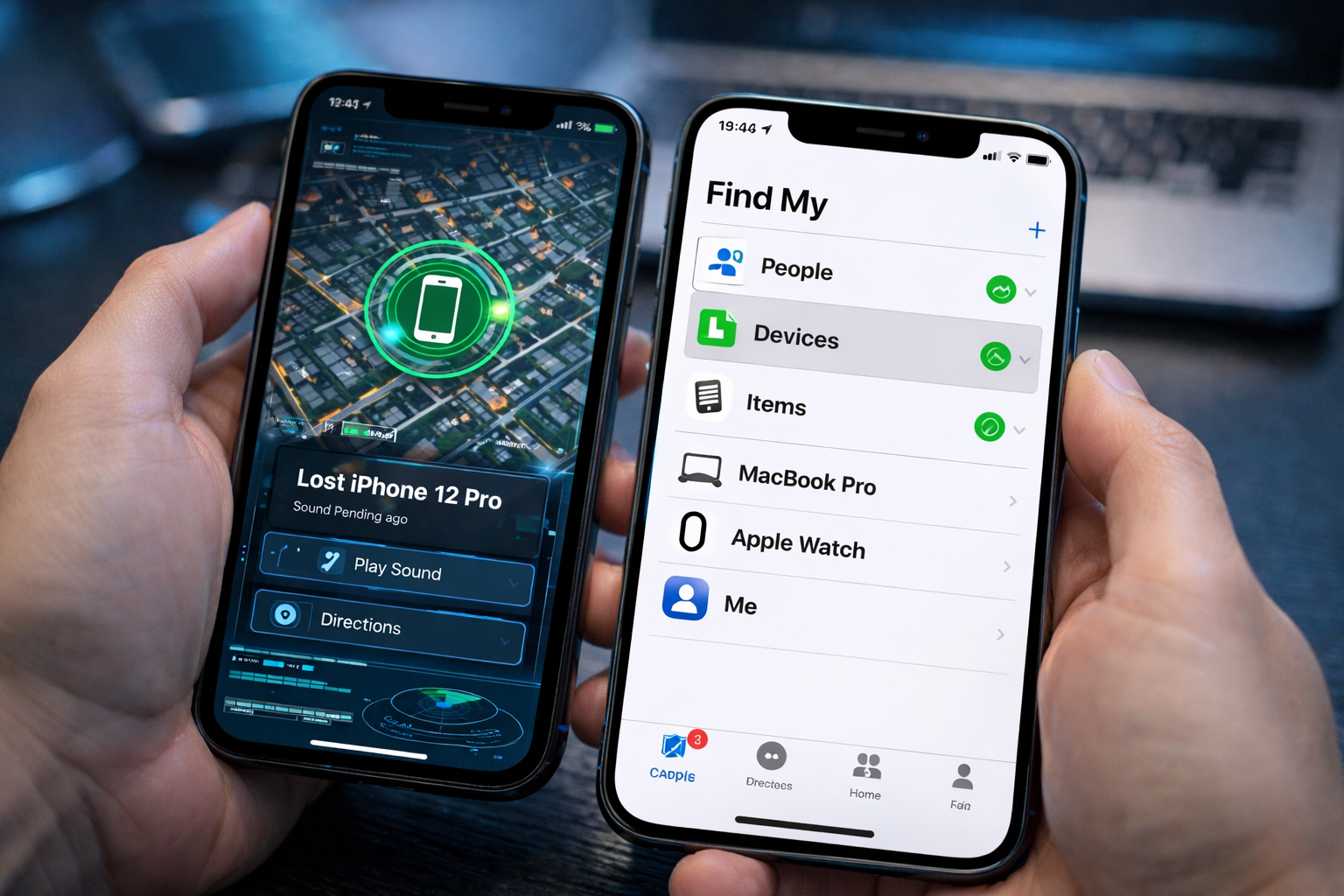
The hero of this story is Find My, Apple’s official device-tracking solution. If your iPhone was set up correctly before it went missing, another iPhone can help you locate it on a map, make it play a sound, lock it down, or even erase it remotely if things get serious.
This guide focuses specifically on finding an iPhone from another iPhone, whether you’re signed in with the same Apple ID or using Family Sharing with location access enabled.
2. Can You Find an iPhone Using Another iPhone?
Yes but with a few important conditions.
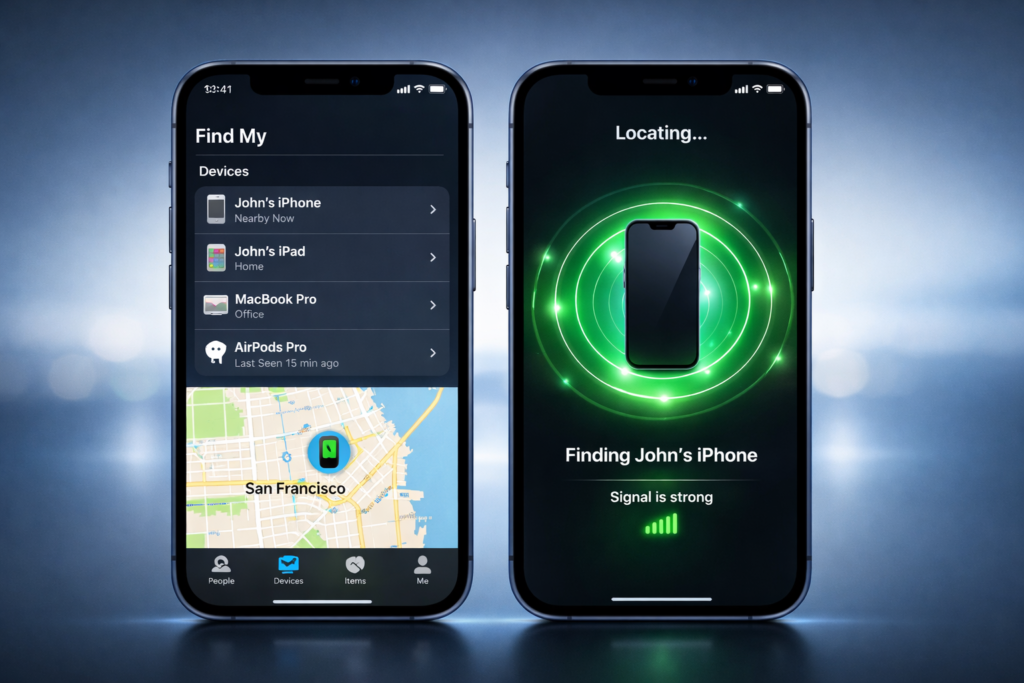
Apple allows you to locate a lost iPhone from another iPhone using the Find My app, as long as the missing device is tied to your Apple ID or shared with you through Family Sharing. This is one of the biggest advantages of Apple’s tightly integrated ecosystem: your devices are designed to look out for each other.
The Find My app pulls together location data, device status, and security controls in one place. From a second iPhone, you can see where your lost device is, whether it’s online or offline, and take action instantly no computer required.
However, there’s one non-negotiable requirement: Find My must have been enabled on the lost iPhone before it went missing. If it wasn’t turned on ahead of time, Apple won’t be able to track the device or show its location.
In short, Apple gives you the tools but they only work if the groundwork was already in place.
3. Prerequisites Before Your iPhone Goes Missing
(This setup determines whether recovery is possible at all.)
Finding your iPhone from another device isn’t magic it’s preparation. Apple’s tracking tools only work if the right switches were flipped before the phone disappeared. Think of this as the quiet insurance policy most people forget to set up… until it’s too late.
Here’s what must be in place on the lost iPhone:
- Find My iPhone is enabled
This is the core feature. Without it, the device is effectively invisible once lost. - Find My network is turned on
This allows your iPhone to be located even when it’s offline, by securely pinging nearby Apple devices. - Send Last Location is enabled
If the battery is critically low, your iPhone will automatically send its last known location to Appleoften the difference between “gone” and “found.” - Location Services are turned on
Find My relies on system-level location access to pinpoint the device accurately. - The device has power and connectivity
A powered-on iPhone with Wi-Fi, cellular data, or access to the Find My network offers real-time tracking. Offline devices still show a recent location. - Apple ID or Family Sharing access is available
You must be signed in to the same Apple ID on the other iPhone or have location sharing enabled through Family Sharing to see the device.
If these prerequisites are set, you’re in control. If they’re not, your options become limited very quickly.
4. How to Find Your iPhone Using the Find My App (Step-by-Step)
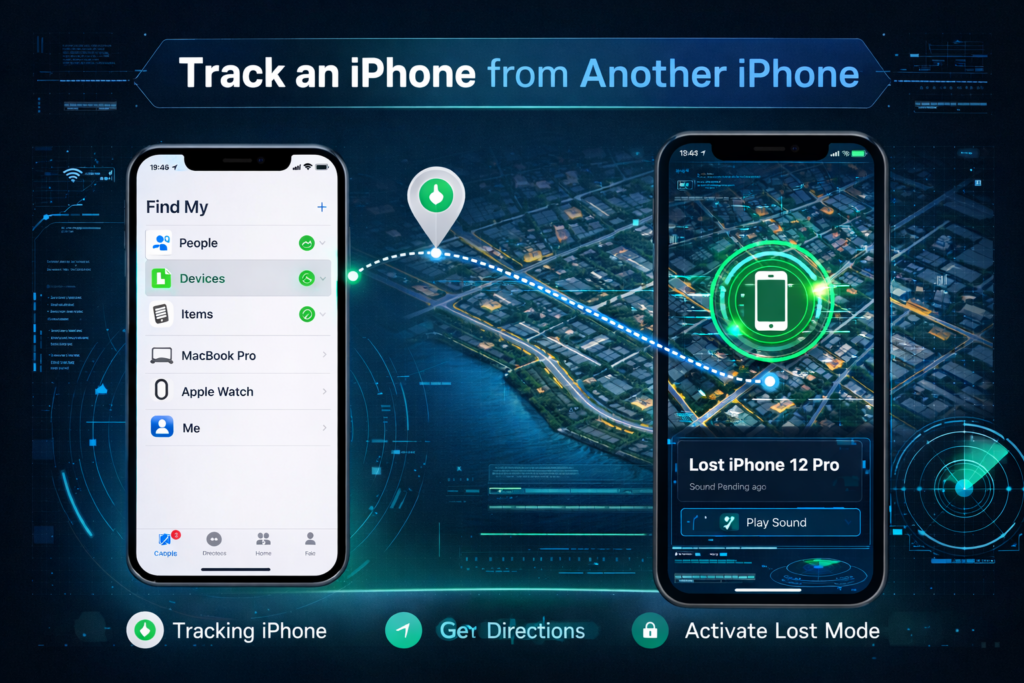
Once you have access to another iPhone, locating your missing device takes less than a minute.
- Open the Find My app
It comes preinstalled on all iPhones. - Tap “Devices” at the bottom of the screen
This shows every Apple device connected to your Apple ID or shared with you. - Select the missing iPhone from the list
Tap the device name to open its tracking panel. - View the location on the map
You’ll see either the current location (if the device is online) or the last known location if it’s offline.
From here, you’re not just observing you’re in command.
4.1 Actions You Can Take from Find My
Find My isn’t just about maps. It gives you powerful tools to protect your data and recover your device.
- Play Sound
Forces the iPhone to ring loudly even if it’s on silent. Perfect for nearby losses. - Enable Lost Mode
Locks the device with your passcode, tracks its movement, and marks it as lost. - Display a Contact Message
Show a custom message and phone number on the lock screen so someone can return it. - Suspend Apple Pay
Lost Mode automatically disables Apple Pay to prevent unauthorized purchases. - Erase iPhone Remotely (Last Resort)
Completely wipes your data if recovery isn’t possible. The erase command activates once the phone reconnects to the internet.
Used correctly, Find My turns a lost iPhone from a disaster into a manageable problem and often, a quick recovery.
5. How to Find an iPhone Using Family Sharing
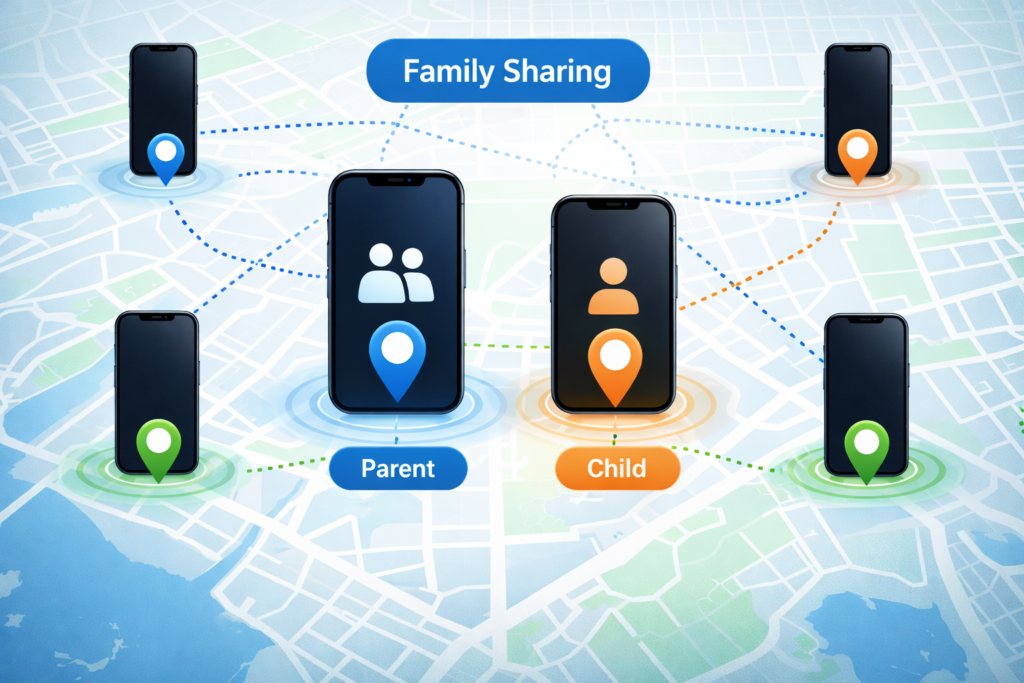
Family Sharing adds a second safety net especially useful if you don’t have access to another device signed in with your own Apple ID.
When Family Sharing applies
This method works when the lost iPhone belongs to a family member in your Family Sharing group and location sharing has been enabled before the device goes missing. Parents commonly use this for children’s devices, but it works just as well between adults.
Location sharing requirements
The iPhone owner must have:
- Joined the same Family Sharing group
- Enabled Share My Location
- Allowed their location to be visible to you
Without these permissions, the device won’t appear in Find My.
Where the device appears in Find My
Open the Find My app and go to Devices. The family member’s iPhone will appear alongside your own devices, clearly labeled under their name. Tapping it reveals the same map view and controls available for your personal devices.
Limitations and permissions involved
Family Sharing gives visibility, not ownership. Depending on permissions, you may be able to view the location and play a sound, but some actions like erasing the device may be restricted to the device owner. Privacy controls always override convenience here.
6. Alternative Method: Find Your iPhone via iCloud.com on Another iPhone
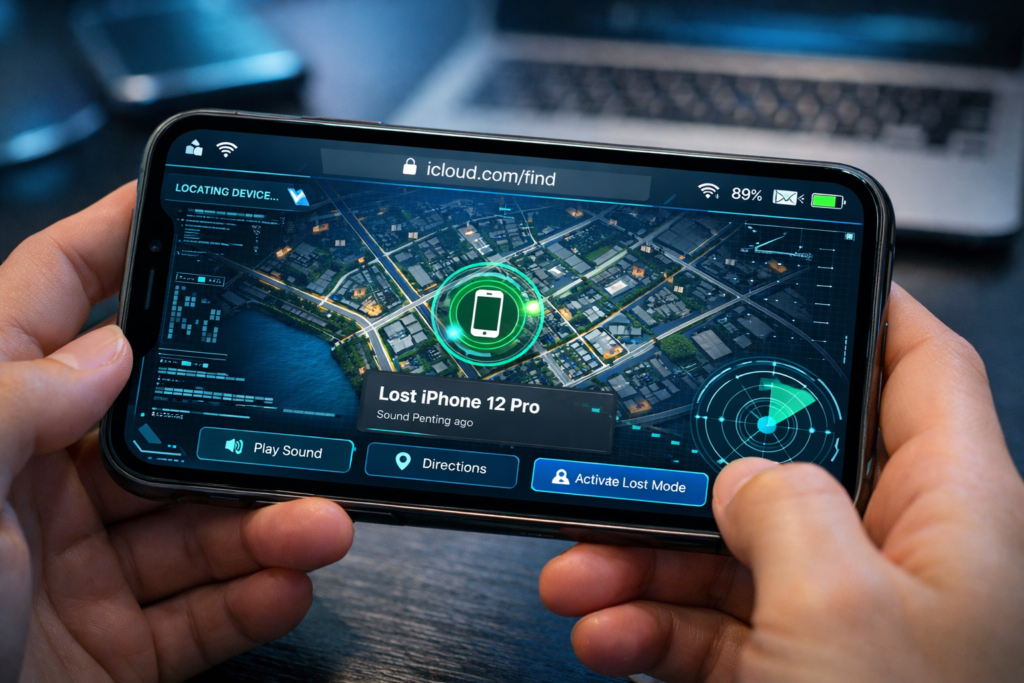
If the Find My app isn’t available or you’re using someone else’s iPhone you can still track your device using Apple’s web-based option.
Accessing icloud.com/find from a mobile browser
On the other iPhone, open Safari (or any browser) and go to icloud.com/find. This version is optimized for mobile and works without installing anything.
Signing in with your Apple ID
Log in using the same Apple ID linked to the lost iPhone. This connects you directly to Apple’s Find My system.
Selecting devices from “All Devices”
Tap All Devices at the top of the screen and choose the missing iPhone from the list. The map will update to show its current or last known location.
Available actions
Just like the Find My app, iCloud.com lets you:
- View the device’s location
- Play a sound
- Enable Lost Mode
- Remotely erase the iPhone
Note on two-factor authentication
When using the Find Devices option on iCloud, Apple may allow access without entering a two-factor verification code specifically to help in lost-device scenarios. This ensures you’re not locked out when your missing iPhone is your trusted device.
This method isn’t a fallback it’s a fully capable alternative when the app isn’t an option.
7. What If Your iPhone Is Offline or Can’t Be Found?
Seeing “Offline” or “No Location Found” in Find My can feel like the door just slammed shut but it usually hasn’t.
What “Offline” or “No Location Found” actually means
“Offline” simply means the iPhone isn’t currently connected to the internet or powered on. “No Location Found” often appears when the device hasn’t been able to report its position recently. Neither message means the phone is gone forever.
Last known location explained
If Send Last Location was enabled, Find My will show the most recent place your iPhone reported before losing power or connectivity. This snapshot can remain visible for up to 24 hours, or longer when Find My network data is available.
Find My network tracking window
With the Find My network turned on, your iPhone can still be detected by nearby Apple devices even while offline. In some cases, these locations can appear for up to seven days, giving you a wider recovery window than traditional GPS tracking.
Enable “Notify When Found”
If the phone is offline, turn on Notify When Found in Find My. You’ll receive an alert the moment the iPhone reconnects to a network or is detected by the Find My network no constant checking required.
8. What to Do If Your iPhone Is Lost Permanently
If enough time has passed and recovery seems unlikely, it’s time to shift from finding to protecting.
Report it to the police
File a police report, especially if theft is suspected. This may be required for insurance claims and helps document the loss.
Contact your carrier
Your carrier can suspend service to prevent calls, texts, and data usage. This also blocks unauthorized use of your SIM or eSIM.
Change your Apple ID password
Updating your Apple ID password adds an extra layer of security and prevents anyone from accessing your iCloud data, even if they bypass the lock screen.
Insurance and claims
If you have AppleCare+ with Theft and Loss or third-party insurance, file a claim as soon as possible. Keep the device listed in Find My during this process.
Why you should not remove the device from Find My
Removing the iPhone from Find My disables Activation Lock. Once that happens, the device can be erased and reused by someone else and you lose any chance of tracking it. Keeping it in Find My protects your data and preserves your claim eligibility.
At this stage, control matters more than hope and Apple’s safeguards are designed to keep that control in your hands.
9. Troubleshooting Common Find My Issues
When Find My doesn’t work as expected, don’t panic most problems are fixable once you know the cause.
- Find My not enabled: If the missing iPhone wasn’t set up with Find My before it was lost, it can’t be located or controlled remotely. This setting must already be active to work. How to find your lost iPhone or iPad – Apple Support QA
- Device not appearing: Make sure you’re signed in with the correct Apple ID or that location sharing is enabled for the family member’s device. Without the right credentials or permissions, Find My won’t show the device.
- Location sharing disabled: For Family Sharing, the lost device must have location sharing turned on before it went missing; otherwise, it won’t appear in the Find My list.
- Internet or power issues: If the device is offline or out of battery, you’ll see its last known location instead of a live update. Using “Notify When Found” can alert you once it reconnects.
- Apple ID mismatch: Find My only shows devices tied to the Apple ID you’re signed into or ones shared with you. A mismatch here prevents visibility.
10. Apple’s Official Resources (For Further Help)
For the most reliable and detailed guidance straight from Apple, check these official links:
- 🔗 Apple Support: Find a lost iPhone or iPad – step-by-step recovery help using Find My. Apple Support: How to find your lost iPhone or iPad
- 🔗 Apple Support: Locate a device on iCloud – instructions for tracking devices via iCloud.com. Locate a device in Find Devices on iCloud.com – Apple Support
- 🔗 Apple Support: Set up Find My – learn how to enable and configure Find My on your devices. Find My – Official Apple Support
- 🔗 iCloud Find My portal – the web tool to locate your iPhone in a browser: icloud.com/find. iCloud+ – Find My – Apple
11. Final Takeaway
Losing your iPhone doesn’t have to mean losing hope but it does require proactive setup.
Setting up Find My before your device disappears is the single most important step you can take to safeguard it. With this feature enabled, Apple’s ecosystem gives you the most reliable tool for finding, locking, or protecting a lost iPhone.
Don’t wait until it’s gone to realize how useful this feature is check your settings today and turn on Find My, Find My Network, and “Send Last Location” so you’ll be ready well in advance.
Frequently Asked Questions (FAQ)
1. Can I find my iPhone from another iPhone if it’s turned off?
Yes sometimes. If your iPhone is turned off or has no internet, Find My may still show its last known location. If the Find My network was enabled, nearby Apple devices can help detect it for a limited time. Turn on Notify When Found to get alerted when it reconnects.
2. Do I need to be logged in with the same Apple ID on both iPhones?
In most cases, yes. To see your own iPhone in Find My, the other iPhone must be signed in with the same Apple ID. The exception is Family Sharing, where location access has been granted ahead of time.
3. Will Find My work if my iPhone is on silent mode?
Absolutely. The Play Sound feature overrides silent mode and plays a loud tone, making it easy to locate your iPhone if it’s nearby under cushions, in bags, or hiding in plain sight.
4. Can someone access my data if my iPhone is lost?
Not if you act quickly. Enabling Lost Mode locks the device with your passcode, suspends Apple Pay, and prevents access to personal data. If recovery seems unlikely, you can remotely erase the iPhone to protect everything on it.
5. What should I do right now to make sure I can find my iPhone later?
Go to Settings → [Your Name] → Find My, and make sure Find My iPhone, Find My network, and Send Last Location are all turned on. This single setup step is what makes everything in this guide possible.