
-
- No Comments
- February 28, 2026

How to install Java without admin privileges
1. Introduction
Picture this: you’re ready to run a Java program, compile code for a class project, or fire up an IDE — and then boom — Windows hits you with the dreaded message: “Administrator privileges required.”
For millions of users on office laptops, school computers, or tightly locked corporate systems, this isn’t just annoying — it’s a complete roadblock. You can’t install software the normal way, and IT isn’t exactly waiting on standby to approve your Java request.
That’s exactly where this guide steps in.
What This Guide Solves
This article shows you how to install and use Java without admin rights — no system changes, no risky hacks, and no breaking company policies. Instead of relying on traditional installers, you’ll learn a smarter method that works entirely within your user account.
Common Scenarios Where This Happens
This problem pops up more often than you’d think, especially if you’re working in restricted environments like:
- Office laptops locked down by IT departments
- School or university lab computers
- Shared family PCs without admin access
- Corporate machines with strict security policies
- Remote or virtual workstations
In all these cases, the usual “download and install” approach simply won’t work.
The Simple Solution: The Portable ZIP Method
Here’s the good news — Java doesn’t actually need to be installed system-wide to run.
Instead, you can download a portable ZIP version of Java, extract it into a folder you control (like your user directory), and configure it locally. No admin password, no system modifications, no UAC prompts.
Think of it like carrying a fully functional mini-Java setup that lives entirely inside your personal folder — and can even run from a USB drive if needed.
2. Can You Install Java Without Administrator Access?
Short Answer: Yes — Absolutely
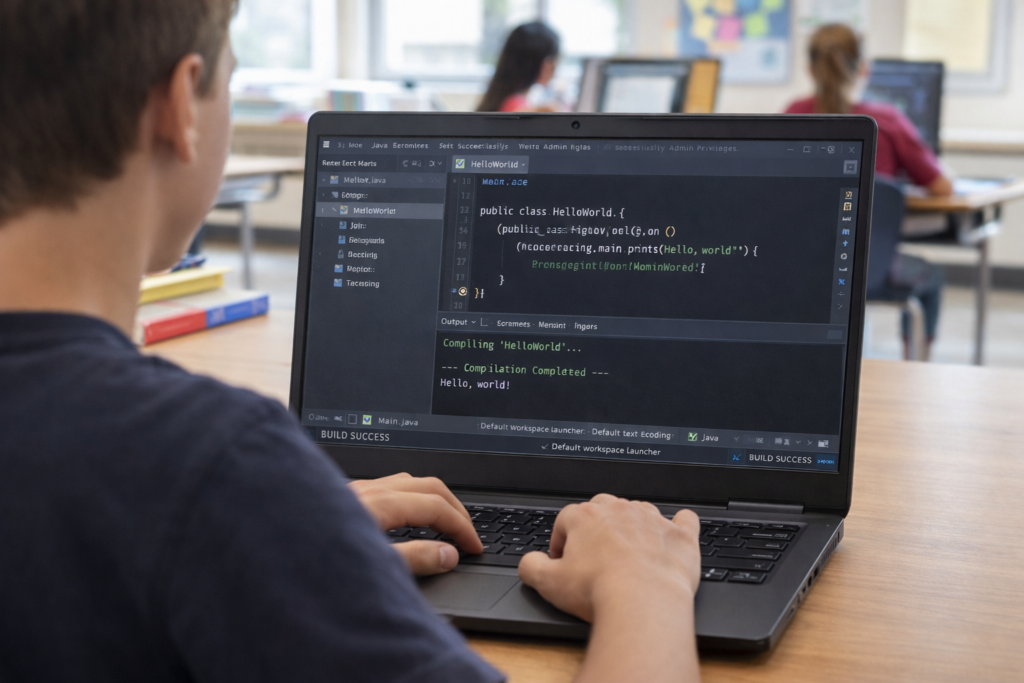
You can install and run Java without administrator privileges by using portable ZIP builds instead of traditional installers. This method is completely legitimate, widely used by developers, and perfectly suited for restricted systems.
It’s not a workaround — it’s simply using Java in a different way.
Why Standard Java Installers Require Admin Rights
When you install Java using the typical .exe or .msi installer, it tries to make system-level changes, such as:
- Writing files to protected directories like Program Files
- Modifying global environment variables
- Updating system registry entries
- Configuring machine-wide settings
Because these actions affect the entire computer, Windows requires administrator approval through User Account Control (UAC).
No admin rights = installation blocked.
How Portable Extraction Safely Bypasses UAC
Portable Java avoids this problem entirely by changing one simple thing: where and how Java is installed.
Instead of installing, you simply:
- Download a ZIP archive of Java
- Extract it to a folder inside your user directory
- Configure environment variables only for your account
Since everything stays within your personal workspace — and nothing touches system files — Windows has no reason to trigger UAC or demand admin permissions.
The result?
You get a fully functional Java environment that behaves just like a normal installation — without ever needing elevated access.
3. How the Portable Java Method Works
At first glance, installing software without admin rights sounds like a loophole. It isn’t. It’s simply a smarter way of using how Java is distributed. The “portable method” works because Java doesn’t actually need a traditional installation — it just needs to exist in a folder where you have permission to run it.
Let’s break it down.
Using ZIP Archives Instead of EXE/MSI Installers
The biggest shift in this method is ditching the installer completely.
Typical Java downloads come as .exe or .msi files. These are designed to perform automated system setup — copying files into protected locations, editing registry entries, and configuring system-wide settings. That’s why they immediately trigger administrator prompts.
Portable Java flips the script. Instead of installers, you download a ZIP archive containing the complete Java Development Kit (JDK). Inside that ZIP is everything Java needs to run — no setup wizard required.
You simply extract it, and it’s ready to use. Think of it less like installing software and more like unpacking a toolkit.
Installing in a User-Writable Directory
Here’s the golden rule of bypassing admin restrictions:
👉 Only work inside folders you own.
With portable Java, you extract the ZIP file into a location where your account has full write access, such as:
- Your user profile folder
- Documents directory
- Desktop
- A custom folder inside C:\Users\YourName\
Because these areas don’t require elevated permissions, Windows has no reason to block the process.
No system directories. No protected paths. No admin password.
No System-Wide Changes Required
Traditional installations modify the entire system so every user can access Java globally. That’s what triggers UAC.
Portable Java avoids this by staying completely self-contained:
- No registry edits
- No global PATH changes
- No files written to Program Files
- No background services installed
Instead, any configuration — like setting JAVA_HOME or updating PATH — happens only within your user session.
The result is a clean, reversible setup that behaves exactly like a normal installation but leaves the operating system untouched.
4. Recommended Java Distributions (No Admin Required)
Not all Java downloads are created equal. If you’re installing without admin rights, choosing the right distribution matters — because you specifically need ZIP-based builds that support portable use.
Here are the most reliable options.
4.1 Open-Source Builds
Eclipse Adoptium (Temurin JDK)
If there’s a gold standard for portable Java, this is it.
Eclipse Adoptium provides the Temurin JDK, an open-source, production-ready build of OpenJDK trusted by developers worldwide. It’s stable, regularly updated, and — most importantly — offers downloadable ZIP archives perfect for restricted environments.
Why it’s ideal:
- Free and open-source
- No licensing headaches
- Clean ZIP packages available
- Long-term support (LTS versions)
- Widely used in enterprise environments
For most users installing Java without admin rights, Temurin is the safest and simplest choice.
4.2 Official Oracle Option
Oracle JDK ZIP Downloads
Prefer the official source? That’s an option too.
Oracle provides ZIP versions of its JDK alongside the standard installers. These archives contain the same core Java runtime and development tools — just without the automated installation process.
This route is useful when:
- You specifically need Oracle’s official builds
- Your organization requires vendor-supported versions
- You’re working in enterprise or legacy environments
Just remember: licensing terms may vary depending on how you plan to use it.
4.3 Fully Portable Java Versions
For users who want maximum convenience, some Java distributions are designed to be portable from the start.
jPortable (PortableApps Launcher)
This version packages Java inside a launcher system, allowing it to run seamlessly from a USB drive or portable apps environment. It’s especially handy for students or IT-restricted workplaces.
GitHub Portable Builds
Several community projects offer pre-configured portable Java setups hosted on GitHub. These typically bundle scripts and launchers that automatically handle environment variables.
They can be useful for quick setups — just make sure to download only from trusted repositories.
5. Step-by-Step Guide to Install Java Without Admin Rights
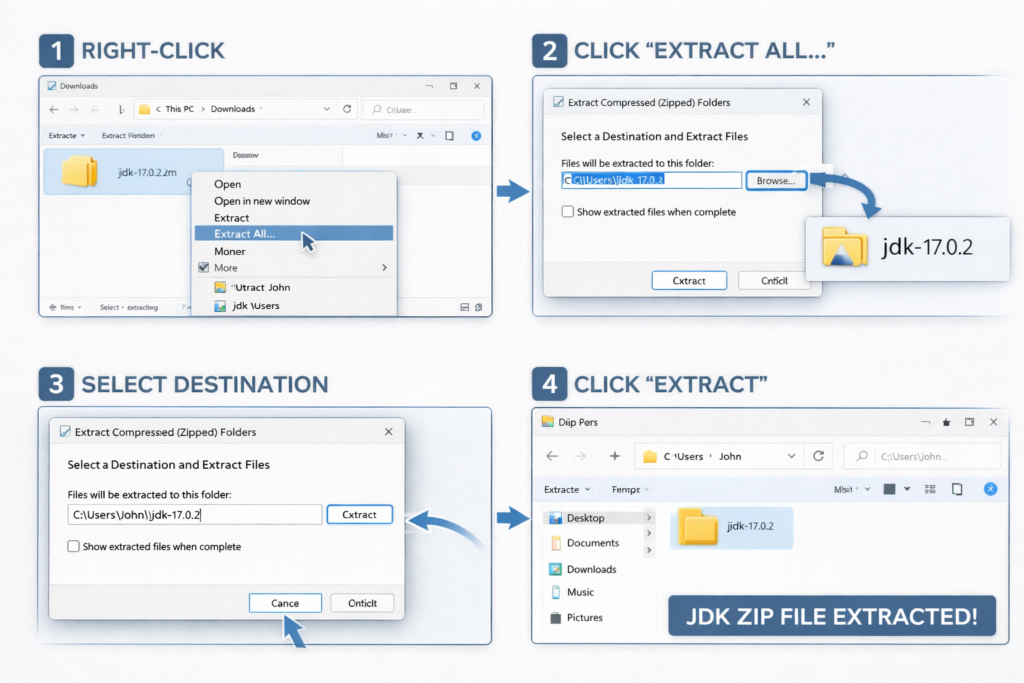
Now comes the practical part — the exact workflow that turns a restricted Windows PC into a fully functional Java environment without touching admin permissions. Follow these steps carefully, and you’ll have Java running in minutes.
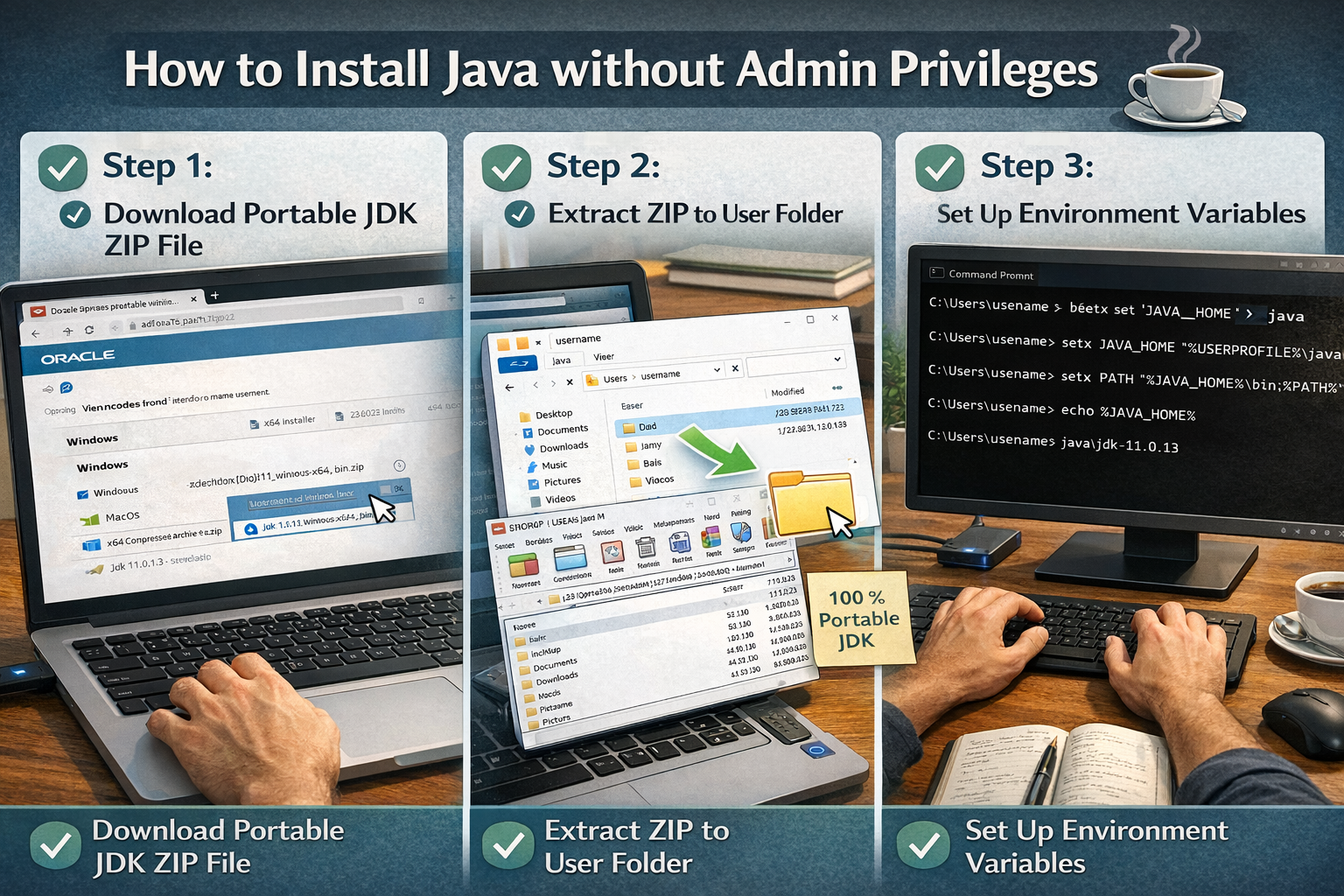
5.1 Step 1 — Download the ZIP Package
The first rule of portable Java installation is simple: never download the installer version.
You specifically need the ZIP archive of the Java Development Kit (JDK), which contains all necessary files without requiring setup privileges.
Choosing the Correct Version (Windows x64 ZIP)
When selecting your download, make sure it matches these criteria:
- Platform: Windows
- Architecture: x64 (64-bit)
- File type: ZIP archive (NOT .exe or .msi)
- Version: Prefer LTS releases for stability
A typical file will look something like this:
OpenJDK21U-jdk_x64_windows_hotspot_21.x.x.zip
Once downloaded, you’re ready to move to the next step.
5.2 Step 2 — Extract to a User Folder
Now it’s time to “install” Java — which in this case simply means extracting it into a folder you control.
Recommended Directory Locations
Always choose locations that don’t require elevated permissions, such as:
- C:\Users\YourName\Java\
- Desktop folder
- Documents folder
- A custom folder inside your user profile
Avoid system directories like Program Files, because they will trigger admin restrictions.
Using Tools Like 7-Zip
Most ZIP files can be extracted using Windows’ built-in extractor, but some nested archives work better with third-party tools like 7-Zip.
Simply:
- Right-click the ZIP file
- Choose Extract Here or Extract to Folder
- Wait for extraction to complete
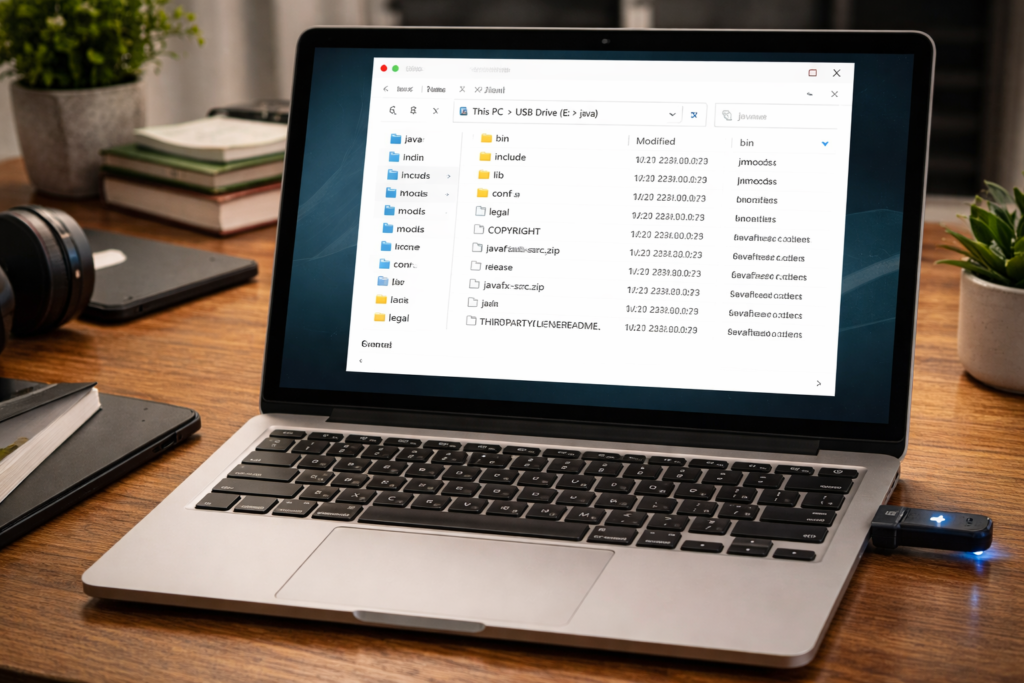
Once done, you’ll have a full JDK folder containing subdirectories like bin, lib, and include. That’s your portable Java installation.
5.3 Step 3 — Set JAVA_HOME (User Level)
Next, you need to tell Windows where Java lives — but only for your user session, not system-wide.
This is done by setting the JAVA_HOME environment variable.
Temporary Environment Variables
To set JAVA_HOME for the current Command Prompt session:
- Open Command Prompt
- Run:
set JAVA_HOME=C:\Users\YourName\Java\jdk-21
This works immediately but resets when you close the window.
Folder Path Setup
Make sure the path you specify points to the main JDK folder — the one containing the bin directory.
For example:
C:\Users\YourName\Java\jdk-21
This tells programs exactly where to find Java.
5.4 Step 4 — Add Java to PATH
Without updating the PATH variable, Windows won’t recognize Java commands like java or javac.
You can add it temporarily or create a reusable setup.
Session-Based Method
To add Java to PATH for the current session:
set PATH=%PATH%;%JAVA_HOME%\bin
Now you can run Java commands instantly — but only until the CMD window closes.
Persistent Batch File Method
A smarter solution is creating a reusable launcher script.
Create a file called:
start-java.bat
Add this content:
@echo off
set JAVA_HOME=C:\Users\YourName\Java\jdk-21
set PATH=%JAVA_HOME%\bin;%PATH%
cmd /k
Double-clicking this file opens a Command Prompt with Java fully configured — no admin access needed, ever.
5.5 Step 5 — Verify Installation
Time for the moment of truth.
Open your configured Command Prompt and run:
java -version
You should see the installed Java version displayed.
Next, verify the compiler:
javac -version
If both commands return version numbers, congratulations — Java is successfully running without administrator privileges.
6. Creating a Portable Java Launcher (Optional but Recommended)
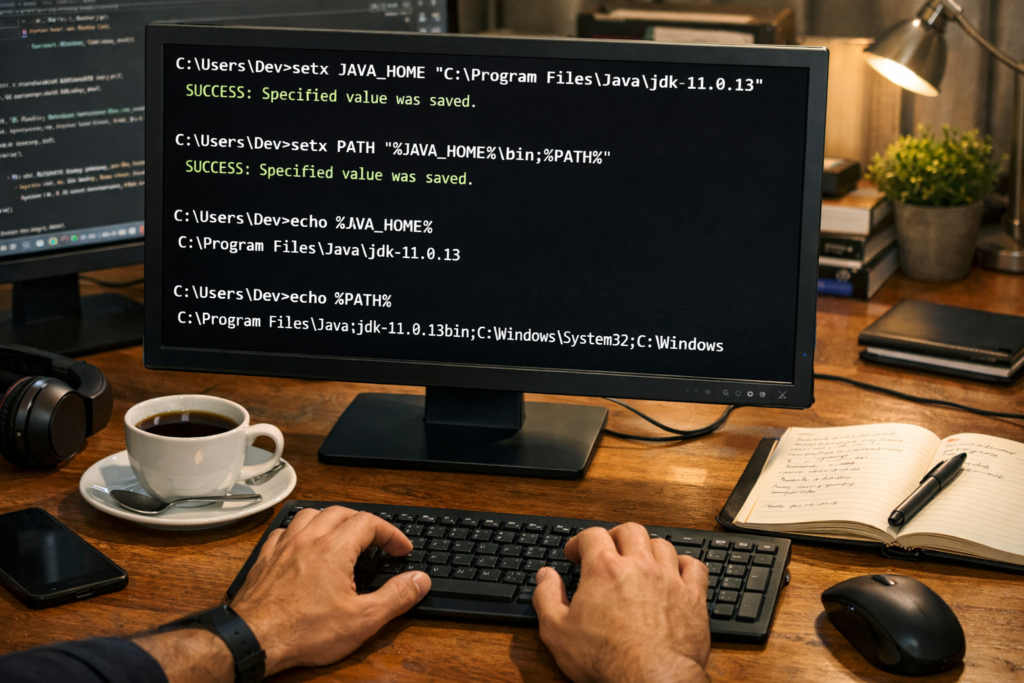
If you want a truly hassle-free experience, setting up a portable launcher is the ultimate upgrade. It saves time and ensures Java works instantly every time.
Batch File Setup
As mentioned earlier, a simple .bat file can automatically configure:
- JAVA_HOME
- PATH variable
- Command environment
This eliminates the need to manually set variables every session.
You simply double-click once — and Java is ready to go.
Running Java Without Repeated Configuration
With a launcher in place:
- No manual commands required
- No environment variables to remember
- No risk of configuration errors
It creates a consistent, reliable way to run Java on restricted systems.
Using Java From USB Drives
Here’s where portable Java truly shines.
You can copy your entire Java folder — along with the batch launcher — onto a USB drive. Plug it into any Windows computer, run the launcher, and Java works instantly without installation.
For developers, students, or IT-restricted workplaces, this turns Java into a carry-anywhere development environment.
7. Using Java Without Admin Rights in IDEs
Installing Java portably is only half the story. The real magic happens when you plug that setup into your favorite development environment — and yes, it works perfectly even on locked-down systems.
Here’s how to make IDEs cooperate without admin privileges.
Configuring IDEs with JAVA_HOME
Most IDEs don’t actually care whether Java is “installed” — they only need to know where the JDK folder is located.
Instead of searching for a system-wide installation, you simply point the IDE directly to your portable Java directory.
Typically, this involves:
- Opening IDE settings for Java SDK configuration
- Selecting “Add JDK” or “Select existing JDK”
- Browsing to your extracted Java folder (the one containing the bin directory)
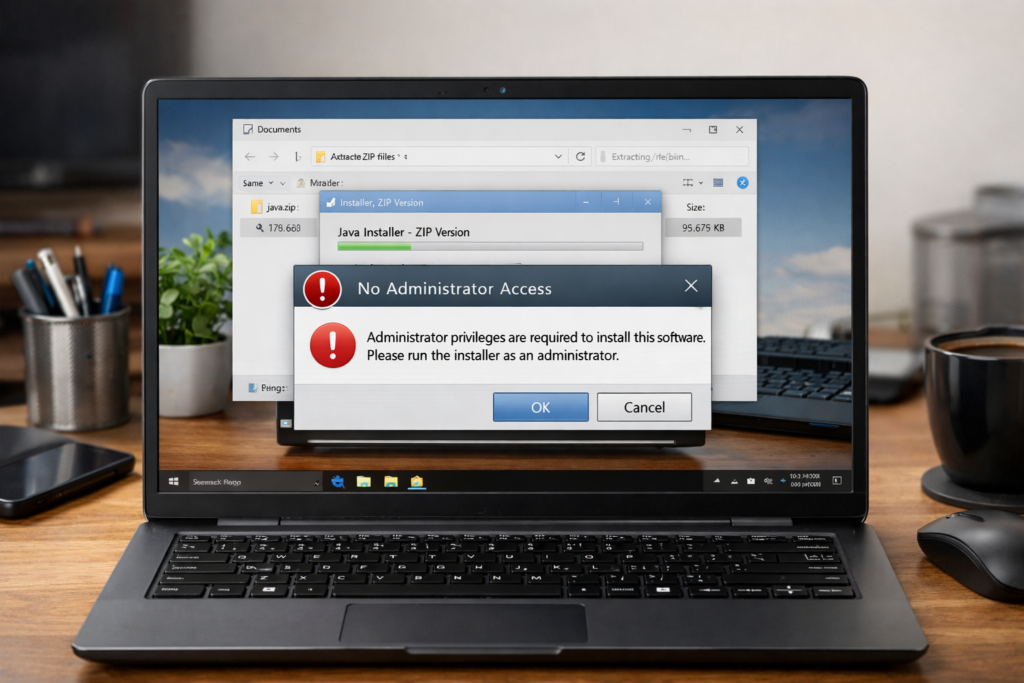
Once set, the IDE treats your portable Java exactly like a normal installation — compiling, running, and debugging without any admin permissions.
Running Java in Restricted Environments
Portable Java is designed specifically for environments where system changes aren’t allowed. That means you can:
- Run Java projects on office laptops without IT approval
- Compile school assignments on lab computers
- Launch Java apps on shared or temporary machines
- Work inside corporate virtual desktops
Because everything stays inside your user folder, it never conflicts with security policies or requires elevated access.
It’s a “sandboxed” setup — powerful yet contained.
Updating Portable Java Versions
One of the biggest advantages of portable Java is how effortless updates become.
Instead of running uninstallers or dealing with system cleanup, you simply:
- Download the latest ZIP version
- Extract it into a new folder
- Update your launcher or IDE path
That’s it — no registry changes, no leftover files, no admin prompts.
You can even keep multiple Java versions side-by-side and switch between them whenever needed.
8. Common Issues and Fixes
While portable Java is straightforward, a few hiccups can appear — especially on tightly secured systems. Here are the most common problems and how to solve them quickly.
Antivirus Blocking Extraction
Some security tools may flag large extracted archives as suspicious — particularly when they contain executable files like java.exe.
This doesn’t mean the files are unsafe; it’s simply a precaution triggered by unfamiliar software.
Quick fix:
- Extract the ZIP inside your user directory
- If blocked, add a temporary exception for the folder
- Ensure you download only from trusted official sources
Once allowed, Java runs normally without further issues.
PATH Variable Restrictions
In rare cases, corporate policies may prevent users from permanently editing environment variables.
If this happens, don’t worry — you still have a reliable workaround:
- Use a batch launcher script to set variables temporarily
- Run Java inside that configured command session
This bypasses restrictions while staying fully compliant with system policies.
Outdated Installation Methods to Avoid
Older guides often recommend complex tricks like:
- Extracting Java from installer files
- Using third-party tools to unpack EXE packages
- Modifying system folders manually
These methods are now unnecessary and often unreliable.
Modern ZIP distributions already provide a clean, safe, and official way to run Java portably — making older techniques obsolete.
9. Advantages of Portable Java Installation
Once you experience portable Java, it becomes clear why many developers prefer it — even when they do have admin access.
Here’s what makes it so powerful.
No Admin Access Required
The most obvious benefit:
You can install and run Java entirely within your user account — no elevated permissions, no IT involvement, and no system changes.
It puts control back in your hands.
Fully Portable
Portable Java isn’t tied to one machine. You can:
- Move it between computers
- Store it on a USB drive
- Run it from cloud-synced folders
Wherever the folder goes, your Java environment goes with it.
Easy Updates
Updating becomes incredibly simple:
Just download a new ZIP, extract it, and update your path — no uninstallers, no cleanup, no system conflicts.
It’s as easy as replacing a folder.
Safe for Restricted Environments
Because portable Java avoids system-level changes, it works smoothly in:
- Corporate environments
- School labs
- Shared computers
- Virtual desktops
It respects security policies while still giving you full development capability.
10. Frequently Asked Follow-Up Topics (Preview Section)
Once you set up Java without admin rights, a few practical questions naturally follow. Think of this section as your quick navigation map — pointing you toward the most common next steps users usually need.
Verifying Java Installation
After manual setup, many users want to confirm everything is working correctly. This typically involves checking Java and compiler versions through Command Prompt and ensuring environment variables are properly recognized. It’s the quickest way to know your portable setup is fully functional.
Best Portable Java Versions
Not all Java builds are equally suited for portable use. Users often explore which versions offer the best stability, long-term support, and compatibility for restricted systems — especially when choosing between open-source builds and official vendor releases.
Setting PATH Without Admin Rights
One of the most common concerns is how to configure Java so commands work globally within a user session. This includes both temporary PATH setup and reusable methods that avoid system-level changes.
Using Java With IDEs
Developers frequently want to integrate portable Java into tools like IDEs or code editors. This involves pointing development environments directly to the extracted JDK folder so projects can compile and run normally.
Fixing PATH Issues
Sometimes Java commands don’t work even after setup — usually due to incorrect folder paths, variable typos, or session-based configurations resetting. Troubleshooting these issues is a common follow-up step for new users.
11. Conclusion
Installing Java without administrator privileges might sound technical at first, but as you’ve seen, the process is surprisingly straightforward once you understand the portable approach.
Quick Recap of the Process
Here’s the entire workflow in a nutshell:
- Download a Java ZIP archive instead of an installer
- Extract it into a folder inside your user directory
- Set JAVA_HOME and PATH locally
- Verify installation using simple command-line checks
No admin password. No system changes. No complicated workarounds.
When This Method Is Most Useful
This portable approach truly shines in situations where traditional installation simply isn’t possible, such as:
- Corporate laptops with restricted permissions
- School or university lab computers
- Shared family PCs
- Remote or virtual desktop environments
- Temporary development setups
In short, anytime you can’t install software normally, this method becomes a reliable alternative.
Final Tips for Smooth Usage
To keep your portable Java setup running effortlessly:
- Always download from trusted official sources
- Store Java inside a dedicated user folder
- Use a batch launcher for convenience
- Keep backups if running from USB drives
- Update by simply extracting newer versions
Master these habits, and you’ll have a flexible, portable Java environment ready to run anywhere — no administrator access required.
10. Frequently Asked Follow-Up Topics (Preview Section)
Once you set up Java without admin rights, a few practical questions naturally follow. Think of this section as your quick navigation map — pointing you toward the most common next steps users usually need.
Verifying Java Installation
After manual setup, many users want to confirm everything is working correctly. This typically involves checking Java and compiler versions through Command Prompt and ensuring environment variables are properly recognized. It’s the quickest way to know your portable setup is fully functional.
Best Portable Java Versions
Not all Java builds are equally suited for portable use. Users often explore which versions offer the best stability, long-term support, and compatibility for restricted systems — especially when choosing between open-source builds and official vendor releases.
Setting PATH Without Admin Rights
One of the most common concerns is how to configure Java so commands work globally within a user session. This includes both temporary PATH setup and reusable methods that avoid system-level changes.
Using Java With IDEs
Developers frequently want to integrate portable Java into tools like IDEs or code editors. This involves pointing development environments directly to the extracted JDK folder so projects can compile and run normally.
Fixing PATH Issues
Sometimes Java commands don’t work even after setup — usually due to incorrect folder paths, variable typos, or session-based configurations resetting. Troubleshooting these issues is a common follow-up step for new users.
11. Conclusion
Installing Java without administrator privileges might sound technical at first, but as you’ve seen, the process is surprisingly straightforward once you understand the portable approach.
Quick Recap of the Process
Here’s the entire workflow in a nutshell:
- Download a Java ZIP archive instead of an installer
- Extract it into a folder inside your user directory
- Set JAVA_HOME and PATH locally
- Verify installation using simple command-line checks
No admin password. No system changes. No complicated workarounds.
When This Method Is Most Useful
This portable approach truly shines in situations where traditional installation simply isn’t possible, such as:
- Corporate laptops with restricted permissions
- School or university lab computers
- Shared family PCs
- Remote or virtual desktop environments
- Temporary development setups
In short, anytime you can’t install software normally, this method becomes a reliable alternative.
Final Tips for Smooth Usage
To keep your portable Java setup running effortlessly:
- Always download from trusted official sources
- Store Java inside a dedicated user folder
- Use a batch launcher for convenience
- Keep backups if running from USB drives
- Update by simply extracting newer versions
Master these habits, and you’ll have a flexible, portable Java environment ready to run anywhere — no administrator access required.