

-
- No Comments
- November 27, 2025

How to remove obj in a box in WordPress
1. Introduction
Have you ever opened your WordPress editor and noticed a strange little square or symbol often called “OBJ in a box”—sneaking into your titles, paragraphs, or text boxes? It’s jarring, looks unprofessional, and can throw off your entire page layout.
This pesky issue usually pops up because of hidden formatting carried over from external sources like Word, Google Docs, or even certain web pages. Sometimes it’s caused by special characters, invisible Unicode symbols, or even block settings that automatically add borders or boxes around your text.
In this guide, we’ll walk you through practical, step-by-step methods to remove these unwanted OBJ characters and boxes. You’ll learn how to clean up your content, eliminate visual glitches, and even style your text boxes safely without reintroducing the problem.
2. What is “OBJ in a Box” in WordPress?

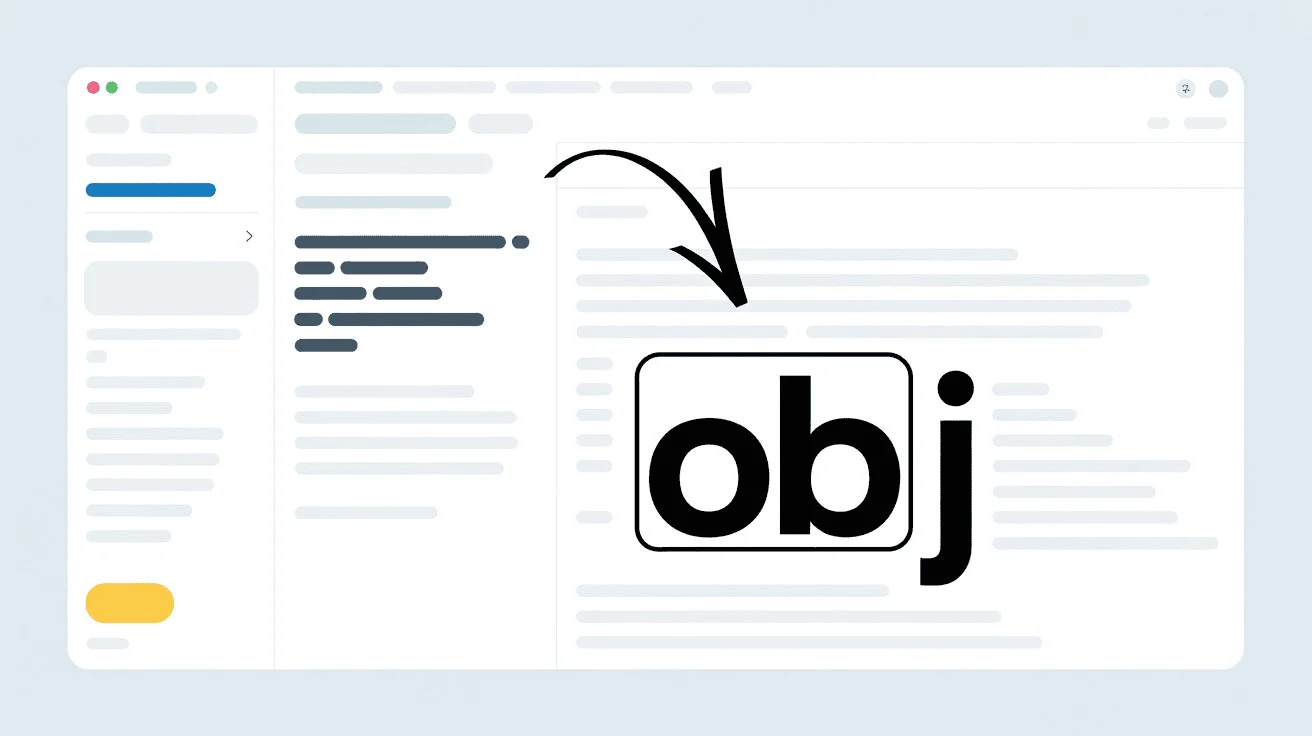
The “OBJ in a box” symbol in WordPress typically appears as a small, empty square or placeholder where text or formatting has gone awry. Think of it as a visual warning that your content carries invisible or unsupported characters.
Common scenarios where OBJ appears:
- When copying and pasting text from Microsoft Word, Google Docs, or other rich-text editors.
- In titles, headings, or paragraphs where formatting conflicts with your WordPress theme.
- In text boxes, group blocks, or content areas that enforce borders or special styling.
Why it matters: Not only does the OBJ symbol look odd, but it can also break the flow of your content and interfere with responsive design on different devices. Imagine spending hours crafting a post, only to see these squares scattered across your headings or content blocks—it’s frustrating, but fixable.
Visual description: Picture a small, gray square—like a tiny placeholder—inserted right where a character or formatting element failed to render. That’s your OBJ. It interrupts text continuity, makes your site look cluttered, and signals hidden formatting issues lurking beneath the surface.
3. Methods to Remove OBJ Characters

Dealing with OBJ symbols in WordPress doesn’t have to be frustrating. The good news is that most instances are caused by hidden formatting or unsupported characters that can be cleaned up with a few simple methods. Here’s how to tackle them effectively.
3.1 Paste as Plain Text
One of the most common ways OBJ characters appear is when copying content from Microsoft Word, Google Docs, or other rich-text editors. These programs embed hidden formatting that WordPress can’t always interpret, resulting in the infamous OBJ symbol.
How to paste as plain text:
- Windows: Press CTRL + Shift + V in the WordPress editor.
- Mac: Press CMD + Shift + V for the same function.
Why this works: Pasting as plain text strips all hidden formatting, special characters, and code snippets that could be causing the OBJ symbol. It essentially gives WordPress “clean” content that won’t introduce unwanted boxes or placeholders.
3.2 Retype the Text Manually
Sometimes even pasting as plain text doesn’t completely remove OBJ symbols. In these cases, the safest method is to delete the affected text area—whether it’s a title, heading, or paragraph—and retype it directly in the WordPress editor.
Steps:
- Delete the content containing the OBJ symbol.
- Manually type the text directly in the WordPress editor.
Advantages: Retyping ensures that no hidden code, formatting, or special characters make their way into your post. It’s a simple, foolproof way to eliminate the OBJ symbol entirely.
3.3 Use a Plain Text Editor as an Intermediary
If you want to preserve your original content but remove hidden formatting safely, a plain text editor acts as a perfect middle step.
How to do it:
- Copy the problematic text from Word or Google Docs.
- Paste it into a basic text editor: Notepad (Windows) or Notes (Mac).
- Copy the text again from the plain text editor and paste it into WordPress.
Benefits: Using a text editor removes all hidden formatting, special characters, and invisible codes. By the time the text reaches WordPress, it’s completely “clean,” and the OBJ symbol won’t appear.
4. How to Remove Borders or Boxes Around Text or Objects

Sometimes the “box” you see in WordPress isn’t a mysterious OBJ symbol—it’s actually a visible border or styling applied to your text or object. These borders can appear automatically depending on the block type you’re using or the theme settings.
Here’s how to remove them:
Step 1: Check Block Settings
- Click on the block containing the text or object.
- Look for any border, background, or box options in the block settings panel.
- Toggle borders off if the option is available.
Step 2: Use a Paragraph Block
- If your text is inside a Group, Box, or other container block, try switching to a simple Paragraph block.
- Paragraph blocks usually have no default borders, giving you a clean slate.
Step 3: Add Custom CSS
- Navigate to Appearance > Customize > Additional CSS in your WordPress dashboard.
- Add the following CSS snippet:
.your-box-class {
border: none !important;
box-shadow: none !important;
}
What this CSS does:
- border: none !important; removes any visible border around the element.
- box-shadow: none !important; removes any shadow effect that might make it look like a box.
- Using !important ensures that this style overrides any existing theme or block-specific styling.
5. Further Customization: Creating Styled Content Boxes
If you want to create content boxes intentionally—but avoid unwanted OBJ characters—you can use HTML and CSS for full control. This method allows you to design boxes with background colors, borders, padding, and rounded corners while keeping your content clean.
Example snippet:
<div style=”background-color:#f9f9f9; border:1px solid #ccc; padding:15px; border-radius:5px;”>
Your content here
</div>
Tips to prevent OBJ characters:
- Always type your content directly in WordPress or paste it as plain text.
- Avoid copying from Word or Google Docs into these boxes without cleaning the formatting first.
- Keep your CSS and HTML simple; complex styling can sometimes trigger formatting glitches.
By using this approach, you get visually appealing content boxes without introducing unwanted OBJ symbols.
6. Preventing OBJ in a Box
Prevention is always better than fixing glitches after the fact. Once you understand what triggers OBJ symbols, you can adopt a few best practices to keep your WordPress content clean.
Best practices for copying/pasting content:
- Always paste text as plain text when bringing content from Word, Google Docs, or websites.
- Avoid copying unnecessary formatting, such as font styles, colors, or special characters that WordPress may not recognize.
- Consider typing critical headings and titles directly in the WordPress editor rather than copying them.
Plugins and tools to help sanitize content:
- TinyMCE Advanced / Classic Editor plugins: Offer options to clean formatting automatically.
- WP Edit or similar content-cleanup plugins: Strip hidden characters and unsupported formatting from pasted content.
Check your themes and plugins:
- Some WordPress themes and page builder plugins automatically apply styles or blocks that may generate OBJ boxes or borders.
- If OBJ symbols appear consistently, temporarily switch themes or disable plugins to identify the culprit.
- Keep your WordPress core, theme, and plugins updated to reduce compatibility issues.
By following these practices, you minimize the risk of OBJ symbols reappearing and keep your content looking polished.
7. Related Fixes & Tips
Here are additional tips and fixes to help you handle OBJ symbols and boxes across your WordPress site:
- Fix OBJ caused by pasted content formatting: Use plain-text pasting or intermediate text editors to remove hidden characters.
- Use CSS to hide/remove OBJ characters: Simple CSS like display:none; or border/shadow removal can help clean up residual boxes.
- Identify theme or plugin conflicts: If OBJ symbols persist, disable plugins one by one or switch themes to find the source.
- Replace OBJ characters across the site: Use SQL queries or search-and-replace plugins to remove unwanted characters site-wide.
- Prevent OBJ when copying from Word/Google Docs: Always clean text formatting before pasting and avoid carrying over hidden styles.
Implementing these fixes ensures a clean, professional appearance for your content, free from distracting OBJ boxes or symbols.
8. Resources
Here are some useful resources to help you understand and fix the “OBJ in a box” issue in WordPress:
- How to remove “OBJ in a box” in WordPress — wcanvas.com
- WordPress forums & Reddit discussions on text box borders and formatting issues
- Guide to creating styled content boxes in WordPress — bforbloggers.com
- WordPress support for adding/editing CSS — wordpress.com
- CSS border removal tips — StackOverflow
These resources provide step-by-step guidance, troubleshooting tips, and examples for customizing text boxes and removing OBJ symbols effectively.
9. Conclusion
The “OBJ in a box” issue in WordPress may seem intimidating at first, but it’s usually caused by hidden formatting, special characters, or block styling that can be easily managed. By following the methods outlined in this guide pasting as plain text, retyping content, using plain text editors, checking block settings, and applying custom CSS, you can clean up your content and restore a polished look.
To prevent these glitches from recurring, adopt best practices when copying and pasting, sanitize content with helpful plugins, and monitor your theme and plugin settings.
FAQ: How to Remove OBJ in a Box in WordPress
1. What causes the OBJ symbol to appear in WordPress?
The OBJ symbol usually appears when copying text from Word, Google Docs, or other external sources with hidden formatting, special characters, or unsupported Unicode symbols. It can also be caused by block styling or theme-specific borders.
2. How can I quickly remove OBJ symbols from my content?
You can remove OBJ symbols by pasting text as plain text (CTRL + Shift + V on Windows or CMD + Shift + V on Mac), retyping the affected text manually, or using a plain text editor like Notepad or Notes as an intermediary.
3. Why do some text boxes still show borders even after cleaning the text?
Visible borders or boxes often come from the WordPress block settings, themes, or page builder plugins. Using a Paragraph block or adding custom CSS to remove borders and shadows usually fixes the issue.
4. Are there tools or plugins to prevent OBJ symbols from appearing?
Yes. Plugins like TinyMCE Advanced, WP Edit, or other content-cleanup plugins can sanitize pasted content automatically and remove hidden characters before they appear in your posts.
5. Can I prevent OBJ symbols from appearing when copying content in the future?
Absolutely. Always paste as plain text, avoid copying unnecessary formatting, and type headings or critical content directly in WordPress. Checking your theme and plugin settings also helps prevent recurring issues.


