
-
- No Comments
- January 21, 2026

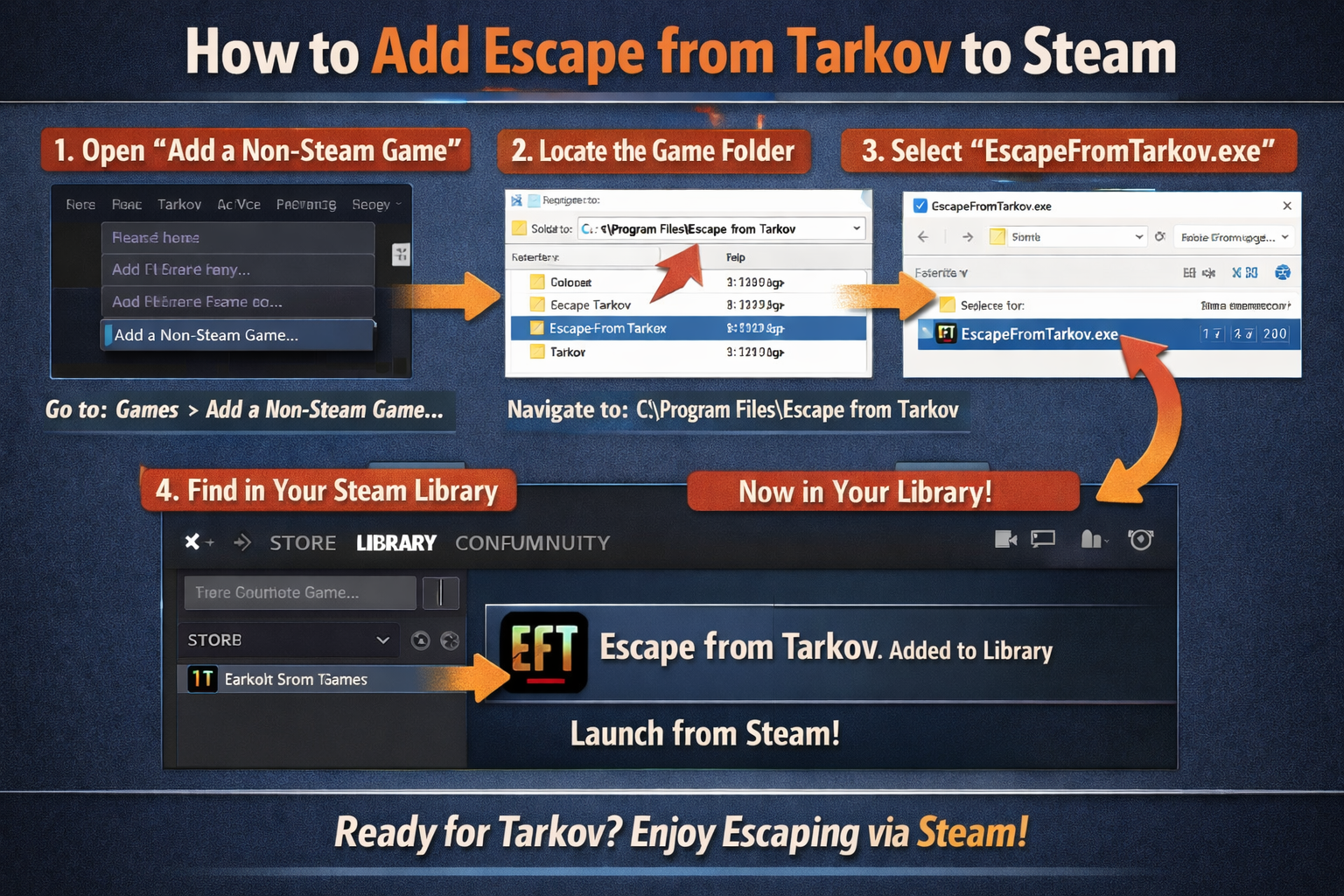
How to add Tarkov to Steam
1. Introduction
Escape from Tarkov is a hardcore tactical FPS that blends survival mechanics, RPG-style progression, and punishing realism into a single, unforgiving experience. Set in the fictional Norvinsk region, Tarkov isn’t about flashy kill streaks or casual matchmaking. It’s about looting under pressure, surviving raids, and learning the map the hard way. That depth is exactly why it has built such a loyal, long-term player base.
As the game has grown, so has the desire to have Tarkov inside Steam. For many players, Steam is their central gaming hub. It’s where friends lists live, screenshots are stored, overlays run, and playtime is tracked. Adding Tarkov to Steam means fewer launchers to juggle and more convenience without changing how the game itself plays.
Before going any further, there’s an important distinction to make. Some players are new buyers looking to install Tarkov directly through Steam, while others already own the game through the Battlestate Games (BSG) launcher and simply want it visible in their Steam library. These two situations work differently, and understanding that difference upfront saves a lot of confusion later.
2. Is Escape from Tarkov Available on Steam?
Yes. Escape from Tarkov has been available natively on Steam since its 1.0 release in November 2025. This marked a major shift from the game’s long-standing launcher-only distribution and opened the door to full Steam integration for new buyers.
That said, how you access Tarkov on Steam depends on how you own the game:
- Steam purchase: You buy Tarkov directly from the Steam store. The game installs like any other Steam title, and you can link your existing Battlestate Games account so your progress and owned editions carry over.
- BSG launcher ownership: If you purchased Tarkov before its Steam release, the game still runs through the Battlestate launcher. In this case, Steam doesn’t replace the launcher, but you can add it as a non-Steam game to your library.
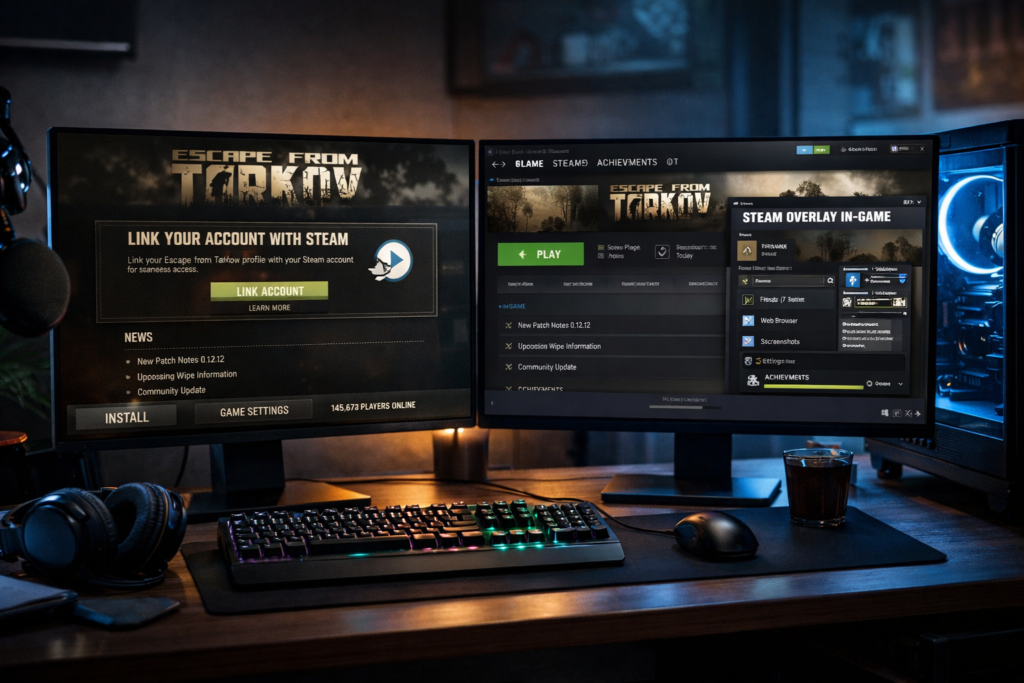
Steam integration doesn’t change Tarkov’s servers or gameplay, but it does unlock practical features players care about. These include the Steam overlay, easier access to friends, centralized playtime tracking, and a cleaner all-in-one library experience. Whether you get those features through a native Steam install or by adding the launcher depends entirely on which version you own.
3. Method 1: Adding Tarkov via Native Steam Purchase

(Official and Seamless Method)
This is the cleanest, least problematic way to get Escape from Tarkov into your Steam library. If you don’t already own the game or you want full Steam-native behavior this is the route Battlestate and Valve both fully support.
3.1 Buying Escape from Tarkov on Steam
Escape from Tarkov is available directly through the Steam Store, just like any other major PC title. Once purchased, it installs and launches natively from Steam with no extra setup required.
Steam offers the same core editions you’d expect from Tarkov. While higher editions still exist, the important part is this: your ownership level and progression are tied to your Battlestate Games account, not locked to a single platform. That means buying on Steam does not reset your status if you link accounts correctly.
3.2 Linking Your Battlestate Games Account
After purchasing Tarkov on Steam, you’ll be prompted to link your Battlestate Games (BSG) account. This is done inside your Tarkov account settings under Linked Accounts.
Once linked:
- Your existing progress carries over
- Any higher edition previously owned on your BSG profile remains active
- You keep access to the same characters, stash, and progression
Tarkov uses shared servers, so Steam players and launcher players are not split into different ecosystems. Your account syncs automatically, regardless of where you launch the game, as long as the accounts are linked properly.
3.3 Benefits of the Native Steam Version
Running Tarkov natively through Steam unlocks the full Steam ecosystem without workarounds:
- Steam Overlay for quick access to chat, browser, and screenshots
- Steam Friends List integration for easier coordination
- Playtime tracking and activity visibility
- Achievements and tracking, where supported, handled directly through Steam
There’s no dependency on the Battlestate launcher once everything is set up, which makes this the most stable and future-proof option.
4. Method 2: Adding Tarkov as a Non-Steam Game
(For Existing BSG Launcher Owners)
If you already bought Escape from Tarkov before it launched on Steam, this method lets you add it to your Steam library without repurchasing the game.
4.1 When This Method Makes Sense
This option is ideal if:
- You already own Tarkov through the BSG launcher
- You only want Steam features like overlay and library visibility
- You don’t want to buy the game again
However, there are limitations. Tarkov will still launch through the Battlestate Games launcher, and Steam treats it as a shortcut rather than a native title. Some Steam features may behave inconsistently compared to the native version.
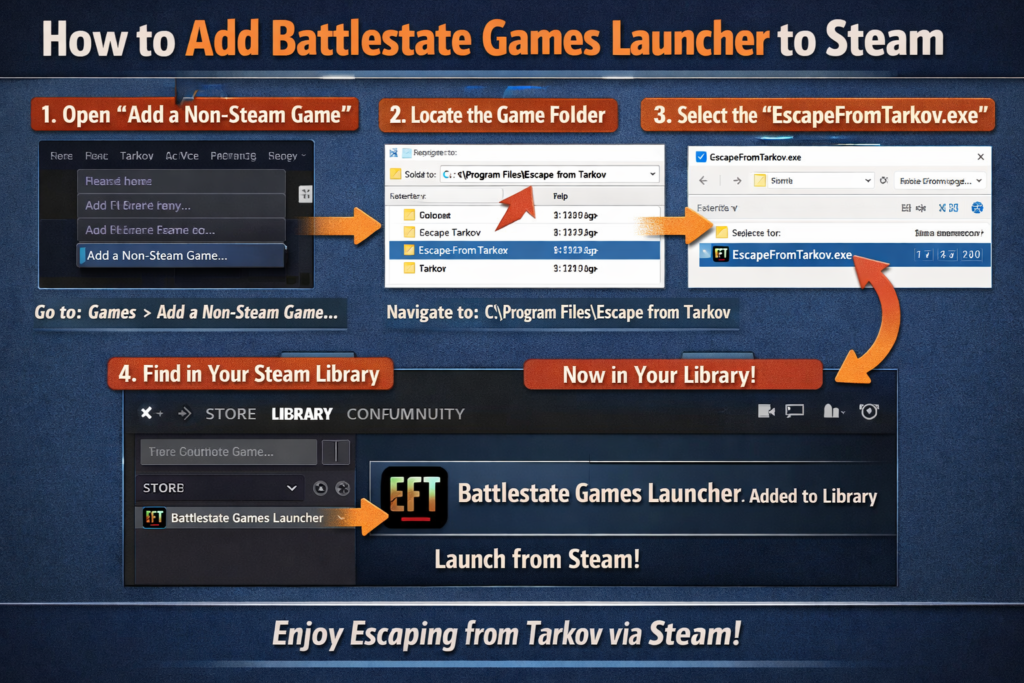
4.2 Step-by-Step: Add BSG Launcher to Steam
Inside Steam:
- Open your Library
- Click the “+” icon in the bottom-left corner
- Select Add a Non-Steam Game
- Click Browse and navigate to the Battlestate Games launcher executable
Typical installation paths include:
- C:\Battlestate Games\Escape from Tarkov\
- Or wherever you manually installed the launcher
Select Battlestate Games Launcher (or the launcher .exe, not the game executable), check the box, and click Add Selected Programs.
4.3 Configuring Steam Properties
Once added:
- Right-click the new entry in your Steam library
- Open Properties and confirm the Target points to the launcher executable
- Enable Steam Overlay if it’s disabled
- Rename the entry to something clean like Escape from Tarkov
You can also set a custom icon or category to keep your library organized. While this setup isn’t as smooth as the native Steam version, it gives existing owners a solid middle ground without spending extra money.
5. Common Issues and How to Fix Them

Even when the setup is done correctly, Escape from Tarkov can be picky about how it’s launched and authenticated. Most problems fall into a few predictable categories, and the fixes are usually straightforward once you know what to look for.
5.1 Game Crashes or Won’t Launch
One of the most common mistakes is adding EFT.exe instead of the Battlestate Games launcher to Steam. Tarkov relies on the launcher for authentication and startup checks. Launching the game executable directly often results in crashes, silent failures, or the game simply closing immediately.
Always make sure Steam is pointing to launcher.exe, not the game file itself. If the launcher isn’t involved, Tarkov cannot verify your account properly.
Authentication is another frequent culprit. If you’re logged out of your BSG account, launching through Steam may fail without a clear error message. Open the Battlestate launcher manually, log in, and confirm everything works before trying again through Steam.
5.2 Account Linking Errors
Some players encounter account linking issues, commonly referred to as “Error 0.” This usually happens when Steam and Battlestate accounts aren’t fully synced or when the login process is done in the wrong order.
To avoid this:
- Log in to your Battlestate Games account on the official site first
- Confirm Steam is listed under Linked Accounts
- Restart Steam and then launch Tarkov
Linking errors often resolve themselves once both platforms recognize an active session. Avoid launching the game repeatedly while the accounts are partially linked, as this can cause additional sync problems.
5.3 Missing Game or Overlay Not Working
If Tarkov appears in your Steam library but the Steam overlay doesn’t show up, check Steam’s overlay settings both globally and for the specific game entry. Overlay support must be enabled in:
- Steam’s main settings
- The individual game’s properties
If the game doesn’t launch at all, update both Steam and the Battlestate launcher to their latest versions. Outdated launchers are a common cause of disappearing shortcuts or failed launches.
When issues persist, verify your Tarkov files through the official Battlestate launcher rather than Steam. Steam cannot validate non-native game files, so verification must be done at the source.
5.4 Testing and Validation Steps
Before assuming something is broken, run a few quick checks:
- Launch Tarkov in offline mode to confirm basic functionality
- Restart both Steam and the BSG launcher
- Check for pending updates on both platforms
If Tarkov launches successfully outside Steam but fails inside it, the issue is almost always related to shortcut configuration or overlay settings rather than the game itself.
6. What You Can and Can’t Do After Adding Tarkov to Steam

Adding Escape from Tarkov to Steam improves convenience, but it doesn’t magically turn every version into a fully native Steam game.
What works:
- Steam overlay access
- Steam friends list visibility
- Playtime tracking
- Centralized library management
What doesn’t fully integrate:
- Native Steam file verification (for launcher versions)
- Full Steam achievement handling, depending on setup
- Complete launcher replacement for non-Steam installs
For existing BSG owners, the Battlestate launcher remains a requirement. Steam acts as a gateway, not a replacement. Native Steam buyers get the smoothest experience, while non-Steam owners gain quality-of-life improvements without repurchasing but with a few limitations still in place.
7. Frequently Asked Questions
Do I need to repurchase Escape from Tarkov on Steam?
No, not if you already own the game through the Battlestate Games launcher. You can add the launcher to Steam as a non-Steam game and access Steam features without buying it again. Repurchasing only makes sense if you want the fully native Steam version.
Does Steam overwrite my Battlestate Games progress?
No. Your progress, stash, and edition level are tied to your BSG account, not the platform. As long as your accounts are linked correctly, nothing is reset or overwritten when launching through Steam.
Can I use Steam Overlay with the launcher version?
Yes. When the Battlestate launcher is added properly as a non-Steam game and the overlay is enabled in Steam settings, the Steam overlay works in most cases. Results can vary slightly depending on updates and system configuration.
Is performance different on Steam?
There is no meaningful performance difference. Escape from Tarkov runs on the same servers and game build regardless of where it’s launched. Any performance changes are usually related to system settings or background applications, not Steam itself.
Can I remove the Battlestate launcher after adding Tarkov to Steam?
No. For non-Steam owners, the launcher is still required for authentication, updates, and file verification. Only the native Steam version allows you to run Tarkov without relying on the Battlestate launcher.
🔑 8. Key Resources
🎮 Official and Community Resources
- 🔗 Escape from Tarkov on Steam (Official Store Page) – View the game on Steam and purchase it: https://store.steampowered.com/app/3932890/Escape_from_Tarkov/
- 🔗 BSG Account Center – Linked Accounts Section – Official Battlestate site guide to link Steam from your profile: https://www.escapefromtarkov.com/support/6
- 🔗 Steam Community Discussion – Linking Your BSG and Steam Accounts – Developer-confirmed guidance on linking after buying on Steam: https://steamcommunity.com/app/3932890/discussions/1/686363730789908191/
🧠 Reddit Community Guides
- 🔗 Reddit discussion about linking Steam and BSG accounts – Community insight on account linking and pitfalls: https://www.reddit.com/r/EscapefromTarkov/comments/1plysa0/link_eft_account_to_steam_account_new_player/
- 🔗 Reddit thread on linking reset issues – Real-world experiences when linking after first launch: https://www.reddit.com/r/EscapefromTarkov/comments/1p275eb/bug_do_not_link_your_steam_account_w_tarkov/
🎥 YouTube Tutorials (Visual Walkthroughs)
- ▶️ How to Add a Non-Steam Game to Steam (General) – Step-by-step video tutorial: https://www.youtube.com/watch?v=UKvfoIyZmiE
- ▶️ Full Guide to Adding Non-Steam Games to Steam – Another walkthrough covering any game: https://www.youtube.com/watch?v=Po__SIxcGQc
- ▶️ How to Add Escape from Tarkov to Your Steam Library – Tarkov-specific visual guide: https://www.youtube.com/watch?v=Pnc2Yg2P7U4
9. Related Guides
If you want to go deeper or handle specific setups, these guides cover the most common follow-up tasks Tarkov players look for after adding the game to Steam.
Linking Your BSG Account to Steam
A step-by-step walkthrough for connecting your Battlestate Games account with Steam so your progress and editions sync correctly.
👉 https://www.escapefromtarkov.com/support/6
How to Add Non-Steam Games to Your Steam Library
Steam’s official method for adding external launchers or games so they appear in your library and support basic Steam features.
👉 https://help.steampowered.com/en/faqs/view/4B8B-9697-2335-48E0
How to Enable Steam Overlay (Global and Per-Game)
A practical guide for turning on the Steam overlay, both globally and for individual non-Steam games.
👉 https://help.steampowered.com/en/faqs/view/3978-3F5A-63D1-74B9
Creating Desktop Shortcuts for the Tarkov Launcher
Useful if you want faster access outside Steam while still keeping the launcher installed and updated.
👉 https://www.escapefromtarkov.com/support/knowledge/68
These guides pair well with the steps above and help cover edge cases, custom setups, and quality-of-life tweaks once Tarkov is part of your Steam workflow.