-
- No Comments
- January 5, 2026

How to change lg k40 to updated software version
1. Introduction
Keeping your phone’s software up to date isn’t just about new features. On the LG K40, software updates play a key role in improving stability, fixing bugs, and closing security gaps that could affect everyday use. Even small updates can make the device feel smoother, more reliable, and safer especially for apps that rely on newer security standards.
That said, it’s important to set realistic expectations. The LG K40 is an older budget smartphone, and LG officially ended mobile phone software support in 2021. This means users should not expect major Android version upgrades. Instead, updates if available are limited to minor improvements or security-related fixes tied to the device’s final supported firmware.
At present, there are two practical ways to update the LG K40:
- Checking for over-the-air (OTA) updates directly from the phone’s system settings
- Using LG Bridge on a PC or Mac to manually check and install official firmware
Both methods rely on LG’s last available software releases and are the safest options for keeping the device updated.
2. LG K40 Software Update Overview
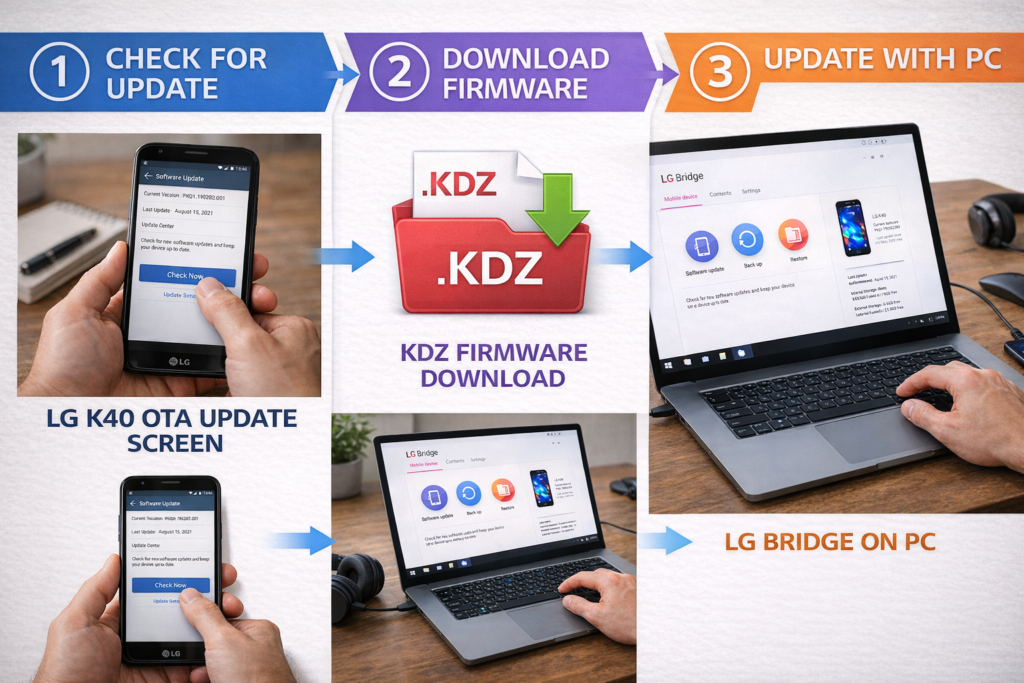
2.1 Original Software Version of LG K40
The LG K40 originally shipped with Android 9 (Android Pie) out of the box. At the time of release, this version offered improved battery management, adaptive brightness, and better app permissions compared to earlier Android releases.
However, the device’s hardware and LG’s update policy placed clear limits on its long-term software support. The LG K40 was not positioned for multiple major Android upgrades, meaning Android 10 or newer versions were never officially rolled out for this model. Any updates provided after launch focused mainly on performance tuning, bug fixes, and system stability rather than new Android features.
2.2 Does LG K40 Still Receive Updates?
Officially, LG no longer provides active software support for the LG K40. When LG exited the smartphone market in 2021, all remaining devices were given a limited window for final updates, after which development stopped entirely.
As a result:
- Major Android version updates (such as Android 10 or higher) are not available
- Security patches, if present, are tied to the final firmware released for specific carrier models
In simple terms, if your LG K40 shows no new updates today, that’s normal. The phone has reached the end of its official update lifecycle. Any further updates beyond this point would require unofficial methods, which come with risks and are not recommended for most users.
3. Things to Do Before Updating LG K40
Before starting any software update on your LG K40, a few simple preparations can save you from data loss, failed installations, or system errors. Updates may look routine, but they make deep changes to the operating system, so preparation matters.
3.1 Backup Your Data
Although official updates are generally safe, there’s always a small risk of something going wrong. Backing up your data ensures nothing important is lost.
You should back up:
- Contacts and call logs
- Photos and videos stored on internal storage
- Messages and WhatsApp chats
- App data and important documents
You can use Google Backup, cloud storage, or copy files manually to a PC before updating.
3.2 Battery and Charging Requirements
Software updates consume time and power, and an unexpected shutdown during installation can damage the system.
- Make sure your LG K40 has at least 50% battery before starting
- For best results, keep the phone connected to a charger during the update
Charging during the update prevents interruptions. If the device powers off mid-installation, it can lead to boot loops or failed firmware updates that are difficult to fix.
3.3 Internet and Storage Requirements
A stable connection and enough storage space are essential for a smooth update process.
- Wi-Fi is strongly recommended to avoid data charges and download failures
- Mobile data may work, but interruptions can corrupt the update file
Also, check available storage:
- Free up space by deleting unused apps or old files
- Updates may fail if internal storage is nearly full
Ensuring both stable internet and sufficient storage reduces the chance of errors.
4. How to Update LG K40 Using System Settings (OTA Method)
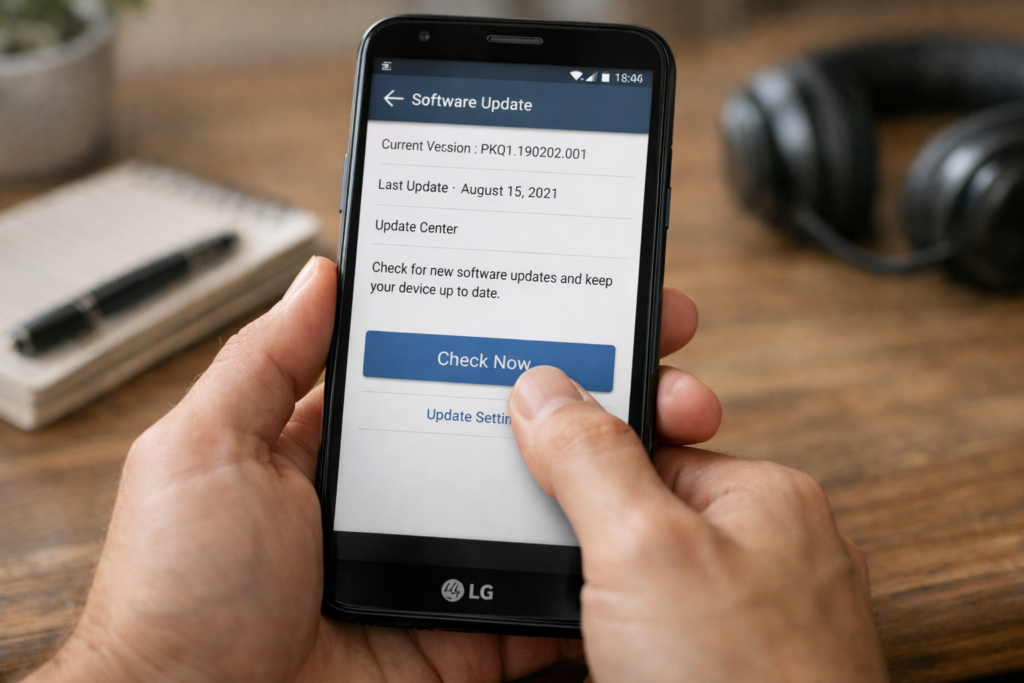
4.1 What Is an OTA Update?
An OTA (Over-the-Air) update allows your LG K40 to download and install official software updates directly from LG’s servers without using a computer. This is the easiest and safest update method when an update is available.
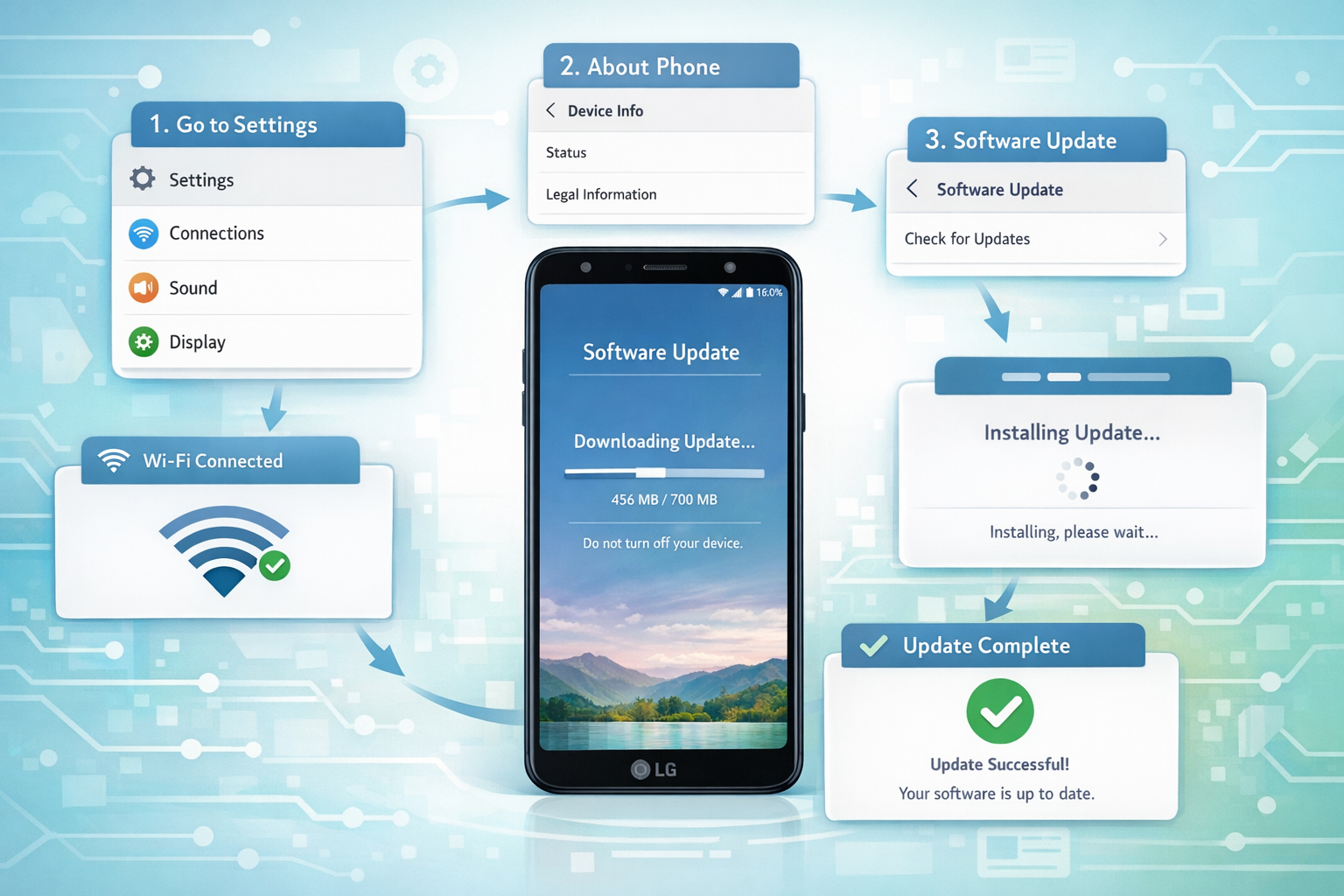
4.2 Step-by-Step OTA Update Process
To check and install updates using system settings:
- Open Settings on your LG K40
- Tap System
- Select Update Center
- Tap Software Update
- Choose Check Now for Updates
If an update is available:
- Download the update using Wi-Fi or mobile data
- Tap Install Now to begin installation
The phone will prepare the update automatically.
4.3 What Happens After Installation
Once the installation starts:
- Your LG K40 will restart automatically
- The update process may take up to 30 minutes, depending on size
After completion, you may notice:
- Improved system stability
- Minor performance optimizations
- Security fixes and bug patches
The phone will boot normally once the update finishes, and no further action is required from the user.
5. How to Update LG K40 Using a PC (LG Bridge Method)
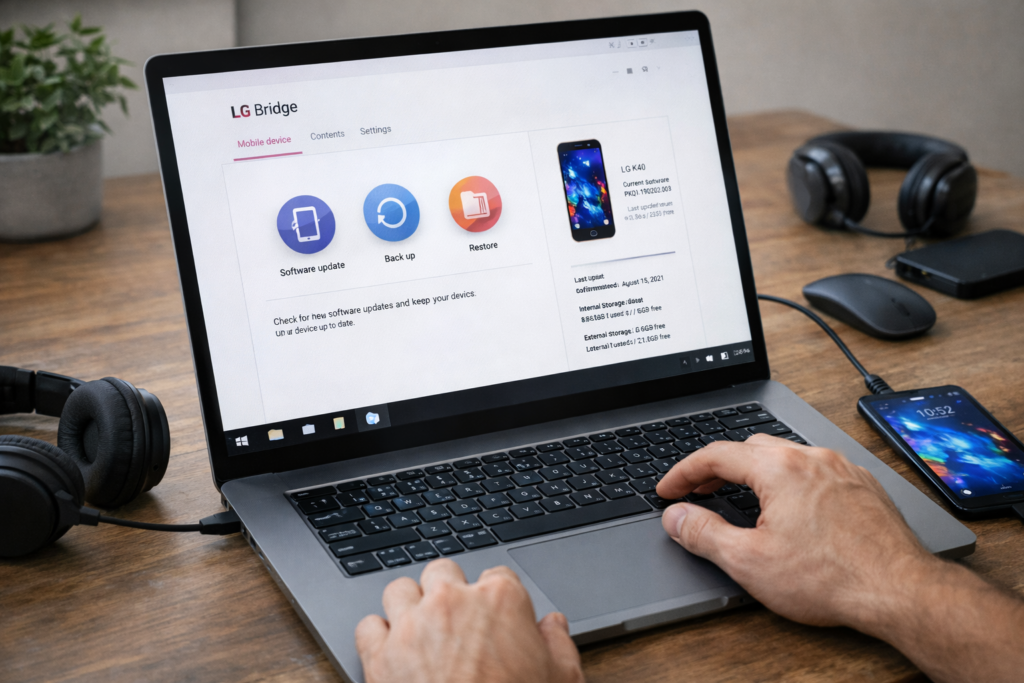
When an update does not appear through system settings, using a computer is the next safest option. LG Bridge allows you to manually check for official firmware updates and install them directly on your LG K40.
5.1 What Is LG Bridge?
LG Bridge is LG’s official desktop software designed to manage LG smartphones. It can:
- Check for available official firmware updates
- Download and install system software
- Perform backups and restores
For devices like the LG K40, LG Bridge is especially useful when OTA updates are unavailable or fail to install.
5.2 Requirements for PC Update
Before starting, make sure you meet these requirements:
Supported operating systems
- Windows PC
- macOS (Mac)
USB connection and MTP mode
- A working USB cable
- Phone connected in MTP (Media Transfer Protocol) mode
- Stable internet connection on the PC
These requirements ensure LG Bridge can properly detect and communicate with the device.
5.3 Step-by-Step LG Bridge Update Guide
Follow these steps to update your LG K40 using LG Bridge:
- Download and install LG Bridge from the official LG website
- Open LG Bridge on your PC or Mac
- Connect your LG K40 to the computer using a USB cable
- Make sure the phone is unlocked and set to MTP mode
- In LG Bridge, go to the Software Update tab
- Click the Update button to check for available firmware
If firmware is available:
- LG Bridge will download the official update
- Follow on-screen instructions to install it
- Do not disconnect the phone during the process
The tool installs carrier-approved firmware files when available.
5.4 Carrier-Specific Firmware Notes
LG K40 updates can vary depending on the carrier model.
- For example, T-Mobile’s LG K40 (model X420TM) uses carrier-specific firmware
- LG Bridge pulls firmware based on the exact model number
- These updates are often distributed as KDZ firmware files
KDZ files are official LG firmware packages and are required to match your device model and carrier to avoid installation issues.
6. Common LG K40 Update Problems and Errors
Even when following the correct steps, some users may encounter update issues. Most problems are related to limitations of the device or connection errors.
6.1 Update Not Showing Available
If no update appears:
- The device may already be on the latest supported firmware
- LG no longer provides new updates for the LG K40
- Carrier models may receive updates later or not at all
In many cases, this is not an error but a limitation of official support.
6.2 Firmware Update Errors
Common update errors include:
- Download failures due to unstable internet
- Interrupted updates caused by low battery or USB disconnection
- Insufficient internal storage
These issues can prevent the update from completing successfully.
6.3 What to Do If Update Fails
If an update fails:
- Free up internal storage by deleting unused files or apps
- Restart both the phone and the PC
- Reconnect the USB cable securely
- Retry the update using LG Bridge or system settings
Most update errors are temporary and can be resolved by repeating the process under stable conditions.
7. Important Warnings and Limitations
Before attempting any advanced update method, it’s critical to understand the limits of what the LG K40 can officially support. Ignoring these realities can lead to wasted time or worse, a damaged device.
7.1 No Official Android 10 or Higher
The LG K40 will not receive Android 10 or newer versions through official channels. LG exited the smartphone market in 2021, and all software development for older devices ended shortly after.
What this means for users:
- No future major Android upgrades
- No new features from later Android versions
- Only the final firmware released before support ended is available
If your LG K40 is already running its last official update, there is no legitimate way to upgrade beyond that version using LG tools.
7.2 Risks of Custom ROMs
Some online guides suggest installing custom ROMs to upgrade the LG K40 to newer Android versions. While this may sound tempting, it comes with serious risks.
Unofficial updates can:
- Cause system instability and random crashes
- Break essential features like calls, camera, or mobile data
- Permanently brick the device if flashing fails
In addition, installing custom firmware:
- Voids any remaining warranty (if applicable)
- Exposes the device to security vulnerabilities
- Offers no official support or recovery guarantee
For most users, custom ROMs are not recommended.
8. Alternative Solutions If Update Does Not Work
If standard update methods fail, there are still a few official alternatives worth understanding used mainly for recovery or restoring stock firmware.
8.1 Installing Official KDZ Firmware Manually
Manually installing official KDZ firmware is sometimes necessary when:
- The phone is stuck on an older firmware
- OTA and LG Bridge updates fail
- The system is corrupted or unstable
KDZ files are LG’s official firmware packages and must:
- Match the exact LG K40 model number
- Match the carrier version (if applicable)
Using the wrong KDZ file can cause serious issues, so precision is essential.
8.2 Download Mode and Firmware Flashing Overview
Download Mode is a special LG system state used for firmware installation and recovery.
At a high level:
- The phone is booted into Download Mode
- A PC tool communicates with the device
- Official firmware is flashed onto the system
This process rewrites core system files and should only be used when normal update methods fail. While effective, it carries higher risk and requires careful preparation, which is why detailed flashing steps should be followed only from trusted, model-specific guides.
9. Helpful Resources and Official Guides
If you want to double-check steps or follow official instructions, the resources below are reliable and widely referenced for LG K40 updates. These guides align with LG’s supported update methods and help avoid common mistakes.
- OTA update guide:
A detailed walkthrough for updating LG K40 using system settings
https://www.bestusefultips.com/how-to-update-lg-k40-software-version/ - Carrier-specific instructions:
Official T-Mobile guide for checking and installing software updates on LG K40
https://www.t-mobile.com/support/tutorials/device/lg/k40/topic/update-amp-backup/check-for-install-software-update - General LG K40 update tutorials:
Step-by-step update explanations for different regions and models
https://www.devicesfaq.com/en/update/lg-k40 - Firmware download reference:
Example of official KDZ firmware files for carrier models
https://lg-firmwares.com/downloads-file/22441/X420TM10e_00_TMO_US_OP_0203 - Hard reset and update help:
Troubleshooting and recovery-related update guidance
https://www.hardreset.info/devices/lg/lg-k40/update-software/
These resources are especially useful if your update fails or if you’re dealing with a carrier-specific LG K40 model.
10. Conclusion
The best and safest way to update the LG K40 today is by using official methods only either through system settings (OTA updates) or LG Bridge on a PC or Mac. These methods rely on LG’s final supported firmware and are designed to protect your device from software corruption.
Because the LG K40 has reached the end of its official update lifecycle, users should not expect Android 10 or newer versions. If no update appears, it usually means the device is already running its last supported software.
Final recommendation:
Stick to official updates, avoid custom ROMs unless you fully understand the risks, and focus on keeping the device stable and secure rather than chasing unsupported upgrades. For most users, maintaining the final official firmware is the smartest long-term choice.
Frequently Asked Questions (FAQ)
1. Can I update my LG K40 to Android 10 or Android 11?
No. The LG K40 does not officially support Android 10 or higher. LG ended smartphone software support in 2021, and this model only received limited updates based on Android 9.
2. Why does my LG K40 say “No update available”?
This usually means your device is already running the latest official firmware released for your model or carrier. It is not an error but a limitation of LG’s update support.
3. Is it safe to update LG K40 using LG Bridge?
Yes. LG Bridge is an official LG tool and is safe to use as long as you install the correct firmware for your exact LG K40 model and do not disconnect the phone during the update.
4. What should I do if my LG K40 update fails or gets stuck?
First, restart the phone and free up internal storage. Make sure the battery is charged and your internet connection is stable, then try updating again using system settings or LG Bridge.
5. Should I install a custom ROM to get a newer Android version on LG K40?
For most users, no. Custom ROMs are unofficial, can cause system instability, and may permanently damage the device if something goes wrong. They are only recommended for advanced users who understand the risks.