
-
- No Comments
- December 22, 2025

How to find circular references in Excel
1. Introduction
If you’ve ever opened an Excel workbook only to see numbers behaving strangely or worse, not changing at all you might be dealing with a circular reference. In Excel, a circular reference occurs when a formula refers back to its own cell, either directly or indirectly. These sneaky loops can silently disrupt your calculations, leading to incorrect results, cryptic warnings, or formulas that just refuse to compute correctly.
Don’t worry this isn’t the end of the world. In this guide, you’ll learn how to detect circular references in Excel and take the right steps to fix them, ensuring your spreadsheets stay accurate and reliable. By the end, you’ll be able to spot and resolve these errors before they wreak havoc on your data.
2. What Causes Circular References
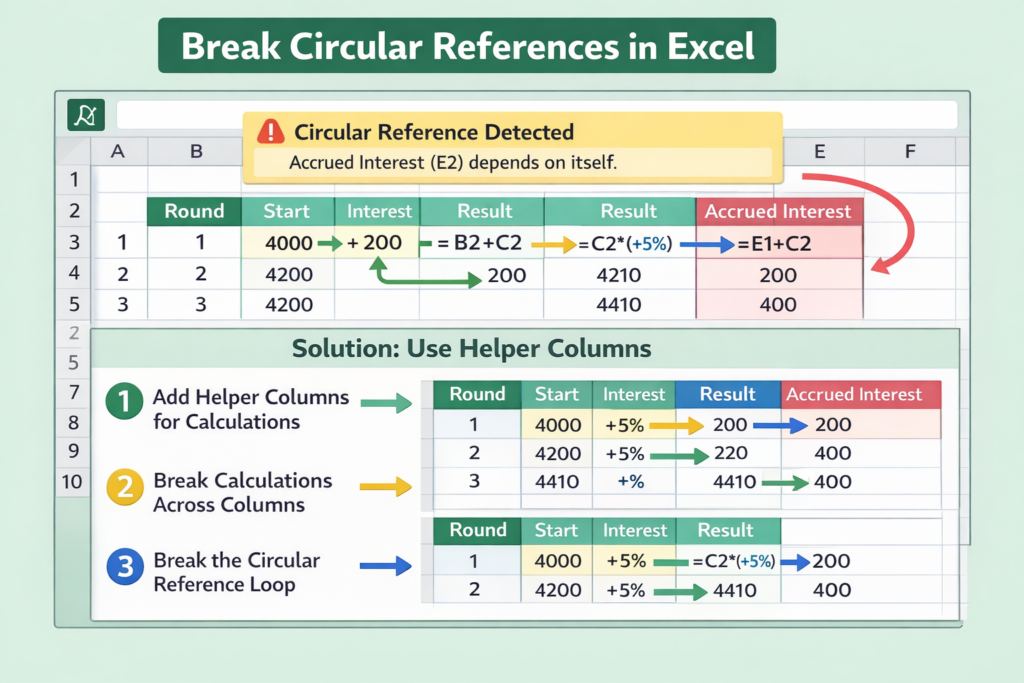
A circular reference happens whenever a formula creates a loop by referencing its own cell, either directly or through a chain of other cells. This looping can confuse Excel’s calculation engine, causing it to struggle or fail to return the correct result.
Example: Suppose cell F7 contains the formula:
=F5 + F6 + F7
Here, F7 refers to itself while also summing other cells. Excel detects this loop and usually displays a warning like:
“There are one or more circular references where a formula refers to its own cell either directly or indirectly.”
The symptoms of a circular reference can vary. You might see:
- Pop-up warnings when opening the workbook
- Unexpected zero values in cells
- Wrong or inconsistent results that don’t match your expectations
Understanding the cause is the first step toward resolving these issues—and that’s exactly what we’ll tackle next.
3. How to Detect Circular References in Excel
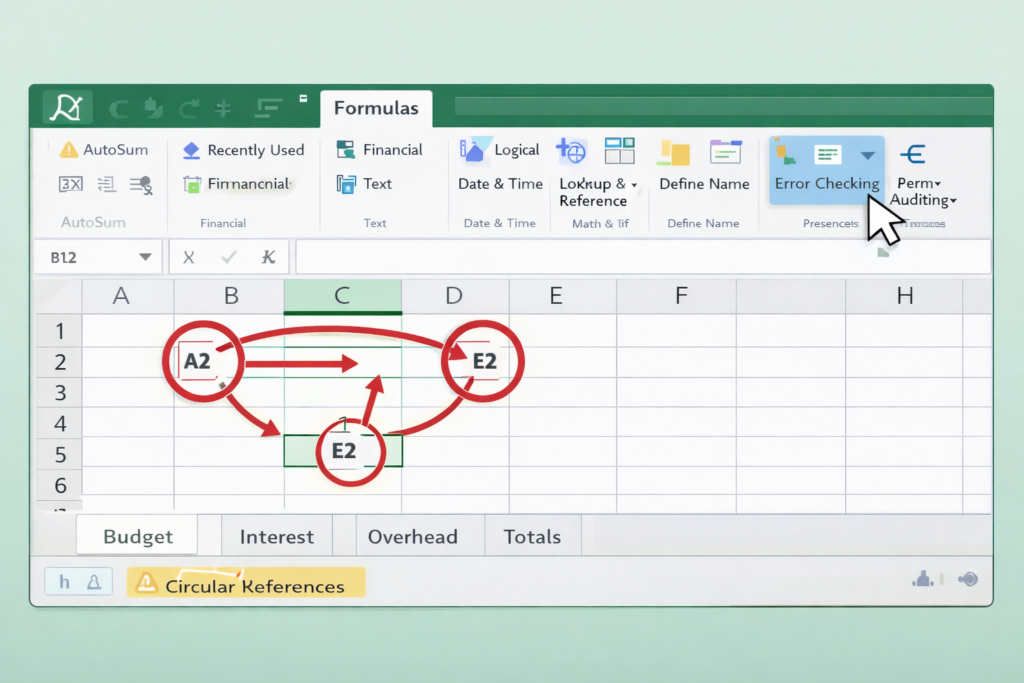
Circular references can be tricky to spot, especially in large or complex spreadsheets. Luckily, Excel provides built-in tools to help you detect and trace these errors. Let’s explore the two most effective methods.
3.1 Using Error Checking
Excel’s Error Checking feature is a quick way to identify circular references in your workbook. Here’s how to use it:
- Go to the Formulas tab in the ribbon.
- Click on Error Checking.
- From the dropdown, select Circular References.
Excel will show the first cell involved in a circular loop, allowing you to start troubleshooting immediately. You can repeat this process to trace through the loop, cell by cell.
Additionally, keep an eye on the Status Bar at the bottom of the Excel window. If a circular reference is active, Excel will display a small indicator here, reminding you that a loop exists even if you’re working on another sheet.
3.2 Trace Precedents and Dependents
For more complex workbooks, visualizing the flow of formulas can make circular references easier to detect. Excel’s Trace Precedents and Trace Dependents tools let you see how data moves through your sheet.
Steps:
- Select a suspect cell that might be part of a circular reference.
- Go to Formulas → Trace Precedents to see arrows pointing into the cell—these are the cells feeding data into your formula.
- Use Formulas → Trace Dependents to see arrows pointing outward from the cell—these show which cells rely on the selected formula.
Red arrows indicate that a loop exists. To verify that you’ve fixed the circular reference, use Trace Precedents → Remove All Arrows, then recalculate your sheet.
4. When to Enable Iterative Calculations
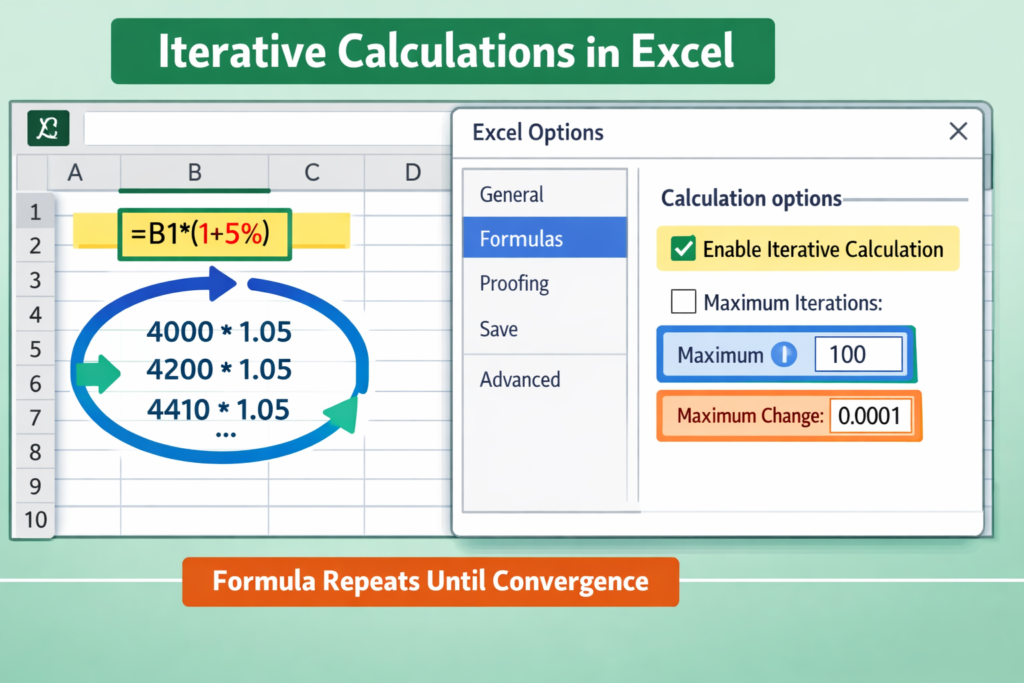
Sometimes, circular references are intentional—for example, when calculating compound interest, loan balances, or other formulas that require iterative logic. In these cases, you can safely enable Excel to perform iterative calculations.
Steps to Enable Iterations:
- Go to File → Options → Formulas.
- Check the box for Enable iterative calculation.
- Set Maximum Iterations (how many times Excel recalculates) and Maximum Change (the smallest acceptable change between calculations).
- Example: Maximum Iterations = 100, Maximum Change = 0.001
- Example: Maximum Iterations = 100, Maximum Change = 0.001
Important: Monitor performance carefully. Iterative calculations can slow down or even crash Excel if too many loops or complex formulas exist. Use this feature only when the circular logic is intentional and necessary.
5. Advanced Fixes and Best Practices
Once you’ve identified circular references, it’s important to resolve them efficiently especially in large or complex workbooks. Here are some advanced strategies to keep your spreadsheets accurate and maintainable.
Using Helper Columns to Break Circular Logic
Sometimes, formulas reference themselves indirectly because of intertwined calculations. One effective method is to split the calculation into separate helper columns. Each column performs a part of the calculation, preventing formulas from looping back on themselves. This not only resolves circular references but also improves readability and debugging.
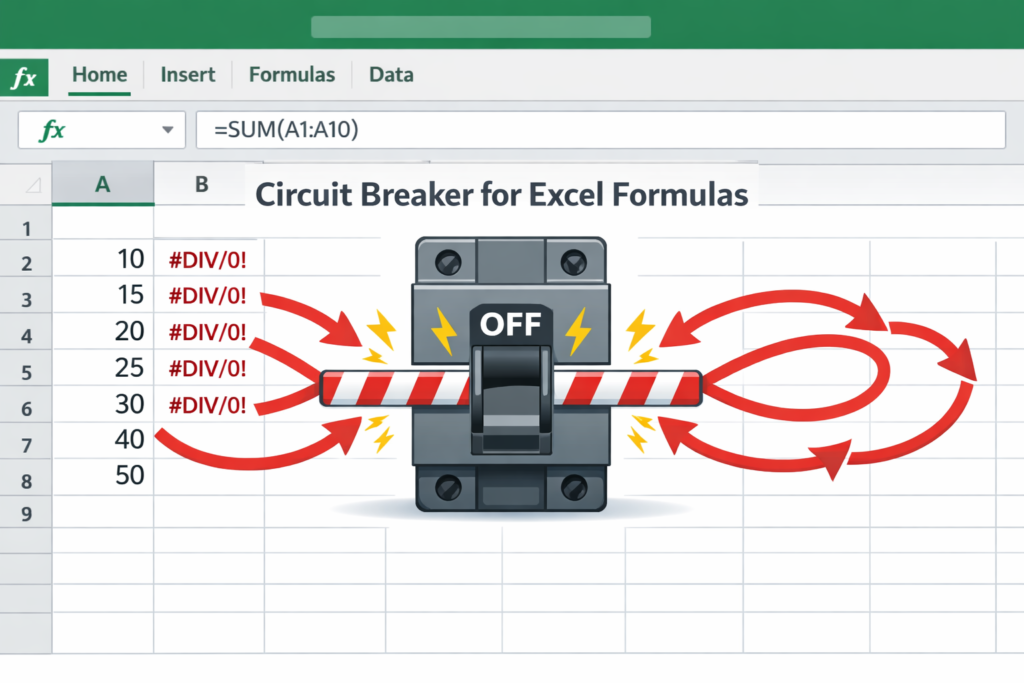
Building “Circuit Breakers” in Models
For spreadsheets that rely on iterative logic (like financial models), you can create circuit breakers. These are conditions that stop a calculation from looping endlessly. For example, you might use an IF statement to halt further calculations once a certain threshold is reached. Circuit breakers ensure stability and protect your workbook from performance issues.
Tips for Large or Complex Workbooks
- Audit formulas regularly to catch circular references early.
- Use named ranges to make dependencies clearer and reduce accidental loops.
- Document iterative formulas to remind yourself and collaborators why circular logic exists.
- Leverage Excel’s trace tools to visualize complex dependencies and ensure that changes don’t unintentionally create loops.
6. Key Resources
For more detailed guidance, the following resources offer step-by-step instructions and advanced techniques for dealing with circular references in Excel:
- ExcelJet: Fix a Circular Reference Error – Official guide for detecting and resolving circular references.
- PerfectXL: Detailed Detection of Circular References – In-depth explanation of what circular references are and how to find them.
- Operis: Auditing Steps – Practical walkthrough for tracing and auditing circular references.
- Macabacus: Advanced Fixes – Expert strategies for handling complex models and iterative calculations.
7. Related Topics / Further Reading
If you want to deepen your understanding and handle circular references more efficiently, check out these related topics:
- Best ways to detect circular references in large Excel workbooks – Tips and strategies for auditing sprawling spreadsheets.
- How to use Excel Error Checking to list circular references – Step-by-step guide to quickly identify all loops in your workbook.
- When to enable iterative calculation for circular formulas – Understanding when circular logic is intentional and safe to use.
- How to build a circuit breaker to recover broken Excel models – Techniques to prevent infinite loops and protect your calculations.
- Using helper columns to eliminate circular logic – Best practices for breaking complex formulas into manageable, non-looping components.
8. Conclusion
Circular references can be a major source of frustration in Excel, but they are manageable once you know how to detect and resolve them. Using Error Checking, Trace Precedents/Dependents, and, when necessary, iterative calculations, you can ensure your formulas deliver accurate results.
Regularly auditing your Excel workbooks is key catching circular references early saves time and prevents calculation errors. Remember, iterative calculations should only be enabled for intentional loops, such as in financial models or iterative formulas. By applying these strategies, you’ll maintain cleaner, more reliable spreadsheets and take control of your data with confidence.
FAQ: Circular References in Excel
1. What is a circular reference in Excel?
A circular reference occurs when a formula refers back to its own cell, either directly or indirectly, creating a loop that can disrupt calculations.
2. How can I quickly find circular references in my workbook?
Use Excel’s Error Checking feature under the Formulas tab and select Circular References. The Status Bar also indicates active loops.
3. Can I safely use circular references in Excel?
Yes, but only when intentional, such as in iterative calculations for interest or loan formulas. In these cases, enable iterative calculation under File → Options → Formulas.
4. What are helper columns, and how do they help with circular references?
Helper columns split complex formulas into smaller steps, preventing formulas from looping back on themselves and making your workbook easier to audit and maintain.
5. How do I fix a circular reference if Excel doesn’t show an obvious error?
Use Trace Precedents and Trace Dependents to visualize formula dependencies. Look for red arrows indicating loops and adjust your formulas or add helper columns to break the cycle.