
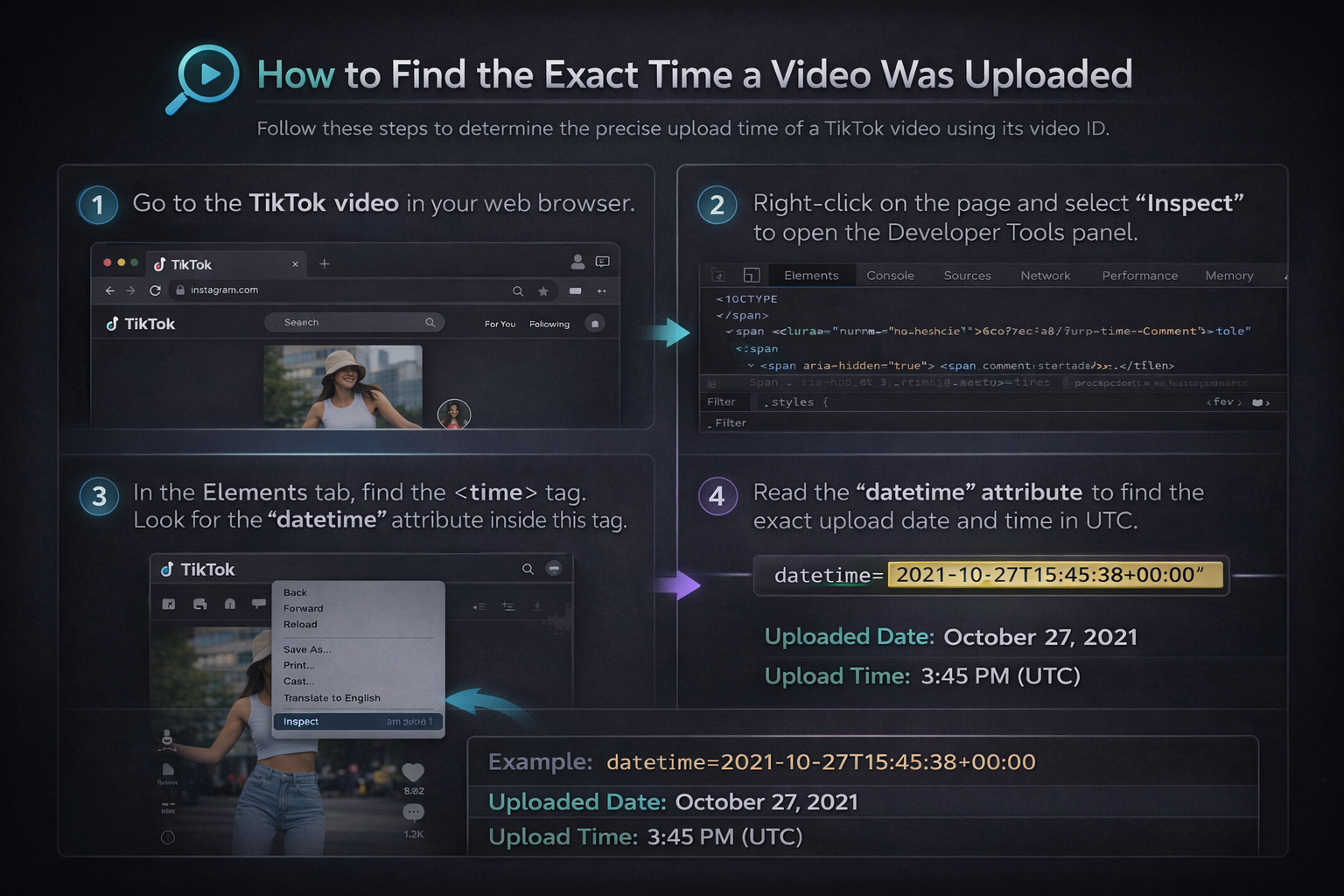
-
- No Comments
- February 1, 2026

How to find the exact time a video was uploaded
1. Introduction
Scroll through YouTube, TikTok, Instagram, or X and you’ll notice a pattern: “2 hours ago,” “3 days ago,” “last week.” Vague. Convenient. And if you’re trying to verify facts deeply unhelpful.
Most major video platforms deliberately hide the exact upload time (hour, minute, second), even though that information exists behind the scenes. Instead, they surface friendly, human-readable timestamps designed for casual viewers, not precision hunters.
That distinction matters.
There’s a world of difference between relative time and precise timestamps.
- Relative time (“2 hours ago”) constantly changes and depends on when you’re viewing it.
- Precise timestamps (“2024-11-18 at 14:32:07 UTC”) are fixed, verifiable, and defensible.
Exact upload times are essential for:
- Journalists verifying breaking news or tracking the origin of a video
- Researchers analyzing timelines, trends, or misinformation spread
- Marketers & SEO professionals studying posting schedules and algorithm behavior
- Investigators & fact-checkers validating claims, alibis, or sequence of events
This guide cuts through the guesswork. It shows where platforms hide upload timestamps, how that data is stored, and how you can legally access it using public metadata no logins, no hacks, no shady tools.
2. Why Platforms Don’t Show Exact Upload Times
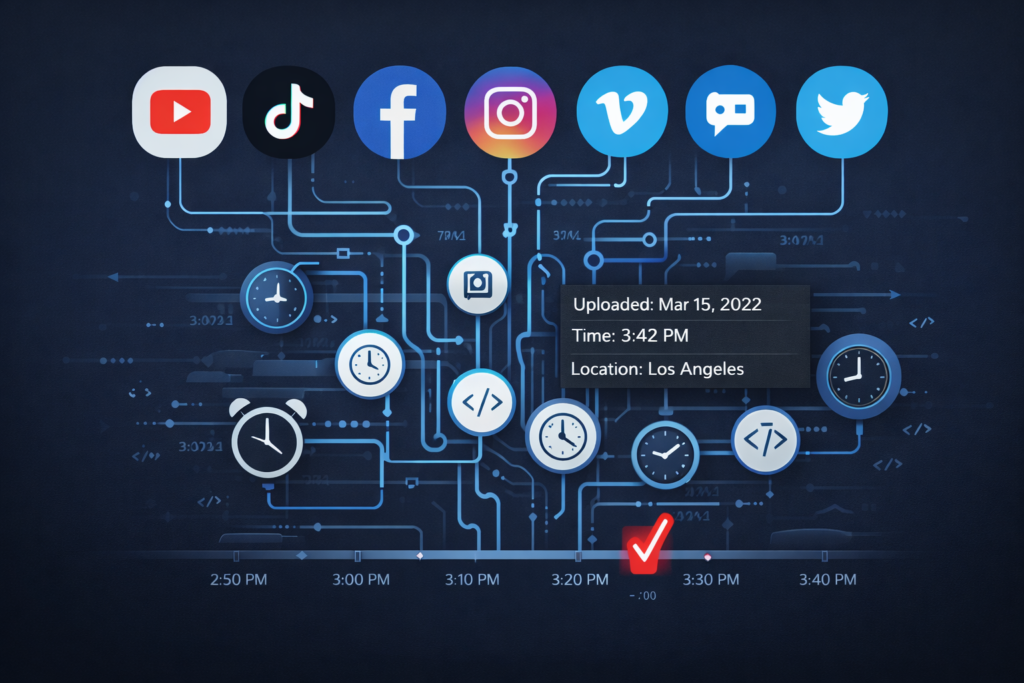
At first glance, hiding upload times seems pointless. In reality, it’s a deliberate design decision shaped by usability, control, and scale.
UX simplicity vs. technical transparency
Most users don’t care whether a video went live at 14:32 or 14:41. Platforms optimize for clarity over precision, using language that feels natural and fast to parse. “3 hours ago” beats a wall of numbers especially on mobile.
Metadata vs. front-end display
Behind every video is a rich metadata layer containing exact timestamps, IDs, and internal references. What you see on the screen is just a filtered presentation layer. Platforms choose what to expose, not what exists.
Public vs. hidden-but-accessible data
Important distinction:
- Hidden does not mean private.
- Most upload times are publicly accessible, just not visibly displayed.
They’re often retrievable through APIs, HTML attributes, page source, or decoded IDs methods platforms tolerate because they expose data already marked as public.
Accuracy and reliability of platform metadata
The good news? Platform metadata is usually extremely accurate.
Timestamps are generated server-side, logged automatically, and stored consistently often down to the second. When accessed correctly, this data is far more reliable than visual timestamps that shift over time.
3. How Video Upload Times Are Stored (Quick Technical Overview)
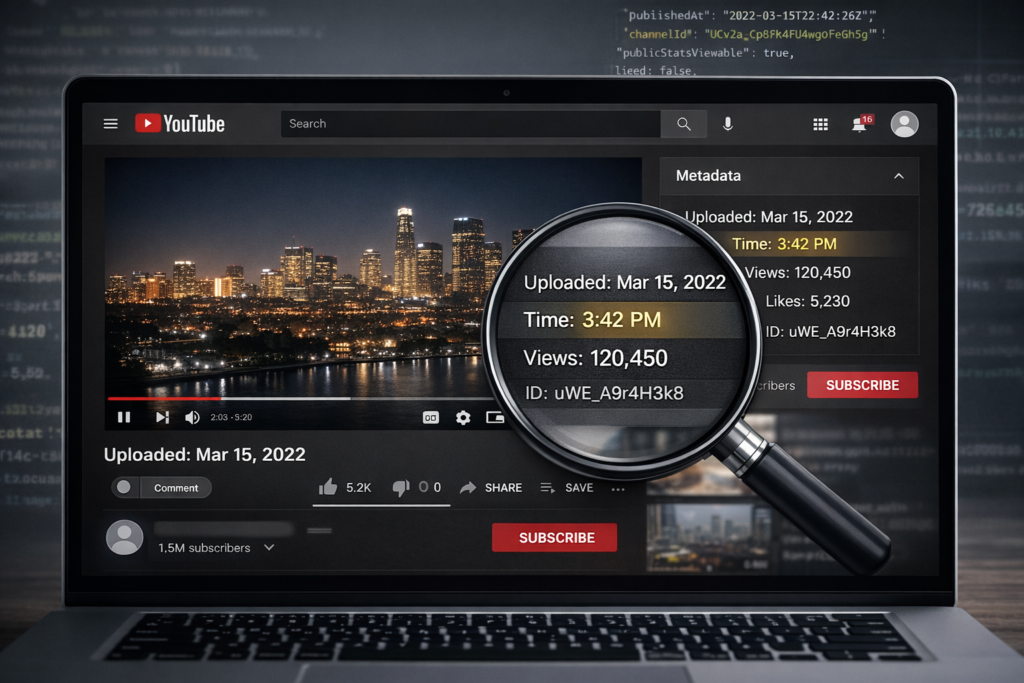
You don’t need to be a developer but understanding the basics helps you avoid bad data.
Metadata basics
Every uploaded video is assigned metadata at the moment it goes live. This includes:
- Upload date and time
- Timezone or UTC reference
- Video ID
- Platform-specific identifiers
This data is stored regardless of what the interface shows.
Video IDs and timestamp encoding
Some platforms (notably TikTok) embed upload time directly into the video ID. The ID itself contains encoded information that can be decoded to reveal the exact upload moment no guessing involved.
APIs, page source, and HTML attributes
Exact timestamps often live in:
- Public APIs (official or undocumented but accessible)
- HTML attributes like datetime= or ISO 8601 strings
- Page source data not rendered visually
These are machine-readable, consistent, and designed for internal use but visible if you know where to look.
Desktop vs. mobile limitations
Mobile apps prioritize speed and simplicity, stripping away technical detail. Desktop browsers, on the other hand, allow:
- Inspect Element
- View Page Source
- Extension-based analysis
If precision matters, desktop is non-negotiable.
4. How to Find the Exact Upload Time on YouTube
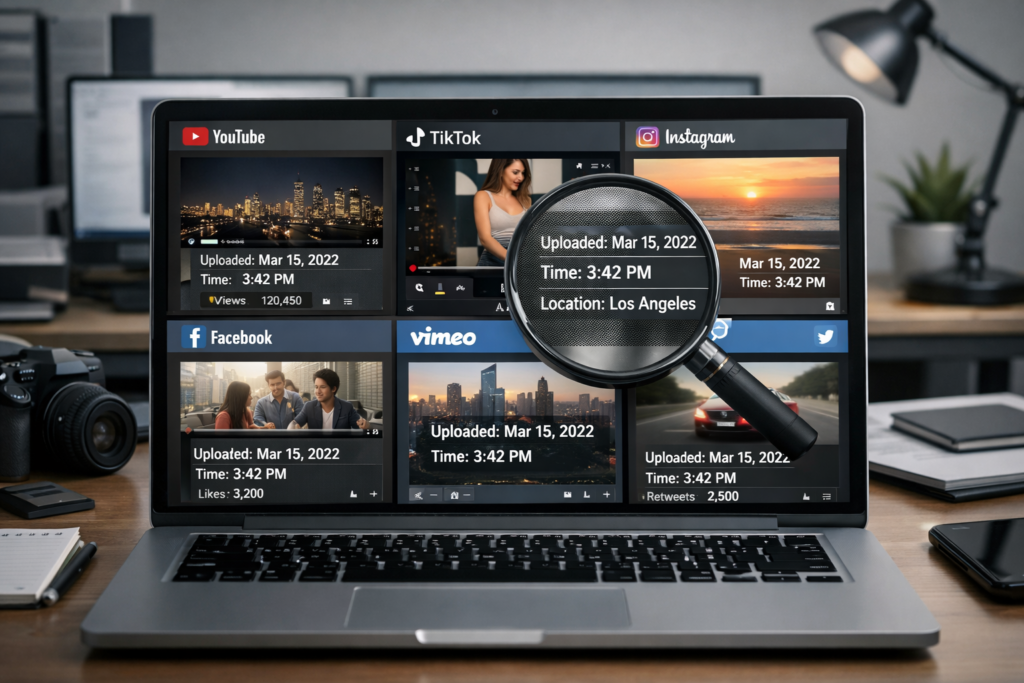
YouTube is the most searched, most cited, and most misread platform when it comes to upload times. The data is there but YouTube doesn’t surface it unless you know where to look.
4.1 What YouTube Shows by Default
By default, YouTube displays:
- A date only (e.g., Jan 12, 2025), or
- A relative timestamp (e.g., 3 hours ago, 2 days ago)
What it doesn’t show is the exact hour, minute, or second a video went live. That omission becomes a problem when:
- Multiple videos are uploaded on the same day
- You’re tracking breaking news
- Timing affects credibility or chronology
Relative timestamps change depending on when you view them. Precise timestamps do not.
4.2 Method 1: YouTube Data Viewer (API-Based)
This is the cleanest, fastest, and most reliable method.
How it works:
- Copy the YouTube video URL
- Visit a YouTube Data Viewer tool
- Paste the URL and submit
- Instantly retrieve the exact upload timestamp (often down to the second)
Behind the scenes, these tools pull data directly from YouTube’s public API, which is maintained by Google and used internally across the platform.
Accuracy & verification:
- Uses official Google metadata
- Timestamp is server-generated
- Not affected by time zones or browser settings
If you want defensible data, this is your go-to.
4.3 Method 2: Chrome Extensions
Browser extensions are ideal when you want speed and convenience.
The most commonly used option is the “YouTube Upload Time” Chrome extension.
What it does:
- Adds a small overlay or popup
- Displays the exact upload time while you’re watching the video
- No need to leave the page
When extensions are useful:
- Quick checks across multiple videos
- Content research or competitor analysis
- Avoiding constant copy–paste into external tools
Trade-off:
Extensions rely on the same metadata as API tools, but they can break temporarily when YouTube updates its UI.
4.4 Accuracy & Reliability Notes
Google API precision
YouTube’s API timestamps are typically accurate to the second, making them suitable for verification, reporting, and analysis.
Edge cases to be aware of:
- Scheduled premieres: Timestamp reflects when the video actually went public, not when it was uploaded privately
- Re-uploads: The upload time resets, even if the content is identical
- Edited descriptions or titles: These do not affect upload time
For critical use, always cross-check with at least one API-based tool.
4.5 Resources
- YouTube Data Viewer: https://ytlarge.com/data-viewer
- Oyolloo Guide: https://oyolloo.com/youtube-upload-time/
- Minitool Tutorial: https://www.minitool.com/news/youtube-video-upload-time.html
5. How to Find the Exact Upload Time on TikTok
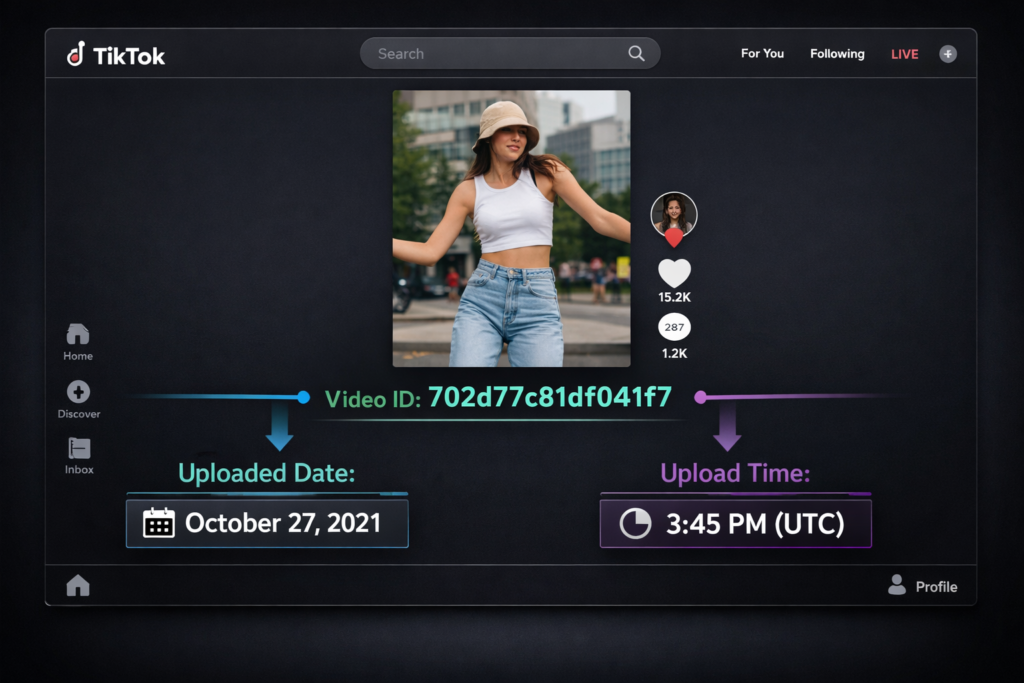
TikTok is deceptively simple on the surface and technically clever underneath.
5.1 Why TikTok Hides Exact Timestamps
TikTok only shows relative time such as:
- 5 hours ago
- 2 days ago
But unlike other platforms, TikTok embeds the exact upload time directly into the video ID itself.
That means the timestamp isn’t missing it’s encoded.
5.2 Using TikTok Date Finder Tools
This is where third-party decoders come in.
How it works:
- Copy any TikTok video URL (short links like vm.tiktok.com work too)
- Paste it into a TikTok date finder tool
- The tool decodes the video ID and displays the upload timestamp
Timezone conversion explained:
Most tools automatically convert the timestamp to your local timezone, while also showing the original UTC value for reference critical when comparing uploads globally.
No login. No data stored. Just decoding public metadata.
5.3 What Data You’ll See
A reliable TikTok date finder will show:
- Exact upload date
- Exact upload time
- Timezone-adjusted timestamp
- Creator username or profile link (useful for verification)
This makes TikTok one of the easiest platforms to analyze once you know the trick.
5.4 Limitations
- Works only for public videos
- Deleted or private videos cannot be decoded
- Reposted content reflects the repost time, not the original creation
5.5 Resources
- TikTok Date Finder: https://tiktdate.com
6. How to Find the Exact Upload Time on Instagram (Posts & Reels)
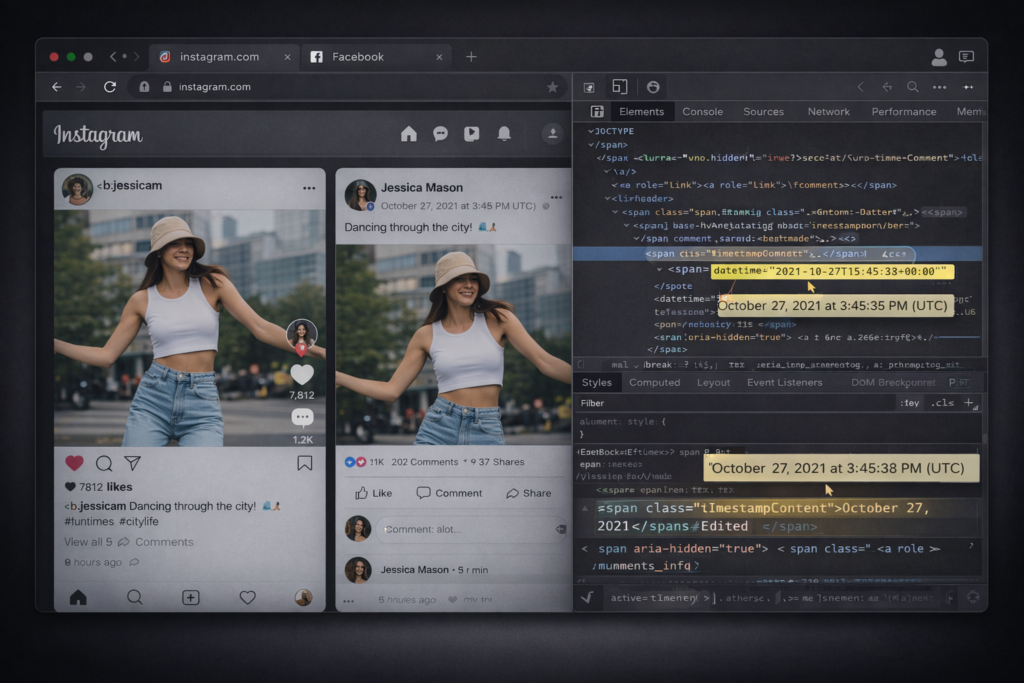
Instagram is one of the most frustrating platforms for timestamp accuracy. The data exists but the app goes out of its way to hide it.
6.1 Instagram Timestamp Limitations
App vs. desktop behavior
On mobile, Instagram shows:
- Relative time (“3 hours ago”) for recent posts
- Date-only labels (“January 12”) for older content
Exact upload times are never displayed in the app.
On desktop, however, Instagram quietly exposes more technical data in the page structure making browsers your best weapon for precision.
6.2 Desktop Inspect Element Method
This is the most reliable Instagram method.
How it works:
- Open the post or Reel on instagram.com (desktop browser)
- Right-click the visible timestamp (e.g., “2 days ago”)
- Select Inspect
- Search within the highlighted code for:
- datetime=
- ISO 8601 strings like 2023-07-18T14:32:09.000Z
- datetime=
That ISO value is the exact upload time, usually in UTC.
Why this works:
Instagram’s front end hides the value, but the HTML still needs it for internal rendering and accessibility.
6.3 Reels-Specific Workarounds
Reels complicate things because Instagram often removes date visibility entirely.
Method 1: Creator’s Posts tab
- Visit the creator’s profile
- Switch to the Posts tab (not the Reels tab)
- Scroll until you find the Reel reposted as a standard post
- View the date from there
Method 2: Profile grid method
- Scan the grid for the Reel thumbnail
- Open surrounding posts to bracket the likely upload date
- Use Inspect Element if the Reel appears as a post
This works because many Reels are cross-posted as regular posts, where more metadata is exposed.
6.4 Mobile-Friendly Tips
When you’re stuck on mobile:
- Copy a unique line of text from the Reel caption
- Visit the creator’s profile
- Use the grid or search to locate the original post
- Open it in a mobile browser (not the app) if possible
It’s slower but still accurate when desktop access isn’t an option.
6.5 Resources
- Reddit Inspect Method: Community-documented Instagram inspection techniques
- OnHOW Tutorial: Step-by-step visual guide for extracting timestamps
7. How to Find the Exact Upload Time on Facebook Videos & Reels
Facebook’s timestamp system is optimized for engagement, not accuracy which means feeds lie by design.
7.1 Why Facebook Uses Relative Time
Feed-based display logic
Facebook prioritizes content freshness and relevance. As a result:
- Videos in feeds show “X minutes/hours/days ago”
- The same post may show different times depending on where you view it
This makes feed timestamps unreliable for verification.
7.2 Tracing Back to the Original Post
The only trustworthy method is finding the original post.
How to do it:
- Copy distinctive text from the video or caption
- Visit the creator’s Profile or Page
- Open the Posts tab
- Scroll or search until you find the original upload
The original post displays the full date and often the exact time, especially on desktop.
7.3 Desktop vs. Mobile Differences
Desktop
- Allows Inspect Element on timestamps
- Page URLs often contain identifiable post IDs
- More metadata visible in source code
Mobile
- Cleaner interface
- Profile timelines often show clearer posting dates
- Feed views remain unreliable
For serious checks, desktop still wins.
7.4 Accuracy Best Practices
To avoid false data:
- Never trust feed timestamps
- Always trace content back to the creator’s timeline
- Cross-check with surrounding posts for consistency
- Assume reposts reset visible dates
This approach mirrors how fact-checkers and social researchers verify Facebook content.
7.5 Resources
- Facebook Reels Date Guide: Step-by-step walkthrough for locating original upload times
8. How to Find the Exact Upload Time on Vimeo
Vimeo sits in a strange middle ground: more transparent than social platforms, less obvious than you’d expect from a pro-focused video host.
8.1 Vimeo’s Date Display Limitations
On most Vimeo pages, you’ll see:
- A date (e.g., March 4, 2024), or
- No visible timestamp at all
What’s usually missing is the exact upload time the hour, minute, and second. That data does exist, but Vimeo assumes most viewers don’t need it and keeps it out of sight.
8.2 Method 1: Page Source Inspection
This is the fastest manual method.
How it works:
- Open the Vimeo video in a desktop browser
- Right-click → View Page Source (or press Ctrl + U)
- Search (Ctrl + F) for:
- datetime=
- upload_date
- datetime=
You’ll often find an ISO-formatted timestamp or structured data field revealing the exact upload time.
Why this works:
Vimeo includes upload timestamps for indexing, embedding, and internal sorting even when they’re not rendered visually.
8.3 Method 2: Vimeo XML API
For maximum precision, use Vimeo’s public API endpoint.
Step-by-step:
- Extract the video ID from the URL
- Example: vimeo.com/123456789 → ID = 123456789
- Example: vimeo.com/123456789 → ID = 123456789
Append the ID to the API endpoint:
https://vimeo.com/api/v2/video/[ID].xml
- Open the URL in your browser
- Locate the <upload_date> tag
The value inside that tag is the exact upload timestamp.
This method bypasses the front end entirely and pulls data straight from Vimeo’s backend.
8.4 When This Method Works Best
- Public videos
- Pro and business accounts
- Older uploads where metadata is fully indexed
Private, restricted, or password-protected videos may not return complete data.
8.5 Resources
- Vimeo Source Method: Community-documented walkthroughs for source and API inspection
9. How to Find the Exact Upload Time on Twitter/X Videos
X (formerly Twitter) is more transparent than most platforms but only if you know where to click.
9.1 Relative Time vs. Expanded View
In feeds, X shows:
- “2h”
- “1d”
- “Mar 12”
These are relative or partial timestamps. They’re fine for casual browsing, useless for verification.
The exact timestamp appears only when the post is fully expanded.
9.2 Viewing Post Interaction Details
How to reveal the exact time:
- Click directly on the post (not the feed preview)
- Look beneath the post text or near interaction details
- You’ll see a full timestamp, including:
- Date
- Time
- Timezone
- Date
This is the most user-friendly timestamp X provides and for many cases, it’s enough.
9.3 Inspecting Unix Timestamps
For deeper verification, X exposes raw timestamps in its HTML.
How it works:
- Right-click the timestamp → Inspect
- Locate a Unix timestamp value
- Convert it using any Unix time converter
Conversion basics:
- Unix time = seconds since January 1, 1970 (UTC)
- Conversion reveals the exact upload moment
This is especially useful when comparing multiple posts across time zones.
9.4 Resources
- X Video Specs: Documentation and community references detailing timestamp behavior
10. General Tips for Accurate Upload Time Verification
Finding an upload time once is easy. Verifying it correctly is where most people go wrong.
Use desktop browsers whenever possible
Desktop browsers unlock the tools that matter:
- Inspect Element
- View Page Source
- Browser extensions
- API-based viewers
Mobile apps intentionally hide technical data. If precision matters, always switch to desktop.
Cross-check with multiple methods
Never rely on a single source for verification. Combine:
- API tools (like YouTube Data Viewer)
- Page source inspection
- Platform-native timestamps
When two independent methods match, your timestamp is reliable.
Platform UI changes and future-proofing
Social platforms redesign interfaces constantly. What doesn’t change as often:
- Video IDs
- APIs
- Structured metadata
That’s why metadata-based methods outlast visual UI tricks.
Privacy reassurance (public metadata only)
All methods in this guide use publicly accessible metadata:
- No logins
- No private data
- No account tracking
If a video is public, its upload timestamp is public too just not always visible.
11. Common Limitations & Edge Cases
Even accurate methods have boundaries. Watch out for these.
Scheduled posts and premieres
- Upload time ≠ publish time
- YouTube premieres reflect public release, not private upload
Edited or re-uploaded videos
- Re-uploads reset timestamps
- Same content does not equal same metadata
Deleted originals
- Once the original post is deleted, its timestamp may be lost permanently
- Reposts only show repost time
Timezone mismatches
- Many platforms store timestamps in UTC
- Always note timezone conversion when comparing uploads
12. Frequently Related Guides (Internal Linking Section)
For deeper, platform-specific breakdowns, link readers to:
- How to find exact upload time for TikTok videos
https://tiktdate.com - How to check upload time on Instagram Reels
https://www.onhow.net/how-to-see-the-exact-time-of-an-instagram-post/ - Step-by-step guide to YouTube Data Viewer
https://ytlarge.com/data-viewer - Limitations of YouTube upload time methods
https://oyolloo.com/youtube-upload-time/ - How to verify Vimeo video upload date via XML
https://developer.vimeo.com/api/reference
13. Conclusion
Exact upload times aren’t hidden because they’re unimportant.
They’re hidden because most users never need them.
But when accuracy matters, the data is there and accessible.
Best methods by platform
- YouTube: API-based tools like YouTube Data Viewer
- TikTok: Video ID decoding via date finder tools
- Instagram: Desktop Inspect Element + profile tracing
- Facebook: Original post verification on creator timelines
- Vimeo: XML API or page source inspection
- Twitter/X: Expanded post timestamps or Unix conversion
Recommended tools
- Beginners:
- YouTube Data Viewer
- TikTok Date Finder
- Advanced users:
- Inspect Element
- APIs
- Page source analysis
Final reminder:
Never trust a relative timestamp when precision matters.
Verify, cross-check, and document because online, timing is evidence.
Frequently Asked Questions (FAQ)
1. Can you see the exact upload time of any video?
Yes—if the video is public. Most platforms store the exact upload time in public metadata, even if they don’t display it clearly. Using tools like APIs, page source inspection, or video ID decoding, you can often retrieve the precise hour, minute, and second.
2. Why do platforms only show “X hours ago” instead of the exact time?
Platforms prioritize simplicity and engagement over technical transparency. Relative timestamps are easier for casual users, but the exact time is still stored behind the scenes in metadata for indexing, moderation, and internal systems.
3. Are these methods legal and safe to use?
Yes. All methods covered in this guide rely on publicly accessible metadata. No private data, no logins, no hacking. If a video is publicly viewable, its upload timestamp is also public—even if it’s hidden from the interface.
4. Do upload times change if a video is edited or re-uploaded?
Edits (title, description, thumbnail) do not change the upload time.
However, re-uploading a video creates a new post with a new timestamp, even if the content is identical.
5. Why does the upload time look different depending on my location?
Many platforms store timestamps in UTC and convert them to your local timezone when displayed. Third-party tools may show both values. Always note the timezone when comparing upload times across regions