-
- No Comments
- December 22, 2025

How to fix error code 403 Roblox
1. Introduction
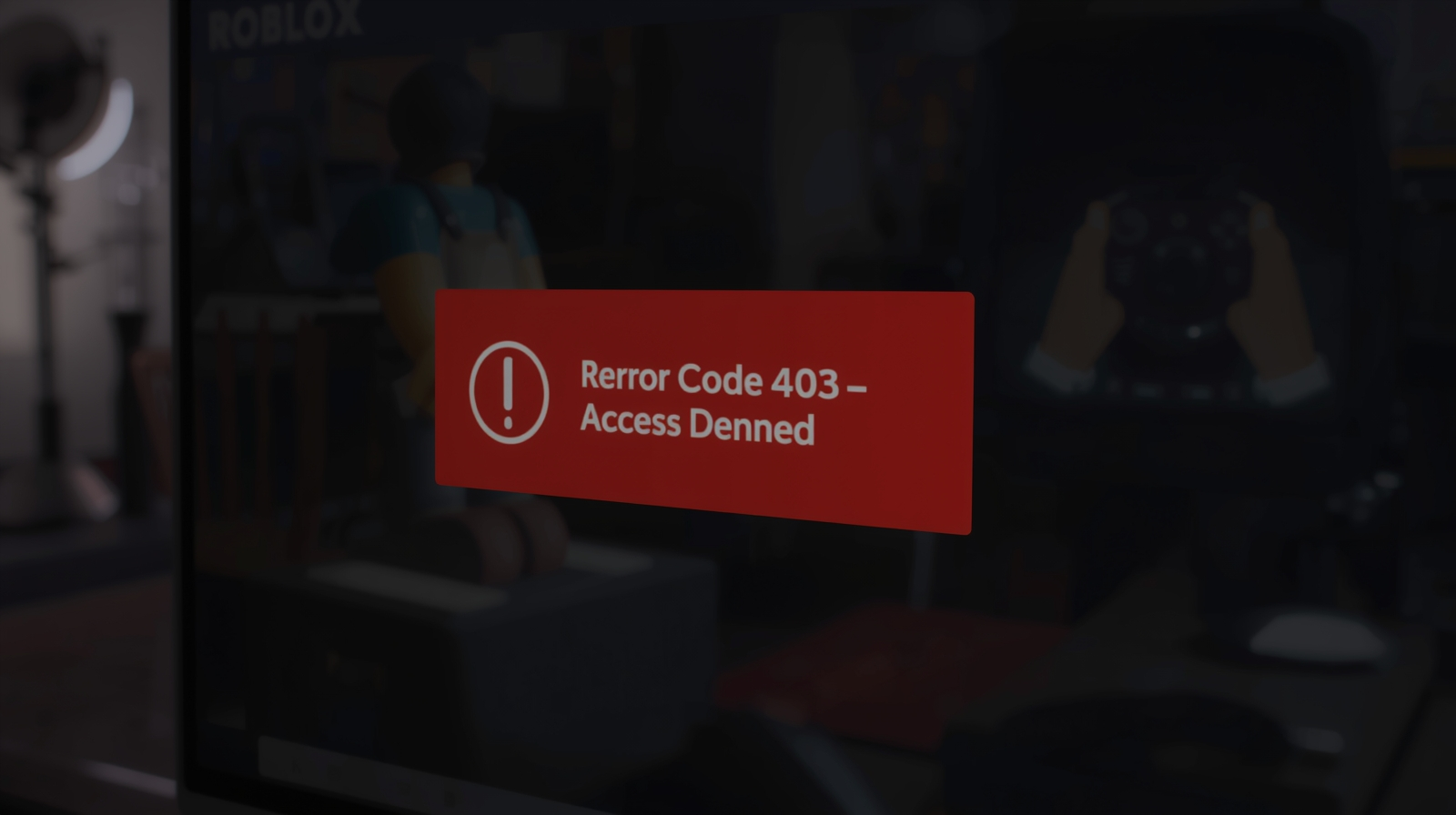
Roblox Error Code 403 is one of those frustrating roadblocks that stops you before the game even begins. Instead of loading your account, Roblox throws an access error and refuses to let you log in or join experiences.
Most users see a message similar to:
“An error was encountered during authentication. Please try again.”
Behind the scenes, this means Roblox failed to verify your connection or permissions.
This error blocks login or access because Roblox believes your request isn’t authorized. That can happen for several reasons server-side problems, network interference, corrupted files, or security tools mistakenly blocking Roblox.
In this guide, you’ll learn what Error Code 403 actually means, why it happens, and the most effective fixes to get back into Roblox as quickly as possible.
2. What Is Roblox Error Code 403?

Roblox Error Code 403 is an authentication failure. Simply put, Roblox servers reject your connection because something about the request doesn’t pass their security checks.
This error usually appears:
- When trying to log into your Roblox account
- While launching Roblox on PC or Mac
- During the initial connection phase before any game loads
Roblox denies access as a protective measure. The platform is designed to block connections that look suspicious or incomplete such as those coming through VPNs, restricted networks, corrupted local data, or temporarily unstable servers.
In most cases, your account isn’t banned or broken. The issue is typically tied to network settings, cached files, or Roblox’s own servers and that’s exactly what the next sections will help you fix.
3. Common Causes of Roblox Error Code 403
Roblox Error Code 403 doesn’t happen randomly. It’s triggered when something interrupts the authentication process between your device and Roblox’s servers. Below are the most common causes behind this error.
Server-Side Issues
Sometimes the problem isn’t on your end at all. Roblox servers can experience outages, partial downtime, or maintenance that temporarily blocks authentication requests. When this happens, no local fix will work until Roblox resolves the issue.
VPN Interference
VPNs frequently cause Error Code 403. Because VPNs mask your real IP address, Roblox may flag the connection as suspicious or unauthorized. Even trusted VPNs can trigger permission errors during login or game launch.
Antivirus or Firewall Blocking Roblox
Security software is designed to block unknown or unusual connections. In some cases, antivirus programs or firewalls mistakenly identify Roblox as a threat and block its access to the internet, leading to authentication failure.
Corrupted Roblox Cache Files
Over time, Roblox stores temporary files on your system. If these files become corrupted or outdated, they can interfere with login verification and cause Error Code 403 to appear repeatedly.
Network or DNS-Related Problems
Unstable networks, misconfigured adapters, or DNS issues can prevent Roblox from properly communicating with its servers. When authentication requests fail to reach Roblox—or return incomplete—access is denied.
4. Check If Roblox Servers Are Down
Before changing any settings on your device, it’s critical to rule out server-related problems.
Why This Step Matters
If Roblox servers are down or under maintenance, troubleshooting your computer, network, or account won’t fix the error. Checking server status first saves time and prevents unnecessary changes to your system.
How to Use the Official Roblox Status Page
Roblox provides a live status dashboard that shows the health of its services, including:
- Authentication systems
- Game servers
- Website and account services
If authentication or login services are marked as degraded or offline, the error is server-side.
What to Do If Servers Are Under Maintenance
If an outage or maintenance window is confirmed, the only solution is to wait. Roblox typically resolves these issues quickly, and access is restored automatically once services are back online. Restarting Roblox after maintenance ends is usually enough to fix the error.
5. Disable VPN and Antivirus Temporarily
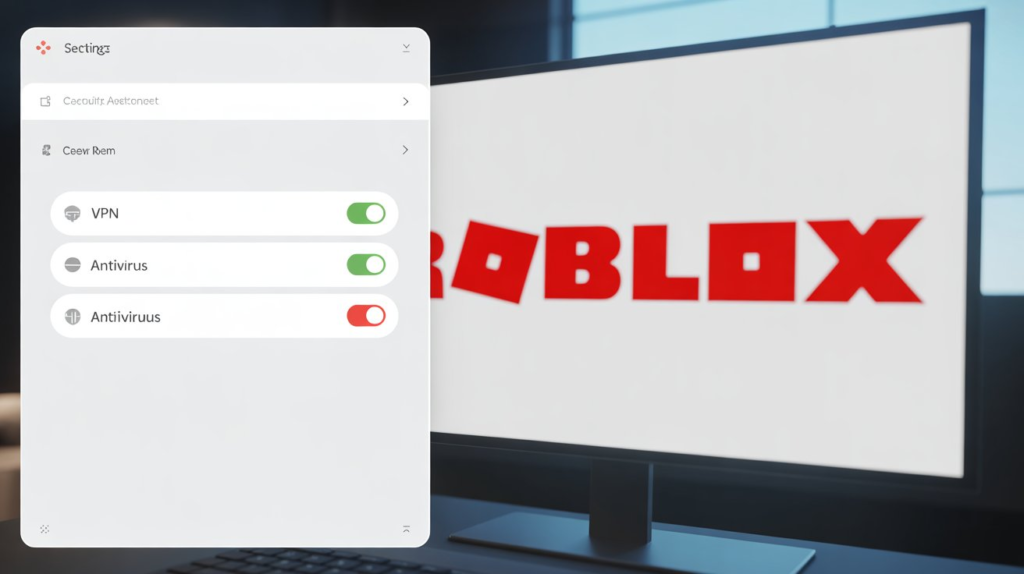
If Roblox servers are running normally, the next thing to check is your security and network setup. VPNs and antivirus software are two of the most common triggers behind Error Code 403.
Why VPNs Cause Permission Errors
VPNs reroute your internet traffic through different servers and IP addresses. While this improves privacy, it can confuse Roblox’s security systems. When Roblox detects a masked or frequently changing IP, it may treat the connection as unauthorized and block authentication, resulting in Error Code 403.
How Antivirus Software Can Block Roblox Authentication
Antivirus programs and firewalls monitor incoming and outgoing connections. In some cases, they incorrectly flag Roblox’s login or launcher processes as suspicious and prevent them from connecting to Roblox servers. This silent blocking causes authentication to fail even though your internet is working fine.
Safety Note
Only disable VPNs or antivirus protection temporarily for testing purposes. Once you’ve checked whether Roblox loads correctly, always re-enable your security software to keep your system protected.
6. Clear Roblox Cache (Fix Corrupted Files)
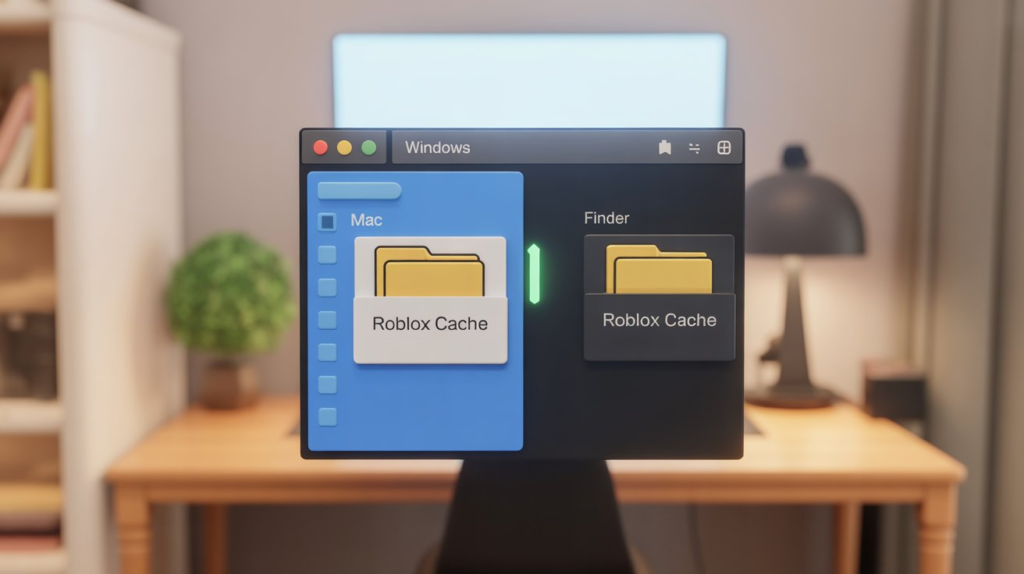
If disabling VPNs and antivirus software doesn’t work, corrupted cache files are often the culprit.
Why Cache Corruption Triggers Error 403
Roblox stores temporary data on your device to speed up loading and authentication. When these files become damaged or outdated, Roblox may send incomplete or invalid authentication data to its servers, causing Error Code 403 to appear.
Cache Clearing Overview
Clearing the cache forces Roblox to rebuild fresh files the next time it launches. This removes corrupted data without affecting your account, progress, or purchases.
Platform-Specific Cache Clearing
On Windows:
Roblox cache files are stored in the local app data folder. Deleting this folder removes all temporary files that may be interfering with authentication.
On Mac:
Roblox cache data is stored inside the system Library’s Caches directory. Removing the Roblox folder clears corrupted files and allows a clean restart.
After clearing the cache on either platform, relaunch Roblox and try logging in again. In many cases, this step alone resolves Error Code 403.
7. Reinstall Roblox Completely
If Error Code 403 keeps appearing after clearing the cache and disabling security tools, a full reinstall is often the most reliable fix.
When Reinstalling Becomes Necessary
Reinstalling Roblox is recommended when core files are corrupted, missing, or outdated. Partial updates, interrupted installs, or leftover data from previous versions can all interfere with authentication and prevent Roblox from connecting properly.
Removing Existing Roblox Files
Start by uninstalling Roblox through your system’s app settings. This removes the main application, but leftover temporary files can still cause issues. Clearing temporary system files before reinstalling helps ensure no corrupted data remains.
Installing a Fresh Version
Always download Roblox directly from the official Roblox website. A clean install replaces damaged files with updated ones and resets the authentication process, which often resolves persistent Error Code 403 issues immediately.
8. Additional Network Fixes You Can Try
When the error is tied to deeper network problems, these advanced steps can help restore proper communication between your device and Roblox servers.
Run the Network Troubleshooter
Built-in network troubleshooters can automatically detect and fix adapter issues, misconfigurations, or connectivity problems that may be blocking Roblox authentication.
Flush the DNS Cache
DNS records can become outdated or corrupted, causing failed server lookups. Flushing the DNS cache forces your system to request fresh connection data, which can instantly fix authentication-related errors.
Allow Roblox Through Windows Firewall
If Roblox isn’t whitelisted, the firewall may silently block its connection. Adding Roblox as an allowed app for both private and public networks ensures uninterrupted access to Roblox servers.
Why These Fixes Work
All of these steps target communication failures between your device and Roblox’s authentication servers. By restoring clean network paths and permissions, they remove the barriers that trigger Error Code 403.
9. If Error Code 403 Still Persists
If you’ve tried all the fixes and Roblox still won’t let you in, the issue may no longer be tied to your device or network.
When the Issue May Be Account or Region-Related
In rare cases, Error Code 403 can be linked to account-level restrictions or regional access blocks, where Roblox servers deny access due to flagged activity or location-based issues. For example, bans or restrictions imposed by Roblox or network providers can trigger persistent 403 errors. Roblox Support
Why Waiting or Retrying Later Can Work
Roblox sometimes applies temporary access limitations as a security measure. Waiting several hours or trying again the next day can allow these blocks to clear naturally, especially if Roblox servers reset sessions or patches are deployed.Developer Forum | Roblox
Signs the Problem Is Beyond Local Fixes
You may be facing a server-side or account issue if:
- You can log in on other devices or networks, but not your usual setup
- The error persists despite reinstalling and all standard troubleshooting
- Server status tools show ongoing degraded authentication
In such cases, the problem often needs official support help or resolution on Roblox’s end.
10. Helpful Resources and Guides
If you want more help beyond this step-by-step guide, here are trustworthy external resources:
🔗 Official Roblox Server Status Page
Check Roblox’s real-time server health and outage reports here:
👉 https://status.roblox.com — the best way to confirm if the issue is caused by server outages or degraded authentication systems.
📄 External Troubleshooting Articles
These detailed guides break down Error Code 403 causes and solutions:
👉 YoungWonks — How to fix error code 403 Roblox: https://www.youngwonks.com/blog/how-to-fix-error-code-403-roblox YoungWonks
👉 Roblox Support Hub — Error Code 403 Access Denied: https://en.help.roblox.com/hc/en-us/articles/36798133077524-Error-Code-403-Access-to-www-roblox-com-has-been-denied-You-are-not-authorized-to-view-this-page Roblox Support
📺 YouTube Video Guides for Visual Learners
If you prefer seeing the fixes in action:
👉 How to Fix Roblox Error Code 403 (step-by-step): https://www.youtube.com/watch?v=ZgCghenEOkQ YouTube
👉 Alternative 403 Fix Walkthrough: https://www.youtube.com/watch?v=WPfsD4cXRAk YouTube
11. Related Troubleshooting Guides (Internal Linking Section)
If you want deeper, step-by-step help, the following guides expand on the fixes covered above and walk you through each solution in more detail:
- Common Causes of Roblox Error Code 403 on Windows
A detailed breakdown of Windows-specific triggers, including system permissions, security software conflicts, and network settings. - Step-by-Step Guide to Clear Roblox Cache on PC
A complete walkthrough showing exactly where Roblox cache files are stored and how to remove them safely. - How to Check If Roblox Servers Are Down Right Now
Learn how to confirm outages, maintenance windows, and service disruptions using official tools. - How to Disable VPN and Test Roblox Connectivity
A focused guide on turning off VPNs correctly and verifying whether they are causing authentication errors. - How to Configure Firewall to Allow Roblox on Windows 11
Instructions for whitelisting Roblox in Windows Firewall to prevent blocked connections and login failures.
These internal guides help you troubleshoot faster by targeting one specific cause at a time.
12. Conclusion
Roblox Error Code 403 can look serious, but in most cases, it’s fixable without advanced technical knowledge. The error usually comes down to authentication problems caused by servers, network settings, or corrupted local files.
Quick Recap of the Most Effective Fixes
- Check Roblox server status first
- Disable VPNs and temporarily turn off antivirus software
- Clear Roblox cache files (guide here)
- Reinstall Roblox if the issue persists (download fresh version)
- Apply network fixes like DNS flush and firewall permissions (firewall guide)
Recommended Order of Troubleshooting
Always start with server checks, then move to VPN and security software, followed by cache clearing, and finally network and reinstall fixes. This order saves time and avoids unnecessary changes.
Final Reassurance
Seeing Error Code 403 doesn’t mean your account is broken or permanently blocked. In most situations, patience and the right troubleshooting steps are all it takes to get back into Roblox and playing again.
FAQ – Roblox Error Code 403
1. What does Roblox Error Code 403 mean?
Error Code 403 indicates an authentication failure. Roblox is unable to verify your login or connection, often due to server issues, VPN interference, antivirus blocks, or corrupted local files.
2. Can I fix Error Code 403 without reinstalling Roblox?
Yes! Many users resolve the error by checking server status, disabling VPNs or antivirus temporarily, clearing Roblox cache, or applying network fixes like flushing DNS or adjusting firewall permissions.
3. Why does my VPN cause Roblox Error 403?
VPNs mask your real IP address, which can make Roblox see your connection as suspicious or unauthorized. Temporarily disabling the VPN often resolves the authentication error.
4. How do I know if the problem is on Roblox’s side?
Check the official Roblox server status page. If authentication or login services are down or degraded, the error is server-related and will usually resolve once Roblox fixes it.
5. What should I do if none of the fixes work?
If the error persists after all troubleshooting, it could be account- or region-related. Try logging in from a different network or device, wait a few hours, or contact Roblox Support for assistance.